
Search  for anything...

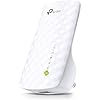
TP-Link AC750 WiFi Range Extender | Up to 750Mbps | Dual Band WiFi Extender, Repeater, WiFi Signal Booster, Access Point| Easy Set-Up | Extends WiFi to Smart Home & Alexa Devices (RE200)

  • Based on 21,472 reviews
Condition: Used - Very Good
Checking for the best price...
$31.49 Why this price?
Save $208.50 was $239.99

Buy Now, Pay Later


As low as $7 / mo
  • – 4-month term
  • – No impact on credit to apply
  • – Instant approval decision
  • – Secure and straightforward checkout

Ready to go? Add this product to your cart and select a plan during checkout.

Payment plans are offered through our trusted finance partners Klarna, Affirm, Afterpay, Zip, Apple Pay, and Google Pay. No-credit-needed leasing options through Acima may also be available at checkout.

Learn more about financing & leasing here.

Selected Option

Free shipping on this product

This item is eligible for return within 30 days of receipt

To qualify for a full refund, items must be returned in their original, unused condition. If an item is returned in a used, damaged, or materially different state, you may be granted a partial refund.

To initiate a return, please visit our Returns Center.

View our full returns policy here.


Availability: Only 1 left in stock, order soon!
Fulfilled by NetBetShop

Arrives Oct 28 – Nov 1
Order within 9 hours and 23 minutes
Available payment plans shown during checkout

Protection Plan Protect Your Purchase
Checking for protection plans...

Model: WiFi Extender- Dual Band


Features

  • Ideal for extending Wi-Fi to Echo/Alexa devices, WeMo & TP-Link smart plugs, TP-Link smart bulbs, The iPhone 7, Samsung Galaxy S7, iPad 4, PlayStation 4 and more
  • Works with any standard router or gateway, High speed mode allows for the most ideal HD streaming & gaming experience. Dual band speeds up to 750Mbps
  • Smart Signal Indicator can help to find the best location for optimal Wi-Fi coverage, Compatible with 802.11 b/g/n and 802.11AC Wi-Fi devices
  • Easy setup and flexible placement allows movement of the range extender to any outlet after initial setup. System requirements: Microsoft Windows 98SE, NT, 2000, XP, Vista or Windows 7, 8, 10, Mac OS, NetWare, UNIX or Linux.
  • Industry-leading 2-year and unlimited free 24/7 technical support. Please refer the user guide before use. Transmit power: < 20 dB

Description

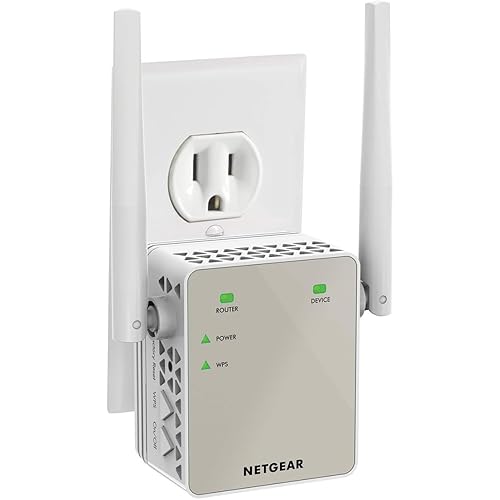
RE200 expands your existing Wi-Fi coverage with next generation 11AC Wi-Fi technology. It works with any standard Wi-Fi router and creates stronger dual Band connections in hard-to-reach areas, allowing you to enjoy seamless wireless coverage throughout your home or office. Comparable to NETGEAR AC750 Wi-Fi range extender (EX3700-100NAS)Maximum wireless transmission rates are the physical rates derived from IEEE standard 802. 11 Specifications. Range and coverage specifications along with the number of connected devices were defined according to test results under normal usage conditions. Actual wireless transmission rate, wireless coverage, and number of connected devices are not, and will vary as a result of 1) environmental factors, including building materials, physical objects and obstacles, 2) network conditions, including local interference, volume and density of traffic, product location, network complexity, and network overhead and 3) client limitations, including rated performance, location, connection quality, and client condition.

Brand: TP-Link


Wireless Communication Standard: 802.11a/b/g/n/ac


Data Transfer Rate: 750 megabits_per_second


Frequency Band Class: Dual-Band


Special Feature: Dual Band


Wireless Compability: 802.11a/b/g/n/ac


Data Transfer Rate: 750 megabits_per_second


Frequency Band Class: Dual-Band


Special Features: Dual Band


Frequency: 2.4 GHz


Compatible Devices: Smartphone


Frequency Bands Supported: Dual-Band


Range: 1, feet


Connector Type: RJ45


Item Weight: 91 g


Item Dimensions D x W x H: 2.16"D x 2.59"W x 4.33"H


Color: WiFi Extender - Ac750


Brand: TP-Link


Built-In Media: Owner's Manual, Resource Cd, Rj-45 Ethernet Cable, Wireless Ac750 Wall Plug Universal Wi-Fi Range Extender


Manufacturer: TP-LINK USA


Number of Items: 1


Unit Count: 1 Count


UPC: 845973071875


Global Trade Identification Number: 75


Model Number: RE200


Mfr Part Number: RE200


Warranty Description: 2 year Manufacturer


Frequently asked questions

If you place your order now, the estimated arrival date for this product is: Oct 28 – Nov 1

Yes, absolutely! You may return this product for a full refund within 30 days of receiving it.

To initiate a return, please visit our Returns Center.

View our full returns policy here.

  • Klarna Financing
  • Affirm Pay in 4
  • Affirm Financing
  • Afterpay Financing
  • Zip Pay in 4
  • Financing through Apple Pay
  • Financing through Google Pay
Leasing options through Acima may also be available during checkout.

Learn more about financing & leasing here.

Top Amazon Reviews


  • "Quick Setup" problems overcome, this is a great product. BEWARE 'VINE PRODUCT FREE REVIEWS'
Style: WiFi Extender- Dual Band
Pro: Does what it says it does. My cable router/modem is upstairs; my downstairs Roku could rarely get a good enough signal from it to be useful. I've positioned the RE200 Extender in probably an even worse spot (near the Roku but on the floor so I can plug the Roku into the RE200 via ethernet cable) and it handles the signal from the upstairs router extremely well. The RE200 also now behaves as a wifi hotspot (which is the main point of the product), allowing our cellphones and other gear to connect downstairs much better than they have ever done. HOWEVER, and this leads to my Con: The initial setup was difficult. The push-button WPS method did not work for me, so I had to set it up via the browser-based utility. Nothing cosmic about that--when it works. It took several tries before I succeeded. Things to remember: 1. During Setup, it's important to re-name the network (in other words, don't accept the 'Copy from Main Router/AP' choice). Otherwise, it's far more difficult to troubleshoot where a connection problem lies. I suppose after you get everything figured out and have it working, you can go back and copy your router's name, but I'm going to keep them separate for troubleshooting purposes down the road. 2. If, during 'Quick Setup,' at the final step (rebooting), you don't get a message that says "Completed!", **it did not complete!** You will have what looks like a new wifi network, but nothing will be able to connect to it. If you did not get your "Completed!" message, you can manually reboot the RE200 by going to 'System Tools' --> 'Reboot', then press Reboot. You should get your "Completed!" confirmation after that. 3. If you're having problems during setup with even getting a simple connection to the RE200 browser page (http://tplinkextender.net/), try setting it up using the ethernet cable as a connection first. Also, if you somehow balled up the 'Quick Setup' and need to do everything again, use the ethernet cable. After you eventually get that sweet "Completed!" message, you can put the Extender wherever you really want it. 4. The RE200 comes in 2 flavors as of now (April '15): RE200(US) and RE200(EU). The US version has no firmware updates. The EU version is on its 2nd update. I have no idea how well or not well getting the update for the other region's RE200 would work, but given how much of a point Tplink makes that mismatching firmware and hardware can damage the unit, I wouldn't try it. I was tempted to try the EU firmware, but in the end I got my unit to work just by rebooting from the System Tools menu. 5. This replaced a HooToo brand repeater (the Nano) I was using that died after 2 weeks. I'll revisit this review if something goes wrong, but so far so good. And it seems about a 1000 times more solid than the HooToo. 6. Finally, I have to reiterate how well this thing works, when you finally get it to work. No deadspots anywhere in the house anymore, and our Roku's now streaming its little heart out the way it's supposed to. If this thing is still working fine in a month, I'll come back and give it that 5th star. EDIT:months later, this thing is still going strong. 5 stars! Last point: the 'Vine Recommendations' are from people who got the product early and for free. After the product has been out for awhile, you should *completely disregard* these early reviews. A review of a free product will almost always be more lenient than from someone who actually shelled money out for the thing. ... show more
Reviewed in the United States on April 24, 2015 by TqV

  • Does A Remarkably Difficult Job
Style: WiFi Extender- Dual Band
Was a hassle the first attempt at the summit, so to speak. The second attempt was even worse; I was on the phone with tech support--a native English-speaking dude, which can be better than the alternative--for 45 mins (as he ultimately pointed out.) I had to move from my best i5 machine thru two more older and more problematic machines in search of a simple connection with the configuration software. We never really succeeded, but he gracefully brushed me off on another try another day (now that I understood it, but given the similarity to my TP-Link C7 installation a couple weeks earlier, I was well aware of what to look for and what to do.) It was frustrating and I figured I'd give it another try the next day. Maybe I just entered the passwords wrong and, clueless to it, was now entering a different password! No way to know. Just as my tech did not know why I had to try doing it on three different computers just to connect with the software (a simple version, btw, of my C7 router interface that I knew quite well.) I decided to reset the SOB the next day and start over. No problems at all from there. The process flowed perfectly (why it hadn't on my first attempt or the second with a customer tech who freaking knows) and I have some serious wireless extension. Success, oh sweet success! My advice: If this thing doesn't work for you on the first run, reset it. There's a button labeled "Reset" on the bottom. Once the router-mating and configuration process rolls as it should with the easy software provided, it's beautiful. I bought this because I moved into an apartment in a very bandwidth-crowded environment. I couldn't get reliable bandwidth in my living room, only 20 feet from my very decent C7 router. I had viewed the situation on a free WLAN scanning program that I downloaded (a few google jumps will get you a wide assortment) and it was ugly to see my routers competing in such a crowded space. People were even crowding me just to connect with their dam printers! It was insufferable. I was surrendering to a 30 foot hdmi cord uncoiled from the office every time I got serious about watching a movie on my very high resolution 55 inch monitor. I didn't like it. And neither did The Girlfriend. I gotta admit, it really messed with the decor. A decor that included a series of three wet-plastered walls of the old school type. Very hard, very solid, very hard barriers to wireless signals. My neighbor above who had a decent router going apparently just above my living room was routing me--as in trouncing me--on bandwidth where I LIVE. There were plenty of others, though. Competition for a channel was sickening to watch on the scanner. This repeater has completely transformed my living room bandwidth problem. I am once again Master of My Domain. The LED lights for 2.4GHz and 5 are very nice--I could work without them, but these make things easier. The aforementioned reset switch is nice. Likewise for the ethernet port, which is now just a short jump from my tv. I haven't had the opportunity to test the AC signal (waiting for a USB adapter that works, a real ordeal), but having moved my i5 machine into the living room for the weekend, I can testify enthusiastically to the strength of the 5G n band signal. It rocks. I'm downloading at 65 MB with--very importantly--only 1 ms of added lag. My router produces 22 ms and my living room n band signal on 5G gives me 23 ms lag. I'm happy, very happy. Maybe the coolest thing of all, though, is that you can unplug it and it will save its settings. Indefinitely. Unlike my idiot neighbors, I can just not use that bandwidth when I don't need it. Like when I'm at work, asleep, or . . . well, all but a couple of hours a day when I'm lucky. Whether they know it or not, I'm being a good bandwidth neighbor to them. So I feel smugly virtuous, too. How much more could be asked of a dang repeater? It really does the job. ... show more
Reviewed in the United States on May 30, 2016 by Robert B.

  • Perfect pair to my TP-Link AC1200 router
Style: WiFi Extender- Dual Band
We were provided a router as part of our internet service, but I have gone through 2 so far and concluded that they are junk. I then bought the TP-Link AC1200 Router (Archer C50) and the setup and signal was great. My only issue was getting full speed streaming on my ROKU in the upstairs bonus room (weird b/c my laptop had a great connection, but I digress). My options were to buy a more expensive router or get an extender. Buying a higher model may have fixed it, but it may not have too. The extender was cheaper and was a guaranteed solution (provided it worked as described). I tried setting it up using a browser, but after I connected the 2.4 GHz channel, I could not reconnect to get the 5 GHz one set up. I decide to back up and do it the easy way, which was to tap the WPS buttons and let it handle the work itself. That worked flawlessly and it was up and going in a matter of minutes. Now I have full bars in the upstairs bonus and Roku is happy as a clam. An added bonus is that you can connect a device that requires an ethernet connection directly to this. I never thought I would use this until my IP security camera required a new setup because I switched routers. Setting up via WiFi was not working, but I plugged it in to this and was able to set it up again quickly. This was a great feature for me b/c I didn't have to take them down from their mounts and could set them up again, in place. All I needed was and extension cord for this extender to reach my camera. I'm happy all around with this and would recommend this. I would also go as far to say I'd recommend the combo I have over a more expensive router. I would bet this has better range than any single router can provide. ... show more
Reviewed in the United States on January 17, 2017 by Chilehead Craig

  • Bad Eperience
Style: WiFi Extender- Dual Band
This device seemed like it was very high quality. It was packaged very similar to a new iPhone so I was looking forward to getting it connected to my network. There are two methods for connecting the unit. One method entails connecting it through the router WPS and the other involves connecting it through the computer via the internet. I tried both methods and neither worked. I re-read the instructions over thinking I did something wrong or out of sequence. I reset the unit and tried again with the same failed result. Time to call.tech support. I connected with a technician in a matter of minutes which was a good sign. After that, it was downhill. While the technician did her best to help, it was very difficult to understand her. First she directed me through the process I had already gone through multiple times. Ok, I can understand that. Next it was searching for and trying to enter ip addresses from my computer along with some other addresses. No luck! Then I was asked to use my iPad which was in no way connected to the installation. No luck with that. While the device was clearly connecting to my router, it wasn't connecting to internet. A srever was not cooperating. Whose server, I have no idea. BTW, I used 3 different browsers in the process. After 45 minutes, the tech told me to wait 15 minutes and try again and call back if I was still unsuccessful. I waited 30 minutes, tried 2 more times without success. I called back. This time I connected with an English speaking woman that I could understand. I was hopeful at this point and I explained the reason for my call. She transferred me to tech support....same tech answered the phone. Once again the tech ran me through the same exercise. No luck! She then asked me if I could get another computer. By this time I had had it. 2 hours of wasted time not including repackaging for return. The tech did her best. Her strong dialect however made things all that much more challenging. This is not about her personally but about a company who leaves a great deal to be desired when it comes to customer service. I would not recommend this product to anyone. ... show more
Reviewed in the United States on May 10, 2016 by WiscBill

  • Test this for yourself with a Wi-Fi app on your smart phone that shows the MAC address of the device ...
Style: WiFi Extender- Dual Band
First, this is a Wi-Fi EXTENDER not a REPEATER. There is a difference. An extender receives the signal from your router, and creates a 2nd network to be distributed within its own range; that's what this TP-Link device does. A repeater will broadcast your existing network without needing to create a 2nd. YES you can give the TP-Links network the same name as your primary - but that doesn't magically turn this into a repeater...you still have to connect to the 2nd (TP-Link) network to use it. Some devices will automatically switch to the new "stronger" signal when in range...some will not. Test this for yourself with a Wi-Fi app on your smart phone that shows the MAC address of the device you are connected to. You may be surprised to see that you have to manually connect to the TP-Link's network even though it has the same name as your primary network. My personal experience with setting this device up was less than stellar. For reference, my router is an ASUS RT-N66U. My primary network is configured with a hidden SSID, MAC address whitelisting, static IP assignments for all LAN (wired and wireless) devices, and WPA2 security. My primary Wi-Fi network broadcasts both 2.4 and 5ghz signals, this is the hidden SSID with MAC Address whitelisting and static IP assignments. However, I also broadcast a guest network, both 2.4 and 5ghz signals that is NOT hidden, and does NOT have MAC address whitelisting or static IP assignments. This guest network also does not have access to my LAN or local resources – it only gets outside internet rights. Now before some of you pretend to be “IT experts” to tell me how you know that hidden SSID's and MAC address whitelisting doesn't stop "hackers" (which is not even relevant to this review) - save your breath and keystrokes - I'm not going to entertain that conversation at this time. I have been doing this for 15 years. And while I know MAC addresses can be spoofed and hidden SSID's can be found, it's the sum of the parts that count - not the parts individually. This device hates MAC address whitelists. From what I can tell, it has 2 or 3 MAC addresses itself: 2.4ghz, 5ghz, LAN. Yet only a single MAC address is given on the back of the device. I was able to find the other MAC addresses for the device by disabling my whitelist and allowing the device to connect to my router on both signals then simply checking my DHCP list. I added the devices MAC addresses to my whitelist, re-enabled the whitelist, and it immediately stopped broadcasting. Bummer. This device hates static IP assignments. This is due to the fact it uses multiple MAC addresses, if you want to use static IP assignments you have to add each MAC address and give them an IP. Not only that, but if you DON’T use a static IP assignment on the device, there is a chance that your router may give it a new local IP every time you move the device or reboot it. This can make it frustrating to try and get back to the device setup page if one minute you were connected to it with one IP but you moved the device now it has a new IP from your router so now you have to look in your routers DHCP list to find which IP was assigned. /yawn On top of all of this, after an hour or so mucking about with the manual setup I figured I’d try the WPS setup. To do this you have to unhide your primary SSID, fine… WPS worked! The extender is broadcasting on both channels! BUT… IT COMPLETELY WIPED OUT MY ROUTER SETTINGS – literally. It wiped my entire DHCP list, routing list, MAC address list, network configuration options, advanced options, network names, guest network configurations – EVERYTHING. It literally renamed my primary network (to some default name like “ASUS_99039230”), changed the Wi-Fi password, changed all of the settings, turned off QoS, turned off MAC address whitelisting…LOL. Luckily, I back up my router configuration every month, not a big deal to get it back to how I had it. All that being said, the only way I can get this to work (with my set of particular “requirements”) for the time being was to disable my MAC address whitelisting. I also tested with allowing it to clone my primary network to see if the change-over from router connection to TP-Link connection would be seamless and automatic. It wasn’t. So for now I simply gave the TP-Link network its own unique name, and when I’m out of range of my router, I’ll just connect manually to the TP-Link – which to be fair, gives excellent signal strength and speed in the 2nd floor where I installed it. Long story short, this is an excellent option for most people that simply use their router “out of the box” and employ very little to no network configuration beyond the default settings (aside from obviously assigning a new login and password for the router and Wi-Fi password). But if you’re a network geek like me and have done a ton of customization on your network and router, this device might give you some problems in your setup…and possibly wipe out your router configuration – at least if you’re using an RT-N66U and try the WPS setup… ... show more
Reviewed in the United States on February 5, 2015 by BpK

  • This solved my buffering and page-load problem COMPLETELY.
Style: WiFi Extender- Dual Band
Rather large apartment. Wi-Fi set-up was way on the other side of the apartment and far from my room. Connectivity was fine, but in my room, I had bandwidth issues that made streaming Prime, YouTube, Netflix either impossible or fraught with major frustrations. Also, clicking links and waiting for the page to load was sometimes a problem. I had considered buying an EERO package ($499.00!), thinking I needed a mesh set-up. Something in a review for EERO (not important here) steered me away. Desperate, I researched more and discovered boosters/extenders. If you read the descriptions of mesh packages, they make you think you need something as elaborate as mesh for anything other than a small apartment. But, I found a good non-Amazon review of this extender that cleared up that, no, likely you can place this extender halfway between the router and the dead spot(s) and be fine. It turned about to be true. I spent WAY LESS MONEY, and, as soon as I plugged in the extender (which took about five to seven minutes, max, for my son to set up; password, etc. very easy to figure out) and connected to it, my system was flying. I brought my laptop to my dead-spot room, and everything streamed great. Still does. Netflix thumbnails load FAST. Video streams easy. Prime Video thumbnails tend to load more easily, anyway, but now it's a given they will, and I have ZERO buffering problems. YouTube is now a no-problem experience. Social media loads quickly and videos stream easily. I DON'T GAME; no feedback there. Basically, the one zone in my (large-ish) apartment that was sometimes easy/sometimes DEAD regarding page-loads and streaming became a place in the house that might as well have the Wi-Fi router in it. Final note: I have it plugged into the wall behind a shelf full of LPs (vinyl records). You can't see it, and, still, it's not "blocked" in terms of functionality. And, once you connect to it and choose "connect automatically", as you would with your regular router, you never have to "choose" it again. It basically has the same name as your Wi-Fi router, with an extension on the name of _5G. So, "TP_LINK_WHATEVER_5G". One person in our house uses the original router. I use the _5G extender. In other words, I don't have to switch back and forth or "choose it every time". This is the router I use. And I use it for my cell phone, too. I'm _5G in this house. In sum: This completely solved my problem. Completely. For way cheaper. 5 stars. ... show more
Reviewed in the United States on September 22, 2018 by Regular Online Shopper

  • This really is right way to proceed.
Style: WiFi Extender- Dual Band
In my thirty years of working in the networking field I rarely have found that users check to make sure they are getting the network speeds they are paying for. I urg you to do this before purchasing or installing an extender. The only way to do this, is to go through the task of unplugging your router from the modem and hardwiring a computer to the modem’s port and run speed tests to a speed test site. Once you are satisfied with the speeds then plug the router back in, hard wire a computer to one of the router’s ports and rerun the tests. You should see no negligible signal loss. If you see a drop of more than 5Mbps your router may be malfunctioning. If it is a 4 port router, move the cable to another port and try the speed tests again. I read here that too many people are not seeing improvement from the extender because input garbage output garbage. If you do not have ports on your router checking the signal using wireless can be misleading. In a perfect world a wireless device about 10 feet, line of site from the router will drop about about 10% signal. When you get your network running they way it should be then the extender will only improve the signal in areas where the signal is poor. The AC750 will improve download speed about 6Mbps and about 3Mbps upload. This extender is not a speed demon but trust me it works as advertised. This really is the easiest way. The AC750 is a dual band router so it can extend your 2.4 and or 5.4Ghz networks. Your router has to be at least for setting up this extender, broadcasting the SSIDs you want to extend. By nature of the Extender we have to create one or two new SSIDs and connect these to your routers networks. The networks we will create can not have the same network names as the ones you are connecting to. It is a simple process which the wizard will walk you through. Plug the Extender into AC power and do not push any WPS buttons. Wait for it to boot up. Lights will go green, red and green. Plug one end of a network cable into the extender (there is one in the bottom of the box). The other end plugs into a shutdown, must be off, Windows machine running Chrome or IE. Boot Windows. Open a browser and type in tplinkrepeater.net. If for some reason the PC will not connect to the TPlink repeater then restart just the windows machine and retype the link. The default login is Admin Admin. You be looking at the extender’s home page.On the left, click Quick Setup Wizard. It will Scan 2.4Ghz first and display all the networks it finds. Click the check box to the left of the broadcasting network you want to connect to. Click next. The next page will ask for three things. The first, is the password for the network you have asked the extender to connect to. Second, to create or keep the same password for the new network. For ease, keep it the same. Third and last, click on Customize at the bottom which will create a new network name. The name that appears will have _EXT after it. Leave the name as is and click next. The wizard will start over and scan the 5.4Ghz frequency. The setup is the same. Next choose to Finish which will restart the extender. On startup, the extender will connect to your router for the first time. Watch the extenders lights. When it is finished you will see three or four green lights depending on if you connect to one or two networks. If the page still has the progress bar then reconnect to tplinkrepeater.net. This is the status page. View it. It will show how many connected networks. If one or both have failed start the Wizard again. Lastly, reset the extenders password by selecting System Tools and Password. Reboot. Connect your devices to the networks the extender is broadcasting. ... show more
Reviewed in the United States on January 22, 2017 by JR

  • Easy to setup and works, however...
Style: WiFi Extender- Dual Band
UPDATE: This is an update after more than a month of having this in my home. I downgraded my review to 2 stars and here's why: I am having a lot of issues with this thing maintaining 5G connection with my router. It continuously drops out which then causes everything downstairs connected to it, to lose connection. There is no reason why this should be losing its wifi connection, it is only about 10 feet from my router, nearly directly downstairs. I actually moved it closer to my router and I'm still having these problems. I may just get rid of it because the bottom line is it is causing more problems than it solves. Most of my major devices downstairs do a better job of staying connected to my router even though the signal strength is low. The only thing I will lose my getting rid of this is the extended range, but it isn't much anyway. Maybe I will try a different brand... Be warned: during setup if you change the name of the wifi network for this device, you will essentially be creating a DIFFERENT wifi network in your home. This is not what I expected and probably not what you are expecting. I thought that this just extended the range of your current network, well...not exactly. You are actually creating another network with this device, and like I said if you call it something different, you will have to select that network to connect to it. Therefore you are much better off leaving the network name the same. That way it shows up as the same network name on your devices that you connect, they will just show whichever has the strongest signal. The directions that are included don't specifically explain this and they probably should. Besides that: It was very easy to setup, only took a few minutes and if you use the connect buttons on your router and this, it will literally take seconds. Once it is setup it can be moved from plug to plug and will automatically and quickly re-connect. You can hide it pretty much anywhere, it kind of looks like a nice plug in air freshener. ... show more
Reviewed in the United States on January 24, 2019 by LD

Can't find a product?

Find it on Amazon first, then paste the link below.
Checking for best price...