
Search  for anything...

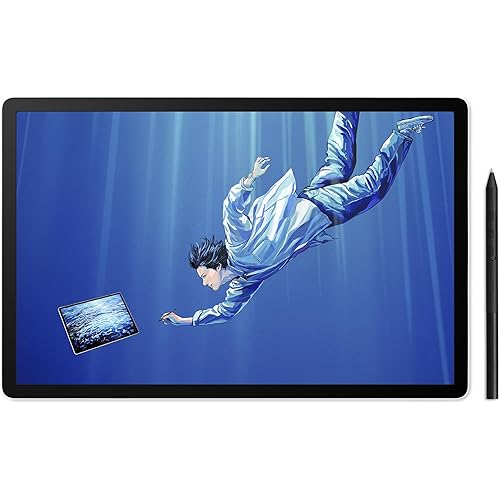
HUION Kamvas 22 (Gen 3) 2.5K 90Hz Drawing Tablet with Screen, 21.5"

Based on 4,419 reviews
Condition: New
Checking for the best price...
$539.00
Save $114.99 was $653.99

Buy Now, Pay Later


As low as / mo
  • – Up to 36-month term if approved
  • – No impact on credit to apply
  • – Instant approval decision
  • – Secure and straightforward checkout

Ready to go? Add this product to your cart and select a plan during checkout.

Payment plans are offered through our trusted finance partners Klarna, Affirm, Afterpay, Zip, Apple Pay, and Google Pay. No-credit-needed leasing options through Acima may also be available at checkout.

Learn more about financing & leasing here.

Selected Option

Free shipping on this product

FREE 30-day refund/replacement

To qualify for a full refund, items must be returned in their original, unused condition. If an item is returned in a used, damaged, or materially different state, you may be granted a partial refund.

To initiate a return, please visit our Returns Center.

View our full returns policy here.


Availability: In Stock.
Fulfilled by Amazon

Arrives Thursday, Oct 29
Order within 13 hours and 54 minutes

Available payment plans shown during checkout

Protect Your Purchase

Easy claims online, fast replacements, no fees

Checking for protection plans...

At a glance

Condition
New
Size
21.5 in
Color
Black
Model
Kamvas 22 (Gen 3)
Weight
3.6 kg
Pressure Sensitivity
16384 levels
Native Resolution
2560x1440
Warranty
1 Year
Works with
Desktop, Laptop, Tablet

Features 8

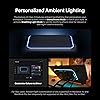
  • Please Note:The Kamvas 22 (Gen 3) pen display is not a standalone product, this device must be connected to a computer/laptop to work. For Mac users: Ambient light customization is fully supported on MacBook Air and MacBook Pro, but temporarily not supported on Mac Mini, Mac Pro, or iMac. The Canvas Glass 2.0 utilizes an etched frosted surface, which may give the screen a slightly hazier appearance compared to standard glossy displays.
  • Experience a Generational Leap: 2.5K 90Hz Screen-Experience a generational leap in clarity and responsiveness on this drawing tablet for pc. The Kamvas 22 (Gen 3) features a large 21.5-inch 2.5K (2560x1440) screen, delivering a stunning 250% resolution boost over its predecessor for drastically sharper details. Driven by a 90Hz refresh rate, it also achieves a 50% increase in line display speed compared to standard 60Hz tablets, making every stroke smoother and every detail sharper for fluid digital painting and animation.
  • Start with Precision: PenTech 4.0 Stylus-Master every detail with Huions latest pen technology. The advanced stylus delivers a true-to-life drawing feel, featuring a feather-light 2g initial force for instant response in fine sketching. It offers 16,384 pressure levels and 60 tilt support for nuanced brushstrokes in painting and shading. Tilt auto-alignment ensures exceptional accuracy for line art, while three customizable side keys streamline your workflow in animation and design.
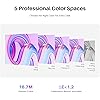
  • Color Confidence for Every Project: 5 Professional Modes Create with accurate colors across all your work. This art tablet is factory-calibrated to E<1.2, ensuring true hues out of the box. Switch between 5 color spaces: 99% sRGB/Rec.709 for web and video, 90% Adobe RGB for print, or 94% Display P3 for vivid illustrations. Plus, a dedicated Black & White (monochrome) mode can be easily activated via the OSD settings, providing perfect contrast for sketching, manga, and storyboarding.

Description

Founded in 2011, Huion has always been dedicated to providing high-quality pen tablets, pen displays, and pen computers to creative users. And our products not only help artists, designers, and animators to create fantastic digital masterpieces, but also bring digital ink solutions to many people around the world, changing the way they create, learn and work. We believe the world is in your hands. Kamvas 22 (Gen 3) Kamvas 22 Plus KAMVAS Pad 12 Kamvas 13 (Gen 3) Black Kamvas Pro 13 2.5K Kamvas Pro 16 Kamvas Pro 16 V2

Specs 20

Brand HUION
Connectivity Technology HDMI, USB
Pressure Sensitivity 16384 levels
Operating System Android (requires USB 3.1 and DP 1.2 and above), Windows 10 and above, macOS 10.12 and above
Special Feature 2.5K QHD Resolution 90Hz Refresh Rate, Ambient Light & Cable Management, Full Lamination, PenTech 4.0-16384 Pen Pressure Stylus, △E<1.2 Color Accuracy
Model Name Kamvas 22 (Gen 3)
Built-In Media Cleaning Cloth, Glove, HDMI Cable (1.8m) & USB-C to USB-C Cable (1m) & USB-A to USB-C Cable (1.8m) & Power Adapter, PW600L & Pen Storage Slot & Pen Holder PH06 & Pen Nib x 10, Quick Start Guide, Screwdriver & Screw x2, Stand
Model Number Kamvas 22 (Gen 3)

Frequently asked questions

If you place your order now, the estimated arrival date for this product is: Thursday, Oct 29

Yes, absolutely! You may return this product for a full refund within 30 days of receiving it.

To initiate a return, please visit our Returns Center.

View our full returns policy here.

  • Klarna Financing
  • Affirm Pay in 4
  • Affirm Financing
  • Afterpay Financing
  • Zip Pay in 4
  • Financing through Apple Pay
  • Financing through Google Pay
Leasing options through Acima may also be available during checkout.

Learn more about financing & leasing here.

Top Amazon Reviews


Better than the Wacom One [no shade]
Size: 15.6 Inch Color: Black
Bought this on October 2024, after my Wacome One became unusable after its charger port fused into one with itself nearly 1 year after purchase. I was worried that after purchasing the Kamvas Pro 16 I would have the same issue with the charger port. But alas after nearly 2 years of use, this has not occurred. So yes, this is a good purchase for your money if your looking for a decent drawing tablet. Sturdy with respectable care. The pen doesnt need charging. Only needs calibration once in a while through the huion program. Setting up the program and getting the screen to sync can be difficult initially but as long as you use that somewhat questionable techy experience you will figure it out my friend. Compared to the Wacome One, the Huion Kamvas Pro 16 has bigger screen. It has more to offer yet has a familiar feel and in addition it was more durable. ... show more
Reviewed in the United States on August 4, 2026 by Average Joe

Great Starter Drawing Tablet w/Awesome Support
Size: 15.6 Inch Color: Black
I dont write reviews for many if any products I buy. I purchased this tablet a little less than a year ago and it has been working pefectly. Screen: Very good construction this tablet is sturdy with a solid metal back with no flex whatsoever. The screen has a paper like feel when drawing which I like it has an etched glass instead of a film over the screen which is important to me so I don't have to worry about replacing the film if it gets damaged or worn out. The screen is also laminated sot the parallax from pen to to screen is minimal 5/5 Pen: The pen is decent it does tilt I don't use that feature much but its workable and it does go edge to edge. Pro tip for those having issues with the cursor not syncing up to the pen, make sure you run the calibration tool and for some reason Windows sets the screen to 150% scale which messes up the pen and it doesn't track correctly. Change the screen resolution back to 100% and the pen and tablet work fine. I like a little more heft to my writing utensils this pen is a little light, but it work very good and I can draw line quickly and easily with no lag. The pen has 2 programmable buttons as well. 4/5 Usability: The tablet has 6 macro buttons and a slider which are useful and I use a lot some people prefer the buttons others prefer to use their laptop keyboard. I find the screen size to be very good and even though its at 1080 P I don't see individual pixels when working with the tablet which on bigger screen can become annoying unless you go 4K. The biggest problem I have is the power button is located too close to the macro buttons and I had to train myself not to shut off the tablet in mid draw. They should move that. I don't like the all in one cord solution either they came with I fear that if it breaks I will need to buy one from Huion if they sell them separately. 3.5/5 Support: I never thought I would write a glowing review about the support I received from a Chinese company with their product. The tablet I received was working perfectly until 2 weeks ago and the screen went white on half of the tablet. I had a little over a month from their 1 year warranty and I didn't expect it to get foxed or replace and was all set to purchase a different tablet from a different company. However I thought with nothing else to lose why not give their warranty a shot. I sent pics and a video of the issue to HUION support and within 2 days they sent me an email after looking at my video of the problem that they were going to replace my product all I need to do is pay $50 for shipping. $50 is a lot better than $300 plus so I went for it. I received a replacement tablet yesterday and hooked it up. It came from Amazon in original product box with all the cords, pen and accessories that come with a new tablet. The support was in constant contact with me through the whole process and I am impressed. Honestly I wouldn't expect that much from a company in the United States with a defective product let a lone one from China. 5/5 TLDR: Very Good Wacom alternative for half the price and awesome support. Some minor gripes here and there but honestly for the price I paid and the support I received I cant complain. ... show more
Reviewed in the United States on September 10, 2021 by Becky

Great for the budget artist!
Size: 15.6 Inch Color: Black
These are the honest thoughts of a HOBBYIST artist who first started out with the Huion H610 Pro V1 and upgraded to a UGEE brand pen display before getting this one. I'd love to update this review should new information be needed but I am unreliable in that aspect. Pros: 1. Price and Competition Thanks to competition in this market, the prices of these tablets have gone down greatly especially since it is $400. This is good given the fact that a 13 inch Wacom pen display tablet costed around the $1,000 range in 2016. 2. Portability This is probably the next important factor for the type of people who are either constantly on the move, or have to disconnect and reconnect over and over as they swap between home PC/Laptops. The Kamvas 16 Pro gives you more room to work with then the smaller versions while also retaining the lightweightedness of the smaller counterparts. 3. Parallax Compared to older pen displays such as my UGEE pen display, there is very little parallax. That is good considering that means you draw much much closer to the screen rather than feel like you're drawing against a thick glass that separates your pen and the drawing surface. 4. Battery-less Pen A bigger upgrade to our past tablets where it requires charging/batteries. I am happy that Huion was able to adopt and adapt to this tech. 5. Shortcut Keys Coming from a UGEE Pen Display Tablet without shortcut keys, this really helps you save time. You may not know the difference as this is more like shaving/saving 5 minutes on every hour you spent drawing. That adds up over time. Concerns: 1. Cable Durability Please try your best to treat your cable well for those who are on-the-move and those who need to constantly plug and unplug. A replacement cable is expensive. 2. Pen Durability Alongside cable durability concerns, treat your pen well even if it is lightweight. Plastic things can still break with a drop. Pen replacements are expensive too. Cons: 1. Lack of Linux Support This only works in Mac OS and Windows 7 or later. I'd love to see support for Linux as I do use this alongside Windows 10. I would have asked for a refund had I solely used Linux OS. The demand here is probably minimal so I can understand the lack of support for it. 2. Three-in-One Cable I am unsure of why they decided to go with this type of cabling decision. If even one part of the plug dies, it's essentially ineffective and you must buy from their store to replace your dead one. Overall: My impressions on this tablet is of satisfaction though there are always improvements to be made. If you're on a budget, getting this over the Kamvas 11/13 versions is my personal recommendation unless you need a smaller workspace. For me, I find the Kamvas 16 Pro a decent and affordable middle child between its bigger and smaller budget versions. ... show more
Reviewed in the United States on November 9, 2020 by Symphonie

Expensive tablet, but you may have to spend $50 more ...
Size: 15.6 Inch Color: Black
I was looking for a writing tool to use for handwriting in One Note and also be able to write Chinese characters as inputs to browser and other apps that accepts inputs. I have tried quite a few drawing tablets, and pens, but none of them satisfied my requirement, as most of them write terribly. Furthermore, being a tablet, I cannot see exactly where the cursor is for writing and entering texts, that made it quite frustrating when I tried to use these tablets. Finally I have decided that I should get a writing monitor which I can connect as an extra monitor so that I can actually see what and where I am writing directly on the programs. I moved away from a 8x6 tablet, because I also want to use it as a travel monitor for my laptop, so I ended up with this 15.6" monitor. The following is my personal experience so far. I have it for less than 1 day, so I will update my experience with this further in the near future after I have used it for a while. In the mean time, I will share with you my feeling with this product on general topics such as delivery and packaging, and setting up etc. 1. Packaging and Delivery: I was shocked by its packaging when the UPS person rang my door bell and I opened the door. This unit was housed in a very big box, almost the same size as my desktop computer. I think the packaging was overdone, as the product self was already boxed by another box almost exactly the same size as the original product box. This was then put in this huge box for delivery. The unit came in good shape, and has absolutely no damage as a result. The delivery was also on time as I asked for 1 day delivery and I did get it in 1 day. This is what I expected as on time delivery is one of the big reasons I selected a certain product, despite sometimes I may have to pay a little bit more. I hated sellers promising certain time delivery, and then ended up having me waiting for several more days or never even arrived sometimes. 2. Cables: This is the area where I would have deducted a star for this product. The maker claimed that they use a 3 in 1 cable to avoid messy cabling, and there is no other way for you to hook this up using regular cables. This brings up another issue, i.e. what if you break or lose this cable, you would have to replace it, which will cost you $50 the last time I checked. Do you wait until you lose or break your cable before you buy your replacement? Obviously not, because you will lose your productivity if you do, that means you would have to spend your $50 right now to get a spare and keep it close, especially when you use it while you are traveling. This is a big negative to me. I thought I saw it before that you can either use the 3 in 1 cable or regular cables. But this unit has only one type C input and that is it. 3. Setting up: The connection was relatively easy, just plug in the type C into the tablet, then on the other end, one HDMI goes to the HDMI connection of the computer, a USB A goes into the computer USB connection and the round power connector connects to the power supply that came with it. My computer saw it right away and make it as an extension monitor. I already have two monitors connected to my desktop, and this serves as the third monitor for it. I use it extensively for One Note writing and for programs that requires handwriting inputs, such as writing Chinese characters for my browser search. It works without any problem. You can also calibrate your tablet using the calibrate function from the driver program. 4. Writing on the tablet: Because I am writing directly to the application showing on the tablet, I have no problem writing where I want to, particularly on One Note. Also, writing to One Note using this tablet almost resembles my writing on paper using pen or pencil. I like it and there is almost unnoticeable lag when writing. I even tried writing with the protected film still there before it was peeled, it worked with no problem except sometimes the writing does not register because there was some slight oil on that spot. This is the first tablet that worked completely for me. Because it only responded to the pen, I do not have to worry about my palm touching the tablet. Since I am looking for a writing tablet and not a touch tablet, this works out just right. The pen also is non-active, meaning it requires no battery, which is great as I do not have to worry about battery running out when I travel. Pens like this usually require AAAA battery and most people do not have them stocked at home. The only problem is the location of the two buttons on the pen which I accidentally clicked quite a lot of time when I write. This gets annoying. It would be great if they can be immersed a little bit in the pen, so that they have to be clicked intentionally to work. I cannot comment on graphic drawing as I do not use this for drawing. 5. OSD setting: Like many TV, there are buttoms on the side that can be used to adjust the monitor's physical setting. However, some of the options were greyed out and cannot be adjusted. For example, for display it showed, Horizontal and vertical screen adjustment, but they were totally greyed out and cannot be adjusted. The included manual was not a manual, you have to go online to download one, which give you a little bit more information. I saw online and in some manual that the driver program provides quite a bit of control on the tablet, but the one I downloaded for this unit is very minimal and there is not much I can do in that driver program. 6. Price: This tablet is quite expensive, it costs me $400 plus another $50 for a spare cable, which was way more than what I was going to spend when I started looking for a writing tool. But because this is a monitor, and not just a writing tablet. I have bought several portable monitors before, and they all failed one way or the other after a while, and they were in the $200-$300 range. So hopefully this is be solid enough to last for a long time. Conclusion: This is as far as I have gone, since I only have it for less than a day. I will continue to use it and will update my experience if new discovery, positive or negative, comes up, I will update this review. I hope this helps those of you who may have questions on this tablet. So in conclusion, I like what I get, except that it is quite expensive and I hope I would not have to buy another one any time soon. ... show more
Reviewed in the United States on May 12, 2022 by Dr. R

I'm really enjoying using my screen tablet
Size: 15.6 Inch Color: Black
As a first time drawing screen tablet used, I would recommend this tablet, it's affordable and gets the jobs done. This has my first impressions of the tablet, setup and feelings about it after two weeks of use. It is also my first time using a tablet with a screen, but I have used multiple drawing tablets with no screen. When I open the box, it was easy to open and came with some instruction like where to download the diver and some basic stuff to know about the tablet The box also had sticker to identify the shortcut buttons, thought I found the sticker to be too large to put on the shortcut buttons and square while the buttons are round. It looks like if I put them on, they would stick off the buttons and make it easy to get dust on them and be easy to accidentally peel off. I think it would be better if the stickers were round and smaller. It comes with adjustable power head that can convert to different power grids. Since I’m in the US I got the US version. It’s easy to remove and replace with the conversion for when you travel. It also came with an adjustable stand for the tablet. When I first tried to open it, it was very hard. I felt like I might break it if I tried to open it. It did become easier after repeated tries. I’d would recommend you get something thin to help you pry it open the first couple times. I think it would help if the tab that close the stand was not so tight thought. To me the stand has a good range of angles. The six positions allow you to adjust it at the viewing angel that is most comfortable to you and your wrist position. For me the lowest was the most comfortable for both my wrist and viewing. At one point while I was unpacking, I placed the pen and pen-holder off to the side with the pen inside the pen holder and accidentally hit it. I thought I would have been knocked off like with my other tablet, but I was surprised to see it wasn’t. I tend to move my hand into my tablet pen when I set them off to the side so it was nice to see it can keep its balance pretty well. You have to be very deliberately to try to knock it down. Before I used it, I did let the tablet charge for a day. When I saw the wires at first, I thought the cord to plug into my computer would not be long enough, but its length is OK for me. My computer tower and tablet are about 3 feet apart. While I was trying to connect my table to my computer, I notice that either my table would only show or my screen would, not both at the same time. This was not the tablets fault, but my computer was at fault here as I found out it can’t support two screens through HDMI. I’m not sure it’s because my computer is a little older being about 5 years old. But since my computer also supports VGA and so does my computer monitor, I plugged my tablet through HDMI and my screen through VGA. If your experience a similar problem, it’s might not be the tablet it might be your computers limitations. Installing the driver was easy to do but their is no disk. The Huon website has driver you need. When I finally turn on my screen, it looks weird to me before I realized it, I had a very yellow tint. I couldn’t find Instructions on the manual on how to adjust screen settings form color, brightness, and so on to do this when I first got it. After an hour of trial and error, I found out to do so that you have to press and hold the very last button (the OSD Button) to put into settings/adjustment mode. I was able to adjust it by using the shortcut buttons on the side of the tablet. When I was doing this, this was the how I moved around in the settings/adjustment menu. The second(2nd) and third (3rd) blank buttons from the power button are the direction buttons and the fifth (5th) blank button is used to confirm and sixth (6th) blank button to cancel. If/when the menu disappears press the fourth blank button to make the menu reappear. To exit out of adjustment screen menu/mode press and hold the OSD button again. Setting up shortcut buttons on the tablet are customizable and easy for me. I use multiple programs but all the shortcut is the same so I didn’t have to worry about changing them for each program, but it should be aware that you can only have one setting. But in the manager, you can save your setting for multiple programs. When calibrating the screen make sure you do this in the position and angel your going to draw in and to hold your hand in your drawing position. I didn’t do this at first, so screen calibration was a little off for my comfort. After all the setup I started drawing and for the two weeks I had it, it took a little adjusting since I have only used drawing tablets with no screen. But once I got adjusted it became a lot easier to draw on this tablet. I made the adjustment where my tablet screen is an extension of my main monitor. I did this mainly so I can make a pop off window for my drawings and see it from multiple screens and also handle other task or even just watch videos on my main screen while I’m drawing on the tablet. While setting up the tablet was frustrating at times. I found once done it was fun and easy to draw on for my first time using a screen tablet. ... show more
Reviewed in the United States on July 5, 2019 by EUNICE

Exceptional quality for the price.
Size: 15.6 Inch Color: Black
Preface: I have owned a variety of drawing tablets and use them daily for my work. I have previously only ever used Wacom tablets, going back as far as pre-bamboo days. I use tablets on a nearly daily basis for my job. But I have never used a display-screen drawing tablet. But if there was an all-encompassing way I can describe the experience of upgrading from a standard drawing tablet to a display-screened tablet it would be: "Game Changer" The tablet is packaged as well has you would both hope and expect from a drawing tablet of this price range. Every bit of packaging is secure and intentional. Setup was quick and easy, no hassle. The tablet itself is a really good weight. Heavy enough that it feels like it isn't going to just fly out of your hands if you shift in your chair, but not weighty enough to feel like a burden if you need to grab it with one hand. The stand that it comes with for your lap with the varying heights is... strangely beautifully designed. Of all the things, the stand is made with stunning engineering and it looks and feels great, and is exceptionally collapsible. Turning on the display, it's really nice and bright, with sharp, crisp colors. Whatever material the screen is made out of, or coated in, gives the display that very subtle stippled color "screen protector" look. I thought that would bother me and affect the drawings but it's pretty unnoticeable after just a short while. I've never noticed any lag with the tablet, nor any stuttering or visible refresh rate. All lines have drawn butter smooth. The pen is comfortable and easy to use, and coupled with a tablet glove (one of those funky ring and pinky finger gloves) it just glides across the surface. The side buttons are fantastic and I really can't get over the middle sliding "button". I normally keep it configured to zoom in photoshop, but I love that you can cycle through functions. This slide is a lot like the dial on the Intuos Pro tablet… except better executed. (I stopped using the Intuos dial because it never felt right. It was always way too sensitive and swapping between functions was annoying on it.) The difference using this display tablet over my previous Intuos Pro is… well it makes me shake my head at my own arguments I've had that I didn't need the expense of upgrading to a display tablet. That it wouldn't make that big of a difference, and that I'd still face most of the awkwardness and pitfalls that come with using a graphics tablet. How mistaken I was. If you ever have frustration at redrawing the same darn line 50 times and you use tablets for your living… don't baulk at the price or what seems like an unnecessary upgrade. I should have jumped from my bamboo tablet straight into a display tablet. It would have saved me hundreds of hours of work and frustration. I'm a cheap girl. I like things to work, work well, and be cheap. Those are the credentials to keep me happy. And boy does this tablet satisfy all of those. The tablet itself aside, Huion is an amazing brand. It's one of those brands that falls under the price range of items that make you scratch your chin and think it must be too good to be true. But they've not yet disappointed me with any product. There will always be one or two things that could be nit-picked, but at the end of the day you're saving a huge amount of money for a brand that will do right by you, and deliver a stunning product at a very affordable price point. And this tablet is no different. The ONE thing I would like to add to the tablet, is actually an addition to the software. I loved the Intuos' radial dial menus that you could program. It made creating a LOT of quick shortcuts really easy and fast. But lacking that sort of feature isn't enough to even knock this tablet down a fraction of a start for me. ... show more
Reviewed in the United States on August 9, 2019 by Colleen

Pretty happy so far!
Size: 21.5 Inch Color: Black
I've been drawing with it for a few days now. Considering the drastic failure of the XP Pen I purchased ( which had defective hardware and had to be returned ) i'm pretty happy with it so far. First the cons The screen has a decent amount of glare even though its matte. Not distracting enough to make it impossible to work but it's noticeable with an overhead light. There seems to be driver or firmware issues with the Dial that comes with it. The UI pops up behind other apps and sometimes on the wrong screen. Still trying to work that issue out. There is a noticeable amount of space between the pen tip and the tablet. Again, not unusable but I notice it. Pros It came packaged nicely and was easy to get out and set up. ( the XP pen packaging was like a TV, with Styrofoam and you had to pull it out of the box and everything with in a plastic bag. It was a pain to repackage to send back ). This tablet came in a suitcase type box. I opened it up, pulled it out and all the cables where ready to go (not all individually wrapped). The driver was easy to install and it worked right away. The only thing I had to do was set it to use the tablet screen because at first it was set up to use my computer monitor so when I touched the pen to the tablet it moved the cursor on my monitor. Easy fix. The screen has a nice texture to draw on. It doesn't quite feel like paper but its an upgrade from my Ipad which felt like drawing on glass. So far drawing on it has been fun with no major issues. Setting up the Dial was easy enough. I work in Clip Studio. After I took the time to set up my shortcuts it all went smoothly. All in all i'm happy with the purchase and it feels great to transition from my i pad workflow. ... show more
Reviewed in the United States on July 14, 2026 by Stephen Westerfield

Virtually no support and very poor setup instructions
Size: 15.8 Inch Color: Silvery
This seemed like the perfect product based on reviews and videos. I purchased it for my wife who is mostly house bound and loves the time she spends drawing on her laptop. She had been having some issues on the laptop and I thought this would be a good alternative if she continued having those issues. It turned out to be a nightmare instead. Her laptop, a two year old Microsoft Surface Studio Pro, started tracking the stylus incorrectly. My first attempt to getting the HUION to work on the laptop met with limited success. The HUION connected to the laptop but there was no display. There is no HDMI output on the laptop so USB was the only choice. Submitting a support request went unanswered for weeks until yesterday (but more on that later). After watching numerous videos I found one thing that looked promising, A USB docking station with an HDMI output. More money invested and that did not work either. My next attempt was on my Widows PC, a high end gamer I built a few months ago. The USB connection did not work on this either and more videos uncovered the reason why. It seems that if the PC has discrete video the HUION needs to be connected to one of the HDMI ports on that video card. Doing this still only got it to partially work but the display was not rendered correctly on the HUION. My third and final attempt was on my wife's desktop also with a discrete video card. This was the most successful attempt but also was not rendering properly with the stylus touching the HUION in a different place than the PC monitor displayed. More videos and I discovered the HUION needed to be configured as a monitor using Windows setup and not the HUION drivers and software. Once configured through Windows The HUION actually worked properly EXCEPT while drawing a line it would disappear while drawing. Another support request from HUION with no response. Yesterday after weeks of issues and time spent on youtube I finally got a response to my support requests. Their recommendation was to check their support site and get back to them if I still had an issue and they would get back to me as soon as possible. Here is their complete response for both the support requests I submitted. You will notice at the end there is a disclaimer that the response is an automated message. Perhaps their computer was down. "We sincerely apologize for the delay in responding to your ticket. We're currently experiencing a higher-than-usual volume of requests, which has unfortunately impacted our response times. We understand this is frustrating, and we're truly sorry for any inconvenience this has caused. Your issue is important to us. Before we proceed, you might be able to find a solution by checking our support articles at Huion Support Solutions. We have many helpful resources that may resolve your problem quickly. If you've checked our support site and still require assistance, please reply to this email, and we'll get back to you as soon as possible. If your issue is resolved, no further action is needed. Thank you for your patience and understanding. We appreciate your business and look forward to assisting you further if needed. Best Regards, The Huion Customer Support Team Disclaimer: This is an automated message." So I'm stuck with a tablet that does not work properly that I purchased from a company that could care less about providing support and I'm out hundreds of dollars and many hours of time spent looking for solutions. ... show more
Reviewed in the United States on March 25, 2025 by Aaronkr
Checking for best price...