Honest review and economical setup ❤️ Honest review and economical setup ❤️
Size: 15.6 Inch
Style: Black
Okay so I have the Huion Inspiroy q11k pen tablet. That is a decent tablet but the pen is a bit glitchy and the customizable keys never worked. Still I'd give it 4.5 out of 5 so when I started to get the itch for a display tablet, I researched so many brands that I got sick of research 😔 Ultimately,
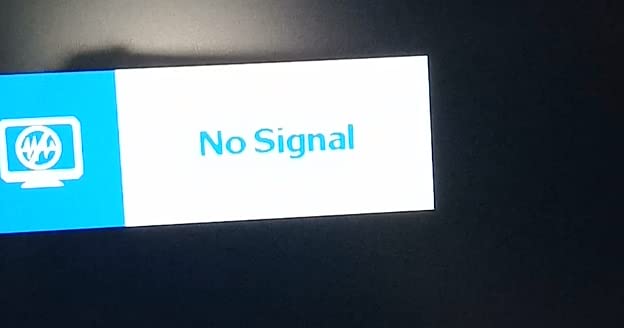
I decided to go with the brand I was familiar with, Huion so I took the leap and got this. Here is my experience. I just got the tablet today and the first thing is that the delivery even came earlier than was announced ✅ It was packed in a huge Amazon box to protect the smaller product from damage ✅ Now for the unboxing and initial experience. Note that I will change my rating once I paint on this or if there's any trouble down the line. I was very nervous because of some bad experiences that others had, so I started up my tablet with a bit of concern. Prayed so hard and I was so happy when it actually worked first without the display. There was a little difficulty when I connected the HDMI cable for the screen though because first it was showing that there was no signal but then after toggling the HDMI cable it started to show the screen and everything. Another reviewer had said that it worked right out of the box and I was skeptical about that but it's true 😯 And I think that happened for me because I have the other tablet with driver installed. I had just tried it for fun before uninstalling the driver and was so pleasantly surprised that it works with my old Huion driver for my q11k pen tablet. I suspected that there would be some unity between drivers but still! But as the driver for the pen tablet was most likely outdated, I went to the website and downloaded the newest driver which was a 15.132 (or something) version when I was using the 14.1 version ( the newest driver was updated in 2022 so I got that and uninstalled the old one) The test: I did a few circles and lines in CSP to test the pen and it is working well 😏 The screen is a bit bright but it can be adjusted. The colors are nice too. I can't wait to paint on it but not tonight...I'm tired after pulling an all nighter to paint yesterday 😩 I also customized the keys on the side of the tablet and stuck the stickers they provided to identify which key is which. These stickers are such a nice touch for me ✅ because with my other pen tablet there weren't any stickers and it was always confusing to remember which key was which. And since I work in a darkened space that's even worse so I never used the keys. I'm grateful for this now. My laptop doesn't even have a battery but it works with it. I thought that would have been an issue but I use the adapter that comes with the display tablet just in case. I'm good to go and that's it I don't think I need to buy anything else because this is perfect. Even my setup is perfect for me because now I don't regret not buying a tablet stand at all. I am using the box that the Huion kamvas tablet came in as a stand 😅 How I do it is use half the box to rest the tablet and the other half the rest my laptop and I am as happy as ever because it has elevated the laptop and the tablet and is comfortable to use. So the box gets a 4/5 ⭐⭐⭐⭐ for being sturdy and having a recyclable purpose 😅 As my bed is my workspace, I only have a small space to sleep on now though but that is something I can work around. Do artists sleep anyways? 🙈 So that's it. Fast delivery. Very easy to use. No disappointment.... If I think of anything else or my experience changes I'll update this 👍 Update: 03/July/23 I have done a few paintings on this so far. The only problem I've experienced with it is how sometimes the hot keys will reset, particularly the long one that you can use to scroll / zoom in or out. But that isn't a huge issue for me because everything else is great. I love painting on this without the delay of making sure my pen tablet and my hand is cooperating. It's a lot less of a headache than what I was using before. Oh and I didn't buy a remote for extending the shortcut keys. I simply bought a wireless keyboard and mouse and that has been the best thing ever in using this. This display tablet is perfect for me. I use it for everything: watching movies, my writing, art and video editing. It's just so convenient to be able to recline with it on my lap. And let me say, I never thought that I'd be painting on a tablet while lying down! Works for the days when I'm tired after work or just woke up and I don't want to sit down and paint. Good for the back! So this encourages me to paint more since using it is painless. Plus it's already in my hand when I'm using it for something else so I'd just open CSP and start working on one of my many procrastinations. It doesn't get ignored like my pen tablet that would be to the side of my bed crying out to be used for art and getting used as a coaster instead 🙈 Conclusion: I love this display tablet. Painting is a whole lot more precise, fun and a tad bit easier. Will update with more as time goes along!
...
show more
Reviewed in the United States on April 25, 2023 Reviewed in the United States on April 25, 2023 by T. Reyes
Great graphics monitor for its price.
Size: 15.6 Inch
Style: Black
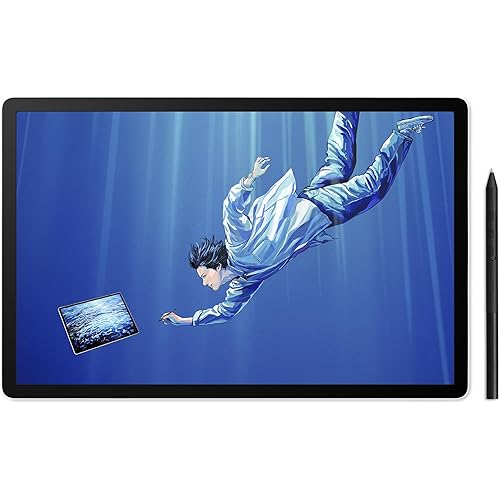
Let's start, perhaps, with the equipment and build quality. Here HUION made, as always, everything presentable and even with pleasant bonuses! In the kit we have: - Actually, the monitor itself; - Type-C cable, 3 in 1 (power, HDMI and USB) - Stylus (PW507) - Aluminum adjustable stand ST200; - Screen
cloth (trust me, you will need it VERY much); - Documentation (goodness, not much); - And a glove (yes, they even put a glove, but it's quite small for my male hand). What's factual: Thank you so much for the Type-C connection interface. Now the monitor can be flipped for left-handed users, and there are no unnecessary bends in the wire. The updated stylus (PW507) has no particular differences from the PW500 (mostly in design). Reliable stand made of aluminum, which will definitely outlive the monitor itself. A rag is a necessary thing in the household, because with your creative hands you will often smear the monitor, on which you not only draw, but also look at what you draw. In addition - no one canceled the dust. Special attention should be paid to color reproduction in 150% sRGB and of course IPS matrix, because it is the highest among all competitors, when everywhere else is a maximum of 120% sRGB coverage. You won't play games on it of course, lol, but I'm sure that's clearly not the purpose of this monitor. Regarding the dimensions of the monitor: there is absolutely no extra space in it. It's ultra-thin and lightweight, which is a definite plus if you want to take it with you. Comparison with other models and competitors: In HUION's lineup of graphics monitors up to 20 inches - the Kamvas Pro 16 boasts a number of advantages. 1st is the quality of the monitor. From brightness and contrast - to color gamut. 2nd is the quality and fast pen. 3rd - it is a democratic price, although not the cheapest. 4th - a good package. 5th is the weight. This is the lightest 16 inch graphics monitor on the market. In other parameters it is similar to its competitors (8,000, pen tilts and so on). Personal feeling after using the model: After almost a month of active testing, emotions and sensations remained extremely positive. Throughout the entire time, the monitor did not produce any errors with drivers and connection. Critical lags of the pen I also did not notice. Here it is worth mentioning that it is always, minimally, there is in all manufacturers. But this is not the models of the last generation, where the lag could really interfere with work. The nib itself behaves as responsive and fast as possible. Drawing line art on Kamvas Pro 16 is a special pleasure, and brings you closer to traditional drawing. Many artists complain with the transition from traditional drawing to digital drawing on graphics tablets (where we look at one point and draw at another). Graphic monitors will get rid of this inconvenience (if there is such a thing, I personally haven't had any inconvenience) and bring you closer to traditional drawing. Especially if you add a couple of good texture brushes under your pencil! Regarding the additional 6 buttons - I can't say anything. I just don't need them. The diagonal itself is very comfortable and doesn't take up too much space. 13 inches - I personally wouldn't recommend it, as it's not big enough to create a full-fledged art. More than 20 inches is good. But very much changes the space on the desktop and not everyone can also be comfortable. 16 inches - turned out to be the golden mean. Both in terms of price - and convenience. For beginning artists I would advise this size. Perhaps more, but certainly not less than 16. We also had an interesting experiment with connecting a graphics monitor and a tablet at the same time. Since not everyone prefers to draw on a monitor, we made the computer a choice between a tablet and a monitor. When you boot up your computer, you will be able to draw on the monitor, but the tablet will still need to be reconnected to work properly. They share the same driver and there is no problem with that. But the pen, unfortunately, one for two will not work. Let's hope that all this will be fixed in the near future. But we should admit that this is a rare case when you will have both a graphic monitor and a tablet. And yes, you can always use it as an additional monitor for references!
...
show more
Reviewed in the United States on March 10, 2025 by Rahman
Great Budget Digital Drawing/Painting Experience Great Budget Digital Drawing/Painting Experience
Size: 15.6 Inch
Style: Black
I had an old Wacom Intus3 6x11 for many years and had always wanted a screen tablet to draw on. I finally found one for the price I can afford in the Huion and ordered the Kamvas Pro 16 after seeing such glowing reviews. This tablet has made drawing and painting fun on the computer again. I feel like
this is a good middle of the road size as if it's too small, your view might be blocked by your hands on the screen. The product seems well built with a premium feel to it. The experience is very good, strokes are mostly accurate (see below) and responsive. I had to contact support on a few occasions and they were very responsive which is great. My Wacom had 1024 levels of pressure sensitivity, this one has 8092. I thought it would make some difference but I was not able to feel the difference. I do wish that the driver allows you to tweak the pressure sensitivity curve better. I would like to make it more like a S curve, but it is not possible. The accuracy of the pointer is off as you move towards to edges. So if you maximized your window for example, and you want to hit the window controls at the edge, it's a bit of a "struggle" but it is manageable. Hopefully this is a driver issue that can be fixed. At time, I can hear the stylus drag over the screen and sometimes click. Not sure why that happens or if it's by design. Related to this, the screen may make a sound if you lean on it too much. I didn't think I had applied too much pressure with my hands, hopefully this is a non-issue. If the tips were more rubberized instead of being plastic it will help. The driver is not too stable and freezes or crashes sometimes. You also need to make sure you start it as an administrator else certain features may not work; like customizing buttons per app. I work primarily with Photoshop and when you enable tilt in your brushes, there is always a warning icon in the GUI (see the screenshot) and it doesn't seem to work very well. However, if you use the older legacy brushes that has tilt support but does not show the tilt enabled it seems to work better. Tilt does work in Krita. So I'm not sure if this is an issue with Photoshop and Huion, I don't have the Wacom to compare with anymore. When you see the reviewers on YouTube using it with the laptop screen on and connected to this tablet, they usually have the desktop mirrored on the tablet, and more likely than not, the laptop screen has the same resolution as the tablet. Otherwise it will look weird because one of the screens will be stretched. My ideal use case is to use it in a extended mode, so the Huion is an extended screen. However, to do that, you have to go into the driver to manually map the drawing surface to the Huion. This should be the default on the driver, or at least a button/checkbox to automatically enable it. Because of this, I now close the laptop screen and just have that one screen (the Huion). It would be nice to have this addressed so I can leave the laptop screen on and keep other apps in view like a reference photo, emails, chats etc. Overall, great product with great promise. Hoping that the drivers will keep improving and the product holds up well (see the notes about the click noises).
...
show more
Reviewed in the United States on January 27, 2020 Reviewed in the United States on January 27, 2020 by Matthew S.
Expensive tablet, but you may have to spend $100 more …
Size: 15.6 Inch
Style: Black
I was looking for a writing tool to use for handwriting in One Note and also be able to write Chinese characters as inputs to browser and other apps that accepts writing inputs. I have tried quite a few drawing tablets, and pens, but none of them satisfied my requirement, as most of them write terrib
ly. Furthermore, being a tablet, I cannot see exactly where the cursor is for writing and entering texts, that made it quite frustrating when I tried to use these tablets. Finally I have decided that I should get a writing monitor which I can connect as an extra monitor so that I can actually see what and where I am writing directly on the programs. I moved away from a 8x6 tablet, because I also want to use it as a travel monitor for my laptop, so I ended up with this 15.6" monitor. The following is my personal experience so far, I will share with you my feeling with this product on general topics such as delivery and packaging, and setting up etc. 1. Packaging and Delivery: I was shocked by its packaging when the UPS person rang my door bell and I opened the door. This unit was housed in a very big box, almost the same size as my desktop computer. I think the packaging was overdone, as the product itself was already boxed in another box almost exactly the same size as the original product box. This was then put in this huge box for delivery. The unit came in good shape, and has absolutely no damage as a result. The delivery was also on time as I asked for 1 day delivery and I did get it in 1 day. This is what I expected as on time delivery is one of the big reasons I selected a certain product, despite sometimes I may have to pay a little bit more. I hated sellers promising certain time delivery, and then ended up having me waiting for several more days or never even arrived sometimes. 2. Cables: This is the area where I would have deducted a star for this product. The maker claimed that they use a 3 in 1 cable to avoid messy cabling, and there is no other way for you to hook this up using regular cables. This brings up another issue, i.e. what if you break or lose this cable, you would have to replace it, which will cost you $50 the last time I checked. Do you wait until you lose or break your cable before you buy your replacement? Obviously not, because you will lose your productivity if you do, that means you would have to spend your $50 right now to get a spare and keep it close, especially when you use it while you are traveling. This is a big negative to me. I thought I saw it before that you can either use the 3 in 1 cable or regular cables. But this unit has only one type C input and that is it. 3. Setting up: The connection was relatively easy, just plug in the type C into the tablet, then on the other end, one HDMI goes to the HDMI connection of the computer, a USB A goes into the computer USB connection and the round power connector connects to the power supply that came with it. My computer saw it right away and make it as an extension monitor. I already have two monitors connected to my desktop, and this serves as the third monitor for it. I use it extensively for One Note writing and for programs that requires handwriting inputs, such as writing Chinese characters for my browser search. It works without any problem. You can also calibrate your tablet using the calibrate function from the driver program. 4. Writing on the tablet: Because I am writing directly to the application showing on the tablet, I have no problem writing where I want to, particularly on One Note. Also, writing to One Note using this tablet almost resembles my writing on paper using pen or pencil. I like it and there is almost unnoticeable lag when writing. I even tried writing with the protected film still there before it was peeled, it worked with no problem except sometimes the writing does not register because there was some slight oil on that spot. This is the first tablet that worked completely for me. Because it only responded to the pen, I do not have to worry about my palm touching the tablet. Since I am looking for a writing tablet and not a touch tablet, this works out just right. The pen also is non-active, meaning it requires no battery, which is great as I do not have to worry about battery running out when I travel. Pens like this usually require AAAA battery and most people do not have them stocked at home. The only problem is the location of the two buttons on the pen which I accidentally clicked quite a lot of time when I write. This gets annoying. It would be great if they can be immersed a little bit in the pen, so that they have to be clicked intentionally to work. I cannot comment on graphic drawing as I do not use this for drawing. 5. OSD setting: Like many TV, there are buttons on the side that can be used to adjust the monitor's physical setting. However, some of the options were greyed out and cannot be adjusted. For example, for display it showed, Horizontal and vertical screen adjustment, but they were totally greyed out and cannot be adjusted. The included manual was not a manual, you have to go online to download one, which give you a little bit more information. I saw online and in some manual that the driver program provides quite a bit of control on the tablet, but the one I downloaded for this unit is very minimal and there is not much I can do in that driver program. 6. Price: This tablet is quite expensive, it costs me $400 plus another $100 for a spare pen and cable, which was way more than what I was going to spend when I started looking for a writing tool. But because this is a monitor, and not just a writing tablet. I have bought several portable monitors before, and they all failed one way or the other after a while, and they were in the $200-$300 range. So hopefully this is solid enough to last for a long time. Conclusion: This is as far as I have gone, since I only have it for a short time and I do not actually use it for graphic drawing. I will continue to use it and will update my experience if new discovery, positive or negative, comes up, I will update this review. I hope this helps those of you who may have questions on this tablet. So in conclusion, I like what I get, except that it is quite expensive and I hope I would not have to buy another one any time soon.
...
show more
Reviewed in the United States on June 1, 2022 by Dr. R
You need a usb-c only cable for both sides if you plan on using it with a laptop.
Size: 13.3 Inch
Style: Black
Tablet is VERY smooth, good quality, high graphics, fun to use of course, and plugs right in to my laptop and the outlet for power and connection, meaning no worry for battery life. Screen brightness is also perfect and adjustable with the laptop (or pc if you use that, doesn’t matter.).
Reviewed in the United States on May 29, 2026 by Maddox Hunt
Great tablet! Just needs minor adjustments. (Update!)
Size: 15.6 Inch
Style: Black
This was a great purchase for the price. I just wish the Huion driver software was more customizable for each program (ex. Photoshop, gimp, etc.) instead of just one set of shortcuts for all programs. Another note, I like the sleek design and the metal backing is a nice touch. The option to flip it f
or left hander is a great idea. (Although I feel there should just be a button for left or right handiness plus that option for various degrees.) Gimp seems to not respond well with the tablet. (Whether it's huion's fault or gimps I'm not sure.) But other programs like krita, Photoshop, etc. work pretty good so far. (UPDATE VERY IMPORTANT FOR WINDOWS USERS.) I found out that the reason why my tablet was not working properly was because the screen scale was set to 200% (thanks Windows). This causes the cursor to offset on most of the programs. So make sure your scaling is set to around 100% to 175% so that your cursor is not offset. Go to settings > system. In the "display" options, click the display your tablet is working on (if your tablet is display 2, click the "2" box). Then scroll down to "scale and layout" and make sure to set it to 100%. The screen is a pretty decent size for drawing / animation. The resolution is okay as well. The colors are great. The tablet is slightly brighter but the colors do match up with the computer. Many people online claim that the screen feels like paper when you draw on it. I don't know what paper they're talking about but it doesn't feel like paper. (Unless they are talking about the smooth surface of Bristol) I does however have a little bit of friction if you compare it to a slippery glass surface on other tablets. There is little to NO PARALAX with this tablet. The cursor is positioned right on the pen. Plus the line wave is so minimum that it's barely noticeable. Making it a relief for serious artists like me. Overall it's a good alternative to the expensive Wacom cintiq 16 ($649.95) tablet.
...
show more
Reviewed in the United States on September 12, 2019 by Victoria Jackson
Very pleased
Size: 15.6 Inch
Style: Black
I've been using the Huion Kanwas Pro 16 (1920x1080) for a couple of weeks, now, and I'm thrilled by it. I bought it to replace my 12 inch Xp Pen Artist. The size is just about right. I considered buying a larger version, but came to my senses. A larger version would have taken up all the available sp
ace. I was a bit aprehensive about the resolution but it's fine. Unless your eyes are about two inches from the screen you won't see any pixels. Also, the pen is really good. It looks, and feels, very much like a Wacom pen. The button are just right, the lines are good. Pressure sensitivity is fine, and it's a nice size. The laminated screen is great. I use, mainly, for Clip Studio, and it's nice to have room for the menus, tabs, etc. It works a treat. also, if you use clip Studio, you can use the Companion app to zoom and scroll, etc. Othewise, the buttons can be customized at will. My only con is the that instructions for adjusting the screen brightness, contrast,and color, are a bit opaque. This is not much of an issue because it really it was fine out of the box. Having spent decades worrying about color cast as a product photographer, I' happy to say, good enough. The driver allows you to assign various functions to the buttons, and these can be saved for different applications. You will need a stand for this. The stand that Huion sells is not all that good. Parblo sells an adjustable stand for the same price, and it is way better. You can find it here on Amazon. And, finally, the price is great. Wacom must be feeling the hea
...
show more
Reviewed in the United States on March 7, 2023 by Fernando Kurka
A Must Have for Any Artist
Size: 15.6 Inch
Style: Black
With all of the screen-based tablets coming out in recent months, it gets a little convoluted trying to figure out which item will work best for your needs especially as a bidding artist. Most people flock to Wacom because of it being a bigger and better well-known brand. However, even long-time Waco
m users are tilting their heads at recent releases. I needed to find a suitable replacement for the first screen based tablet I had, the VEIKK 1560. Granted that tablet was an excellent build and would seem to carry me far, however the company is a freshman at the game and their drivers were giving me grief with my new PC. So after research, I found that my people at Huion dropped this bad boy. This tablet feels really premium and high-grade. It's light weight and extremely slim and thin, but it's very durable thanks to the aluminium backing. The screen is gorgeous as it matches my monitor's HD display perfectly. I haven't gotten into the actual drawing yet due to my schedule but as a secondary display, it's amazing. I had issues trying to set up the color at first. There's not exactly an instruction manual on that. But after tweaking, I found that the problem was my main display's colors being too "cool" so after much work, I got it going. I'll make sure to update this review with my actual drawing experience. However I would not discount the greatness of this device.
...
show more
Reviewed in the United States on September 18, 2019 by Manty