

Search  for anything...

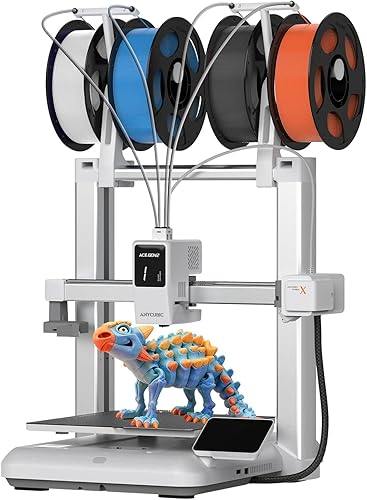
Anycubic Kobra X Multicolor 3D Printer, Easy Setup with Native 4-Color Printing Up 19 Color, 600mm/s Fast 3D Printing, AI Camera, Quiet 45dB, FDM Perfect for Kids Beginners Family Makers Professional

  • Based on 0 reviews
Condition: New
Checking for the best price...
$299.99 Why this price?
Save $160.00 was $459.99

Buy Now, Pay Later


As low as $50.00 / mo
  • – 6-month term
  • – No impact on credit to apply
  • – Instant approval decision
  • – Secure and straightforward checkout

Ready to go? Add this product to your cart and select a plan during checkout.

Payment plans are offered through our trusted finance partners Klarna, Affirm, Afterpay, Apple Pay, and PayTomorrow. No-credit-needed leasing options through Acima may also be available at checkout.

Learn more about financing & leasing here.

Free shipping on this product

FREE 30-day refund/replacement

To qualify for a full refund, items must be returned in their original, unused condition. If an item is returned in a used, damaged, or materially different state, you may be granted a partial refund.

To initiate a return, please visit our Returns Center.

View our full returns policy here.


Availability: In Stock.
Fulfilled by Amazon

Arrives Wednesday, Apr 29
Order within 5 hours and 16 minutes
Available payment plans shown during checkout

Protection Plan Protect Your Purchase
Checking for protection plans...

Features

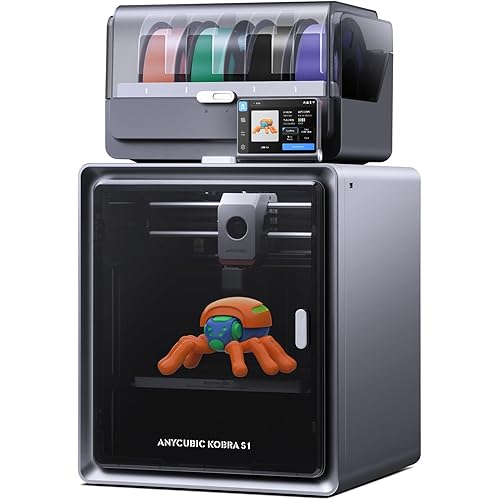
  • Newest Level - 19-Color with 4 ACE 2 ProWhy settle for one color when you can have multicolor? The Kobra X comes born with 4 colors built-in. It is innovative 3D printer, easily expand palette up to 19 breathtaking colors with 4 units ACE 2 Pro. Turn every ideas into reality. (Tips: Both ACE 2 Pro and ACE Pro are incompatible.)
  • Savings 2X TimeStop wasting hours and filament on purging! Kobra X impresora 3D reduces the filament and machine travel path by 81.25%, so 2X the Speed, and cutting material costs in half.
  • Hardened Precision & High Speed Equipped with a high-durability hardened steel nozzle and vibration compensation, the Kobra X ensures every layer remains smooth. Accelerate workflow with a max speed of 600mm/s. Complete Benchy in 14mins.
  • Flawless First Layer with LeviQ 3.0The LeviQ 3.0 and auto bed leveling system uses a 49-point calibration and advanced leveling algorithm to ensure 100% bed flatness. Make every leveling process more efficient and precise. Ready to print 15 mins after pickup.
  • Smart AI Monitoring & Large Model LibraryAPP remote control, features Spaghetti detection and foreign object detection. The innovative top-mount spool holder releases more desktop space.A vast library of 10.0000 models to choose from. Perfect for home use, schools, and makerspaces.

Brand: ANYCUBIC


Material: Metal


Color: Grey


Product Dimensions: 22.05"D x 21.26"W x 12.99"H


Item Weight: 13.1 Kilograms


Product Dimensions: 22.05 x 21.26 x 12.99 inches


Item Weight: 28.8 pounds


Date First Available: February 27, 2026


Manufacturer: ANYCUBIC


Frequently asked questions

If you place your order now, the estimated arrival date for this product is: Wednesday, Apr 29

Yes, absolutely! You may return this product for a full refund within 30 days of receiving it.

To initiate a return, please visit our Returns Center.

View our full returns policy here.

  • Klarna Financing
  • Affirm Pay in 4
  • Affirm Financing
  • Afterpay Financing
  • PayTomorrow Financing
  • Financing through Apple Pay
Leasing options through Acima may also be available during checkout.

Learn more about financing & leasing here.

Top Amazon Reviews


  • Really Solid 3D Printer
NOTE: Anycubic is messing with me. When I ordered this, the price was $459.99, but when I went to post this review, I found it is now down to an astonishing $299.99. So ignore everything in this review about the price being too high. I think I removed all of the comments about the price, but I may have missed one or two. At $300 I STRONGLY recommend this printer! TL\DR: The Anycubic Kobra X provides excellent print quality and multi-material support without requiring any additional hardware. Anycubic is clearly trying to compete with the Bambu A1 with this printer, and at the current price of $300, it's a no brainer. Buy this printer! Initial Impressions: Some assembly required. It's very well packed, and if you're careful with the cutters you'll end up with some huge zip ties. Assembly is easy and shipping it this way reduces shipping costs. Small filament sample -- if this is your first 3D printer, order some filament when you order the printer. Don't try to use this little coil of filament unless you're willing to monitor the print carefully. The multi-material mechanism uses a similar concept to the 3D Chameleon, but it's a much more compact implementation. And the printer takes up half the space of the Kobra 3 V2 with an ACE Pro. The filament changes are also quicker - around 40-60 seconds for the Kobra X vs. 2 minutes or more for my Kobra 3 V2 or my Kobra S1. Add about 20 seconds if you're using a purge block. Quiet -- Noise cancellation seems to work, but it can't be disabled, so I can't test the difference. There are still some speeds \ frequencies that are pretty loud, but that could just be my tinnitus getting aggrivated. Print Quality is excellent, and as long as your build plate is clean, the first layer is as close to perfect as I've seen. (So clean the build plate with dish soap and warm water before you print anything.) Assembly: The included tool set does NOT include a pair of flush cut nippers, so you'll have to provide your own. (You need a pair of cutters to remove the zip ties.) It DOES include a nozzle cleaning needle that you won't ever use, and a small brush that I don't know what I'm supposed to do with. (It may be for cleaning the lead screws on the Z axes.) And a small tube of grease for the linear rail, which you shouldn't need just yet. (Mine was already well lubricated.) The printer goes together pretty quick -- maybe 20 minutes -- just follow the instructions. It takes somewhat longer if you do what I did and drop the hex wrench down through the slot in the top of the case. So don't do that. If you do, note that there are screws under the two front feet, so you'll have to peel the front feet off to get to them. There is a total of 12 screws holding the bottom cover in place. The tool set includes a magnet, which is intended to help you start the screws - attach the magnet to the hex wrench and then the screw will stay on the end of the wrench. Handy when dealing with the one small screw you need to install, but not really needed for the 8 larger screws. When installing the gantry, run all 8 screws in before tightening any of them, then go around and tighten them all. I like that the screws go in from the top instead of from the bottom, and the assembly is quite solid once the screws are tightened. The covers can be a pain to install - I used a small flat head screwdriver to kind of pry them into place. I hope I don't ever have to remove them. I recommend turning the printer on its left side rather than on its back to plug in the cables, to prevent damage to the bed cable. Make sure you plug in the cable that goes to the Z axis motor - you need to plug in both ends, and it'd be easy to miss. The plugs are all labeled, but the plugs are all different sizes, so there's not much chance of plugging anything in incorrectly. When installing the purge wiper (aka the poop flinger), do NOT overtighten the screw. It's a metal screw going into a plastic part, so just get it nice and snug. This flinger seems to be a slight improvement over the one on the Kobra 3, but you'll have to print your own deflector to keep it from launching the little doots across the room. When you install the spool hangers, put them as far apart as possible to make sure you can get a spool between them. Also, pay attention to the numbering, and make sure you twist the support rods until they click. They are very tight! Make sure the cable that goes to the gantry is out of the way before you print anything - it can get stuck under the right end of the gantry if you're not careful. The calibrations take a long time, so you'll want to put the printer in its final location before turning it on. If you ever move it, you should run the calibrations again because the resonance compensation \ input shaping may change. Not sure how effective the noise cancellation is, but I appreciate the effort, and the printer is mostly pretty quiet when printing. (About 35-40dB depending on the fan speed) Downloading the app is optional. Printing a model directly from MakerOnline via the app is pretty cool, but if you want to use the app and still be able to connect via the slicer, you have to log in to your online account in both. If you put the printer in LAN mode, you will not be able to connect to it via the app at all. (See the Dislikes section below.) Loading Filament: There is an RFID tag reader, but it doesn't really save you any effort. Using the RFID reader, you first select which "slot" you're loading, tap the RFID button, tap the "Start Detection" button, wait for the bed to move, scan the RFID tag, then load the filament until the printer chimes. To load filament manually, just load it and when the printer chimes you can select the filament type and color. This is one place where the ACE Pro does a better job. Once filament is loaded, you can synch the filaments in the slicer. The app seems to handle this automatically. Likes: Build plate alignment pins -- like on the Kobra S1 -- make centering the build plate easier than on the Kobra 3. Print head rides on a linear rail and the bed rides on metal "POM" wheels that ride on stainless steel rods. Low maintenance and you'll probably never need to replace the wheels or the bearings. The ACE 2 Pro is supported, but not needed. You can have up to 19 spools of filament by adding four ACE 2 Pros, but I'm not sure exactly how that would work, and I'm not inclined to find out. Using the printer without the ACE 2 Pro means you have fewer electrical plugs and don't have to worry about jamming inside the ACE. BUT there's no filament dryer and it's not quite as easy to load. The print head displays which filament is being used at any given time. This is handy if there's a breakage or clog. Speaking of breaks - if the filament breaks or runs out, any remaining filament in the extruder gets retracted through a slot next to the corresponding tube on the filament hub. Just pull the piece out, push the new filament into place, and tap the Resume button. This is a brilliant feature, and I hope other manufacturers implement their own versions soon. Print Quality is outstanding. Faster print speeds do result in a less glossy finish on the models, and varying print speeds within the same model will cause some banding because of that, so if you need perfection, slow things down. But that's true on any 3D printer. There is a bit less purge waste than the Kobra 3 V2 or the Kobra S1. Usually. This depends a LOT on the model and the colors used. And if you add one or more ACE 2 Pros, the waste will increase substantially. You can make filament changes a little bit quicker if you make the purge tower smaller than the default, or disable it altogether. I also recommend spending a little time dialing in the flush volumes if you plan to do a lot of multicoloer prints, because "less waste" is still a lot of waste. The quick change nozzle doesn't require replacing the entire hot end. You swap out just the nozzle, no tools required, and no need to unplug any wires. Access is a little awkward for larger fingers, but it's far easier than replacing the hot end on the Kobra S1 or Kobra 3 V2, and replacing a clogged or damaged nozzle doesn't waste a perfectly good heater cartridge and thermistor. Anycubic Slicer Next is one of the better forks of OrcaSlicer, but is still a couple of releases behind, so I still prefer Orca. But Orca doesn't have profilesfor the Kobra X yet, and Anycubic's slicer works well with their printers. I hope they open the Kobra X up to OrcaSlicer soon. And Maker Online is a decent copy of MakerWorld. Neither Like nor Dislike: The RFID reader is a little clunkier to use than the ones in the ACE Pro, but it can be useful if you buy filament with compatible RFID tags. FYI, you can create your own RFID tags using the ACE RFID app from the Play Store and any NFC \ RFID tag stickers that support TAG215 or 216. Printing via the app. It works pretty well, but I prefer to have more control over the slicer settings and the app wouldn't let me map the colors I had loaded to the model I wanted to print. I may be wrong about that - I didn't spend a lot of time using the app for anything other than monitoring prints. No Nippers? Seems kinds cheap, but I already have plenty. If you're looking for your first 3D printer, spend ten bucks and get a really good pair of flush cut nippers. Not a fan of hanging filament on top of the printer, but it works and is sturdy, and I don't have to find room for the ACE. The screen is not adjustable at all - no tilt or rotation. Dislikes: The Kobra X is not compatible with the existing ACE Pros. I have two, which will remain dedicated to my Kobra 3 V2. I understand the ACE 2 Pro is an improvement over the original, but I don't see any real reason not to make the printer backwards compatible. The sample coil of filament is all but useless. It's not likely to stay on a spool holder, and it's only 10 meters, so not enough to print anything. Anycubic should just not bother.Abd if this is going to be your first 3D printer, order a few spools of filament to go with it. The "chimes" are LOUD! Fortunately you can turn them off. Unfortunately, turning them off means it won't chime when filament is inserted. How about a volume control, Anycubic? When printing from the front screen, you can't read the full names of the files. I don't like the position and angle of the camera -- it's aimed at the base of the printer, not at the model (unless you're printing a fairly tall model), and the cover hangs down where it's likely to get damaged. There is a model on MakerOnline to relocate and re-aim the camera to better show the model that's printing. Not sure how that affects the AI detections that I really don't use anyway . . . The default settings purge WAY too much filament, especially on a single color print. This can be adjusted in the slicer. Adjusting belt tension requires tools. The Kobra 3 V2 has knobs, which make it easy. It doesn't have to be done very often though, so not that big a deal. The teflon tubes need more clips to keep them tidy. You'll have to print them yourself. They're also kind of long. I may cut them shorter some day. Connecting to the printer via the slicer requires it to either be in LAN mode, which prevents using cloud services, including the app, or for you to log into your MakerOnline account in the slicer. I don't really want to have my printer connected to "the cloud," but using it in LAN mode means I can't monitor it from the living room. This is a stupid design -- users should be able to connect via either the app or the slicer, as long as they're connected to the same LAN, without either connecting the printer to the web or changing a setting on the printer. Also, there is currently no way to connect to the printer via a web browser (Rinkhals doesn't support the Kobra X and likely never will because it uses a different version of Klipper Go). I don't know why manufacturers can't just use mainline Klipper, or even Marlin, or at least install Moonraker and Mainsail or Fluidd on their printers and let us connect to them more easily, but that's the world we live in. I know -- first world problems -- but with my other Klipper printers, I can send prints directly from the slicer without connecting to an oline account, and monitor them via any web browser, and that's not possible with this printer. Yet. Tests: For the first few test prints, I used the included gcode and enabled bed mesh calibration and flow calibration. First Layer test -- The results were nearly perfect, with zero gaps, but I should have washed the build plate before I started, because there was one area where the layer has some bubbles because of a dirty build plate. I cleaned it, but didn't bother reprinting this test. It was by far the best first layer test of any of my 10 3D printers, and I haven't done anything at all to dial this printer in. Dragon -- I actually have the same colors of filament they used in the dragon, so went ahead and printed it. Color changes were clean, with just a little bleeding going from purple to yellow, but there was a LOT of wasted filament. He's stil cute . . . I printed both Benchies that were included on the printer. The 14 minute version looks good, but there are gaps on the top layers, and the finish is almost a matte finish. The 43 minute version is pretty much flawless. Poop Bin -- Needs a poop deflector so taller prints don't launch doots across the room -- there are several good ones on MakerOnline -- but it's nice that they included the file with the printer. It's a 6-hour print, but it's also a pretty big purge bin! Overall: This is a really good printer, and if it fits your budget, I'd recommend it as a really good first printer, especially for someone who just wants to turn it on and print.If you like to tinker, there may be less expensive alternatives that will serve you well. At the current price of around 300 bucks, this is an amazingly solid 3D printer, and a bargain. ... show more
Reviewed in the United States on April 21, 2026 by Denny Sawyer

  • Best beginner friendly printer out there! Period!
The media could not be loaded. Preface... This is an Amazon Vine Review of the AnyKubic Kobra X... however I am also the owner of my own Kobra X, purchased when it was in pre-order back in 2025. This review is based on the 3+ months of using that one, as well as the setup and first print for the Vine review version I received. Setup: This printer is probably one of the easiest I have seen to setup, and take about 10-15 minutes. You simply unbox everything, then remove 6 screws securing the gantry arm during shipping, and attach the gantry supports to the base. After that, connect a few cables and attach the filament spool holders and you are done. Calibration actually takes longer than assembly, which runs about 30-40 minutes. Printing: These are the only printers I own, so I cannot compare noise/speed to others, to validate the "2x faster 2x Quieter" claim, but I can say it is fast, and pretty quiet, once calibrated properly and tuned. To date, I have done 28 different prints, some single color quick jobs, and others were 4 color complex prints taking hours. In total, the machines have done a combined 131hrs of printing, and only 1 time did I have to abort and restart, because of "spaghetti" (when the filament doesn't bond properly to the previous layer and starts just going everywhere, looking like a pile of spaghetti). The printer has many features you can set when starting a print, like bed leveling, noise calibration, time lapse recording and AI powered spaghetti detection. Bed leveling is a MUST for each print, as the shaking/moving from printing can cause shifting, so it is best to make sure you are level before each print. A note about the AI spaghetti detection... it is set to notify only by default, not pause, so if you have a big overnight job going, you may wake up to a mess unless you set it to pause. Quality: The overall build quality of this printer is very nice. It has a decent weight to it, making it very secure, even when just on a desk or end table like I have mine. I ended up using some of the dense packing foam as a base to help with the noise some, and it definitely makes a difference compared to echoing through the hollow wood of the desk/table. Features: This printer is packed with features, with the most notable being that it supports 4 colors at once, right out of the box. No need to spend extra on ACE units, or filament cabinets, unless you want to. Because the print head itself works as an ACE unit, it has very minimal waste when switching colors for a print, as it only has to retract/extrude about 1-2" of material to change colors. If you want to add more colors, the Kobra X supports up to 4 ACE 2 Pro units, each of which can hold 4 colors. This gives you a possible color count of 19 total, all in one printer. 4 colors * 4 ACE units daisy chained into 1 feeder, plus the 3 remaining main spool feeders. For printing, you can use your home wifi to send the file to the printer, drop it on a USB and connect to the side port, print via the mobile app, or if you have a home LAN, print directly via LAN. no matter the print option, you can use the mobile app (wifi required) to view a live feed of the print via it's built in camera, which is also used to film the time lapse. Cons: I do not have many cons at all... and the ones I do have are minor... The app can be a bit of learning curve for a beginner, as there are a lot of settings for a print job... supports, infill, ironing, speed, patterns, filament density/thickness, etc. I found using Claude/GPT was a great help getting over these settings, and now I know what to change if I want a smoother/faster/quieter print. The other con is that the RFID scanner for the filament detection is a bit hit or miss. I sometimes have to scan the RFID a few times for the printer to recognize the filament color, or just go in an manually set it. Since this is purely an AnyCubic feature, and only their filament spools have them, it is not major if you buy other brand filament, you have to manually set the color anyway. So why only 4 stars? This is 10000% a 5-star product, however the price seems off... I am not sure if it is Amazon or AnyCubic doing it, but the price is very high... nearly $500... I paid $279 for mine, direct from AnyCubic, and even now, it is listed for $299 on their site... for the Amazon price of $469, you could spend $10 more and also get an ACE 2 Pro unit direct from AnyCubic. ... show more
Reviewed in the United States on April 21, 2026 by Brian Carson

Can't find a product?

Find it on Amazon first, then paste the link below.
Checking for best price...