
Search  for anything...

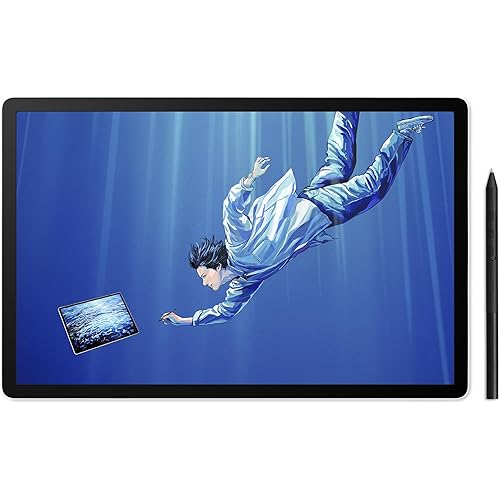
Wacom Intuos Draw CTL490DW Digital Drawing and Graphics Tablet

  • Based on 3,391 reviews
Condition: New
Checking for the best price...
$68.33 Why this price?
Save $251.66 was $319.99

Buy Now, Pay Later


As low as $11.39 / mo
  • – 6-month term
  • – No impact on credit to apply
  • – Instant approval decision
  • – Secure and straightforward checkout

Ready to go? Add this product to your cart and select a plan during checkout.

Payment plans are offered through our trusted finance partners Klarna, Affirm, Afterpay, Zip, Apple Pay, and Google Pay. No-credit-needed leasing options through Acima may also be available at checkout.

Learn more about financing & leasing here.

Free shipping on this product

FREE 30-day refund/replacement

To qualify for a full refund, items must be returned in their original, unused condition. If an item is returned in a used, damaged, or materially different state, you may be granted a partial refund.

To initiate a return, please visit our Returns Center.

View our full returns policy here.


Availability: Only 1 left in stock, order soon!
Fulfilled by Amazon

Arrives Saturday, Sep 5
Order within 20 hours and 6 minutes
Available payment plans shown during checkout

Protection Plan Protect Your Purchase
Checking for protection plans...

Features

  • Pen and tablet for digital art
  • Four customizable ExpressKeys
  • Compact size, 8.25-by-6.7 inches
  • Comes with a free Draw Pack including: Art Rage Lite sketching and drawing software, online tutorials, and a free 8x10 metal photo print
  • Connects to Mac (10.8.5 and above) or PC (Windows 7 and above) via USB cable

Description

Just starting out and finding your own style? Intuos Draw makes creating fun. Draw, paint, and edit with an easy to use pen tablet. It's a full range of art supplies all in one tool. When you're ready to create, Intuos Draw is the perfect place to start. Whatever your artistic ambitions, Intuos Draw can take you there. Find everything you need to get started in one package. Each Wacom quality pen tablet comes with a free creative package that includes downloadable creative software, services, and online tutorials too. And the simple setup means you'll be creating in no time. The pressure sensitive pen, responsive tablet, and customizable Express Keys put a whole new digital toolbox at your fingertips. Intuos Draw brings the fun back to art. Chances are, you'll find yourself inspired. Your new creative world is waiting.

Brand: Wacom


Connectivity Technology: USB


Pressure Sensitivity: 2048 levels


Operating System: Mac or Windows PC


Special Feature: Portable


Brand: Wacom


Model Name: CTL490DW


Built-In Media: ["Art Rage Lite", "Metal Photo Print"]


Target Audience: Teacher


Model Number: CTL490DW


Global Trade Identification Number: 06, 87


Number of Items: 1


Manufacturer: Wacom, Inc


UPC: 753218989406


Unit Count: 1 Count


Mfr Part Number: CTL490DW


Warranty Description: Warranty for intuos pen tabletswacom warrants the product, to the original consumer purchaser, except for the software and consumable items such as the pen nibs, to be free from defects in materials and workmanship under normal use and service for a period of one (1) year, from the date of original retail purchase, as evidenced by a copy of the receipt and registration with wacom by mail or online within 30 days of purchase.


Connectivity Technology: USB


Pressure Sensitivity: 2048 levels


Operating System: Mac or Windows PC


Additional Features: Portable


Specific Uses For Product: Drawing, Sketching


Compatible Devices: Personal Computer


Native Resolution: 2048x1440


Screen Size: 7 inches


Item Weight: 12.8 ounces


Item Dimensions L x W: 6"L x 3.7"W


Active Surface Area: 6 inches x 3.7 inches


Color: White


Frequently asked questions

If you place your order now, the estimated arrival date for this product is: Saturday, Sep 5

Yes, absolutely! You may return this product for a full refund within 30 days of receiving it.

To initiate a return, please visit our Returns Center.

View our full returns policy here.

  • Klarna Financing
  • Affirm Pay in 4
  • Affirm Financing
  • Afterpay Financing
  • Zip Pay in 4
  • Financing through Apple Pay
  • Financing through Google Pay
Leasing options through Acima may also be available during checkout.

Learn more about financing & leasing here.

Top Amazon Reviews


  • Amazing Graphics Tablet for Drawing or Painting!
This tablet is the smallest in this brand, and this one it's only a pen tablet, it doesn't have the touch functionality. The tablet has 4 expressive keys that can be maped with the driver (undo, redo, pan/scroll/zoom), and the pen has also two buttons that also can be mapped to different functions (eraser, pressure). It includes a free software bundle with the program ArtRage Lite and a few tutorial videos, I didn't have any problems at all with the download and registration of the software and the tablet to Wacom's page. Obviously you register first your Wacom tablet and then they give you the serial number for your ArtRage product. Now, let's see more about this tablet per categories: 1-Drivers: I had a couple of problems with this, the tablet came with a CD with the driver installer, although I rather'd download the driver from the Wacom website. I downloaded and installed it (tablet not connected), then I connected my tablet and it worked, I mapped the expressive keys with the driver and I tried the tablet with ArtRage and it worked fine, then all of sudden, pen wasn't working and also the expressive keys, so I opened the Wacom Tablet Properties and nothing! It appeared a message that said DRIVER NOT FOUND, weird as hell! So, I deleted the tablet's driver and installed it again, and it worked for a few minutes, and then... nothing! The same thing happened! So I deleted again, reinstalled it again, but this time I changed the usb port, I plugged my tablet in a different usb port and that's was it! Mistery solved! Apparently the usb port lost connection with the tablet, so that's why the message DRIVER NOT FOUND, when I changed the tablet to another port the tablet didn't fail again. So it's important try this if it happens the same to you. 2-Software: Like I said before, the Intuos Draw includes the ArtRage Lite, I also tried the Autodesk Sketchbook and both work flawless, I mapped the expressive keys for both programs and also the pen, they'r both amazing apps for you different kind of art. 3-Tablet and Pen: Here comes the most important, the tablet and pen work with EMR (Electromagnetic Resonance) the pen doesn't use batteries, so it works with electromagnetism. So, this has a downfall. I usually use my tablet with my laptop on my desk in my room. One day I took my laptop and tablet to the tv room, and I put my laptop on my lap and the tablet on the couch's arm, when I opened the software it started to behave really weird, the pen did lines that I wasn't doing, the expressive keys didn't work at all and things like that. So intermediately I took my laptop and tablet and went back to my room, put both on my desk, and the tablet and pen work perfectly again! So, it's simple to guess, there were some kind of interference in my tv room that made my tablet and pen behave that way, maybe an electric failure somewhere, some cable loose or I don't know really, what I Do know, is that something interrupted the connection between the tablet and pen. I think this is important to know, and it only happened in the tv room, in my room I have my speakers connected to my iPod on my desk, and I always listen to music when I'm drawing, and it doesn't interfere with the tablet or pen, they both work perfect even near my speakers and tv also on, so that's why I guess there must be some electric failure in my tv room. So, that's not a tablet or pen problem, I think it's the way they work together, you just have to make sure you won't have any problems where you're gonna use mostly your tablet. The pen is absolutely accurate! And that's because of the EMR, the lines, eraser, everything you do it's completely accurate! The active area is 6'' x 3.7'' OVERALL: The Wacom brand is the best in the market. I would definitely recommend this tablet for people with small budget or with reduced space on the desk. It works amazing with the different software. The driver issue has nothing to do with the tablet itself, the Intuos Draw works as suppose to do and it's really cool for drawing or painting, it's easy to use and the pen has the right size, it feels like a graphite pencil in your hand. If you're not used to have your eyes and hand in different places, this might not be suited for you. I only used paper and graphite pencils but I wanted to try to draw also in digital, it's a little bit hard at the beginning but I think you can get used to. This is an amazing tablet, and I wouldn't hesitate in recommend it to someone or buying another one. ... show more
Reviewed in the United States on December 28, 2015 by Mary Vargas

  • For someone planning on going digital for the first time, a must buy
So amazon has been amazing so far in terms of service. Priority shipping is extremely fast, I got this tablet within 22 hours. Anyways let's get to the review. So the wacom Intuos (small) drawing tablet, yes, or no? Yes! For someone who has just ventured into digital art, this drawing tablet is very smooth for a first time user, but I would recommend you get this particular tablet and not the touch tablet, I'll explain why later. Pros. Easy to setup, easy to install software. I have a Dell inspirion with Windows 10 and it ran very smooth. Minor hiccup with registration, but I used the windows search bar, type in Wacom desktop centre, and you can simply register from there with no issues. . Free software is actually amazing for the price you pay. It has a decent amount of tools to choose from, tracing options, reference options, import and exporting files, layers. For a starting and aspiring artist this package is a must buy. . Don't be shy, you can actually put some pressure on this little guy. If you have a light touch it has good response, and if you put on the pressure its very smooth, the texture and feel of the pad is almost like paper. . It has an option for wireless, but seriously don't waste the money. The USB is long enough to situate a nice little setup, you can be 5 to 6 feet away from your computer/laptop and still be comfortable, especially with a nice HDMI setup, and the USB seems durable, but I would be cautious. . Hot keys/ shortcuts are extremely useful. Just type in Wacom tablet properties on your search bar, get in and assign your shortcuts. I love the two buttons on the pen, I can pan and zoom, and I haven't even set all my buttons on the tablet, I just have undo and application shortcut, though its not so clear how to set them, I just happened to get them set. . Mapping is pretty good. Acting as a mouse, the double tap is great, clicking is satisfying, pretty smooth. Cons . Alright, the pen is cheap, but that's only if you are a decent artist, or have used a lot of tablets in the past with better equipment. A first time artist wouldn't seem to off by it, but they could have added some grip, especially near the two buttons, because if you aren't always in the same position to the buttons, you will sometimes fumble the pen, and if you plan to use it for more than 3-4 hours at a time, it might start to become an issue. . It's very sensitive in terms of tracking the pen. You have to be about an inch away from the actual pad for it to sense it, so if you don't have steady hands, it will be hard to get use to. I'm fine with it, but you are also limited to your movement because of the small size, and it can sometimes affect steady lines, but all and all its very smooth to navigate with. So because of this fact, if you have the touch tablet, you are basically going to kick yourself for it, because sometimes you want to rest your hand on the pad, and not have it hovering over the dam tablet constantly, if you even get close with your hand, it will probably give you problems, I'm glad I reverted back to the touchless choice . Other than that this tablet is a beauty for a first time purchase. The price is right, the quality is great, and even for the average artist this tablet is actually very handy. It's a lot of fun, and I am completely satisfied with this purchase. 5/5 ... show more
Reviewed in the United States on April 1, 2016 by Adam

  • Great product, if you are patient to getting through startup and learning curves.
Other reviewers have mentioned that if you are new to pen tablets, it takes some getting used to. Heed the warning, it really does. That said, after 1.5 weeks of use I am just now beginning to get the hang of this. And believe me, for drawing, doodling, doing scratch text for notes, or what ever, this is awesome! It looks like Wacom has been the leader in this product space, and as far as the tablet product itself goes, I guess they are. Once you get past your own bunch of glitches if you are new to it. On the down side, for me, is the software aspect. But there are 2 parts to this so if you're really reading this, follow closely. There's the tablet "driver" software and hardware-support applications, and then there's the "drawing and art" apps that are not fully tied to any particular tablet. Wacom's driver and support apps are exactly what I demand -- install, run, it works. No futzing around trying to "patch" or configure or tune, the software that mates the Intuos to the operating system works straight away, no problems. Be advised though, I am speaking only for Mac since that's what I use, I can't speak to the Windows universe on this. Moving along with software, here's where it got sketchy for me (pun possibly intended...) what I do with the tablet is scratching out electronics circuit drawings and jotting down notes and formulas related to the circuit of interest. Some for design ideas, some for study into areas I'm not so familiar with. I wanted this because I'm tired of generated piles of paper that I ultimately just throw out once I've moved on. I also wanted to be able to save my work in case I want to go back and look at something, which my own bad habit of scrapping the pencil-and-paper work prevents me from doing. So I went for this tablet, thinking that the "free," "drawing" software would do the trick. So here we go. I am not an artist. My on-paper transfer ability looks more like a stoned chicken dragging 3 pencils around. That's my lot. So I don't want to be unfair to artists who are familiar with these software packages but for types like me, the "free" software offered by Wacom came down to ONE app that is more-or-less market tied to the Intuos Draw tablet. It's a 3rd party app that you cannot get access to until you successfully register your tablet with Wacom, an adventure that took me 5 calendar days to complete. That really sucked (referring more to the Wacom website than the app). It was finally rectified by Wacom via email after I sent a painfully detailed problem description of what was going on. Fast forward to "let's get that software ..." so I did, access and download and emailed registration key activities went ok, but then I got into the software and for what I need, it was simply horrible. It's not Wacom's fault per se, that I can tell. But still, only ONE app, and it was very unintuitive for me the newbie to this. The pen-motion to render delay is horrid. And that's wired to the tablet. Some folks have complained about slow reaction times to pen action, but that's mostly over the Wireless Kiit woes threads on the 'net. Not applicable to my set up, so far. So with a very low "aggravation threshold" for these types of things, I scrapped the drawing app and looked for something different. Enter my old friend, the world of Open Source Software, where any Linux user would easily recognize an app called GIMP. Well it turns out the folks behind GIMP have ported to Apple OS-X (and apparently Windows too), and people on the associated forums swear by the combo of GIMP and Wacom tablets like mine. Great news for those like me who are doing free-form capture that surely does not qualify as art. If that's all you're doing, go with GIMP, it's 0 delay with pen motion, highly adjustable, and of course, also free. With GIMP and the Intuos I've been trekking through the pen over here, output over there disconnect (remember the part about getting used to using a tablet?) for around this past 1.5 weeks, and I love this thing. Ok, one more hoorah to go: The USB cable tethering the tablet to my laptop drove me nuts, so I ordered the Wacom Wireless Kit for the Intuos. THAT is the icing on the cake. Great adaptation over wireless, and I get no "drawing delay" using GIMP (I've done a separate review on the kit). The Wacom "driver and system" software picked up the tablet hardware connection immediately. Just read the quick-start steps in your language, do what it says, and away you go. No more USB cable (unless you need to charge the battery on the tablet). SUMMARY: * Tablet: great. allow yourself to get used to drawing in once place and seeing it on your screen 2 feet away from where your hand is. * USB cable connection. Works well, ok if the cable doesn't bug you. Otherwise annoying. * Wireless Kit: a true gem. * Product registration on Wacom's site. has the potential to make you want to send to whole thing back. Be diligent, contact Wacom Tech support. They will help. * "Free" Software sponsored by Wacom: not for me, may makes more sense to an artist. ... show more
Reviewed in the United States on December 28, 2015 by unhappy2

  • Great little baby tablet
I love my Wacom Tablet it really has helped me learn and be able to create art with the detail that I need over a mouse. The only problem I've had with the Tablet is the Software registration which I was unable to activate due to my software key already being used. This Isn't really a problem since I use Medibang; still it's something to be aware of. If you are unsure if you should get this tablet or any other tablet whether due to uncertainty or brand name or what have you. I highly recommend and have been recommended Wacom; if you are uncertain about tablets overall I will say this. Getting a tablet will not make you magically better* however you will notice a difference in the overall finesse of your art. I am very detailed when it comes to my art and when I was using a mouse I didn't have nearly as much control over my lines as I do using a tablet. I also noticed that I find art much more enjoyable to create on a tablet and thus I am more often learning and making art and hence getting better*! So having a tablet does have many positive factors... Now for the negatives mostly related to this tablet. It is small baby tablet! Please note that is has software that matches your screen and you wont run out of room on your tablet. The problem for me is that my hand cannot rest on the tablet and thus droops off the edges which makes control sometimes a bit of an issue. Another situation are the ever vanishing nibblets, these little guys like to wear out but Wacom being the nice people they are give you a few of these little fellows with your purchase. I couldn't really give you a time frame on how quickly they wear but its moderately fast. These two slight issues that I have don't retract at all from owning this tablet since there are ways to solve them. Like being gentler on the stylus and tweaking the settings in the Wacom tablet to fit your needs. Overall a tablet is just another tool that eases hand/eye/pen coordination and with any tablet you need a software that you feel comfortable with and like so I also recommend checking out various programs and see which one is right for you! This tablet will suit your needs and your wallet will thank you...just keep an eye on your nibblets they will run if given the chance XD. Good luck and have fun creating the next generation of art! ... show more
Reviewed in the United States on April 27, 2016 by Kory Law

  • Not great with Windows 10 and the pen is too small
Tablet is OK, but included pen is so small diameter-wise that it is not comfortable to hold for long periods. It actually makes your fingers cramp. I ended up taking off the silicone cover from an old Wacom pen that no longer worked and put the cover on the new pen so that I could hold it comfortably. The soft cloth pen holder at the back of the tablet is useless. The pen (even without my added sleeve) only fits part way into this holder because it is so tight. Also, I had a great deal of difficulty getting the tablet to work with Windows 10. It STILL does not work with Outlook 365 (I had to buy a separate wireless mouse to use with Outlook). The problem is with the driver, and both Wacom and Microsoft haven't got it quite right yet. If you want to use this tablet with a desktop setup that is NOT TOUCHSCREEN, then it is hard to get the tablet working properly, especially with PhotoShop where you need the varying levels of pressure/tilt/etc. On the plus side - it does save energy by turning off after a period of non-use which you can set. I like the wireless - nice not having a cord running across my desktop. ... show more
Reviewed in the United States on November 11, 2015 by AZArtist

  • Great for hobbyists who want quality on the cheap!
I'm a broke college student with a digital art hobby. I tried using a tablet before, but i was so cheap and poorly built, it was unusable. The Intuos Draw, however, is my new favorite thing. Like, ever. I'm used to drawing with pen and paper, but I was actually surprised by how easy it was to get used to drawing on the tablet. I've been drawing all afternoon, and so far i have been able to draw with just as much quality as i would on paper. Technical things I like: You can hover a decent distance over the tablet and it will still move the cursor ( again, i had a bad tablet that only let me hover a 1/4 inch). All buttons on the tablet and pen are super easy to map. I mapped them to undo, redo, zoom in, zoom out, pan, and hold pressure. The nib feels great on the tablet. It doesn't slip around, but it doesn't stick either. Feels kind of like pencil and paper. The look and feel is fantastic The pressure sensitivity can be adjusted so it's perfect. Everything comes out flawlessly on the screen with no lag or blots where the sensitivity gets confused at low pressure. Technical things that are kind of meh : Occasionally the pen draws out a dot of full pressure. I might be slipping on a button or something, but it's not an impedance because it only happens rarely. I haven't found this to impact my quality or efficiency, but the pen feels a little light and a little plastic-y. I might just end up getting used to it. The texture keeps it in your hand. The drivers didn't install right when i ran the installer on the disk, but i was able to easily download them (this was probably an issue with my machine). Would I recommend this to a friend? YES! I can see myself using this 70$ tablet for years. 10/10 best tablet for your money. ... show more
Reviewed in the United States on October 2, 2015 by Nick Snow

  • Love It!
Before I start, this works a lot better being from the actual wacom company, because the reason I brought this is because my old one (A bamboo tablet) wouldn't work with my second laptop and was having a hard time on the first. That one I got from someone off of amazon who had no purpose for it anymore and was selling it ( The pen wouldn't work/ draw but my finger did and I couldn't seem to fix it no matter how hard I tried) A word of advice for those who are new to the whole drawing with a tablet thing, sometimes looking for a cheap tablet isn't a good idea, I wanted to try it out but I didn't want to waste my money on something I possibly wouldn't like (Which I did after getting used to it.) Just look for something in a reasonable price range that works for you from the the seller of this product (Which I recommend/prefer ) or another company that makes drawing tablets and If you rather stick to pen and paper then you could return it or give it to someone who wanted one that you know. When I first ordered it I thought it was going to be the same size as the bamboo tablet, but I actually like the small size because I don't have to fiddle about trying to get comfortable, which I quite like. Plus I like the little compartment in the back with the pen nibs because I lose things really easily, especially small things and when I got my old one it came in a small baggie(which i lost for awhile) with this sliver thing which I suppose was to be used to pull the nib out of the pen but me being me used it to sharpen the nib as well.... I also like the built in nib exterior. The only thing I don't like is how hard it is to get the software that comes with the product. (Still haven't been able to get it,going to try again.) but when I try to make an account to resister the product, My country (United States) doesn't show and I don't think it will let me pass on to the next step if the information after country selection is wrong or doesn't match up, That seems to be the only problem I have with it but otherwise the overall performance and handling of it is fantastic. The slim and light build is a great and perfect for travel and storage. Glad I brought it when I could. ... show more
Reviewed in the United States on November 14, 2015 by Precious

  • First Impressions: Love It
Using with my desktop running Windows 10. Installing the drivers was easy and painless; I did it through the website rather than using the included disc.I mainly wanted this drawing pad to do simple animations in Adobe After Effects. Here are my first impressions: First of all, I'm new at the whole digital drawing pad thing. It took me a while to get my hand/eye coordination adjusted. If you've never used a graphics pad before, it may be a little weird using the pen and not looking down. I had to acclimate my hand to move while I kept my eyes on the monitor. (Again, first time ever using a graphic drawing pad). At first, my lines looked messy, like a three-year-old's, but PRACTICE will make it all better. Once I got a good feel for it, I was able to do simple animations on Adobe After Effects CS6. I eventually had to stop after about three hours of playing with it because my fingers started cramping up. The pressure sensitivity is pretty neat, I can make thick or thin lines depending on how hard I press down. Also, hovering the pen about 1/2" over the pad acts as a mouse in which you can control your computer's cursor and you can click on things by tapping on the pad with the pen. Another nice thing is that I can rest my hand on the actual pad and it won't mess it up or mis-read the pen. Some Pros and Cons: Pro: Pen does not require a battery (How does it work? Magic?) Pro: Easy set-up through the website Pro: Optional wireless connection (sold separately) Cons: Small pen may cramp fingers after extended use Cons: No built in eraser (but you can use Ctrl + Z to un-do) Overall, it has been a great and fun experience. If you're new to the whole graphic pad scene, this is a great inexpensive option. Closing Thought: Newbies, treat that pen like a new horse. You can't just hop on her and start riding. You have to gain the horse's trust, get a feel for it, get some "behind-the-wheel" training. Build a relationship with her and with time, patience, and practice you'll be riding into the sunset together...figuratively speaking of course. ... show more
Reviewed in the United States on August 31, 2016 by Bobby Sprinkles

Can't find a product?

Find it on Amazon first, then paste the link below.
Checking for best price...