
Search  for anything...

XPPen Deco Pro MW Bluetooth Graphics Tablet 11×6 Inches Wireless Drawing Tablets Painting Pen Tablet for Drawing and Remote Learning (Deco Pro MW)

  • Based on 1,993 reviews
Condition: New
Checking for the best price...
$159.99 Why this price?
Save $40.99 was $200.98

Buy Now, Pay Later


As low as $26.67 / mo
  • – 6-month term
  • – No impact on credit
  • – Instant approval decision
  • – Secure and straightforward checkout

Ready to go? Add this product to your cart and select a plan during checkout.

Payment plans are offered through our trusted finance partners Klarna, Affirm, Afterpay, Apple Pay, and PayTomorrow. No-credit-needed leasing options through Acima may also be available at checkout.

Learn more about financing & leasing here.

Selected Option

Free shipping on this product

This item is eligible for return within 30 days of receipt

To qualify for a full refund, items must be returned in their original, unused condition. If an item is returned in a used, damaged, or materially different state, you may be granted a partial refund.

To initiate a return, please visit our Returns Center.

View our full returns policy here.


Availability: Only 5 left in stock, order soon!
Fulfilled by Amazon

Arrives Monday, Feb 16
Order within 6 hours and 43 minutes
Available payment plans shown during checkout

Protection Plan Protect Your Purchase
Checking for protection plans...

Size: Medium


Style: Wireless


Features

  • Bluetooth Connection: In addition to the USB wireless receiver connection and wire connection, the Deco Pro MW is delicately integrated with advanced Bluetooth v5.0 chips for reliable wireless connections
  • More Compatibility and More Possibilities: The Deco Pro series supports Windows 7 or later, Mac OS 10.10 or later, Android 6.0 or later, Chrome OS M88 or later, and Linux. It's compatible with most drawing and design software, including Photoshop, SAI, Painter, Illustrator, and more. Empower your creativity with more possibilities
  • Battery-free Pen: The PA1 battery-free stylus features a 60-degree tilt function and 8,192 levels of pressure sensitivity. You can shadow easily, draw delicate brushstrokes and lines, and express and present every subtle detail
  • Efficient Dual Dials and Keys: Deco Pro series features eight responsive shortcut keys and two innovative dial wheels. You can easily program them to fit and improve your workflow. Map them to different shortcut combinations in different software. With Deco Pro, smarter control, greater achievement
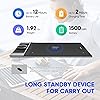
  • Superior Endurance and Continuous Inspiration: The ultra-thin 7mm body of the 116 Inches Deco Pro MW is loaded with a large capacity battery. The battery has a long life and satisfies your needs for all-day work in Bluetooth mode. A convenient switch on the back allows you to turn the pen tablet on or off. Slim size, mighty endurance

Brand: XP-PEN


Connectivity Technology: Bluetooth, USB


Pressure Sensitivity: 8192 Levels


Operating System: Windows, Android, Linux, Chrome OS, Mac


Special Feature: Durable


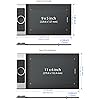
Product Dimensions: 15.74 x 8.94 x 0.65 inches


Item Weight: 4.18 pounds


Batteries: 1 Lithium Ion batteries required. (included)


Date First Available: July 5, 2021


Manufacturer: XP-PEN


Country of Origin: China


Frequently asked questions

If you place your order now, the estimated arrival date for this product is: Monday, Feb 16

Yes, absolutely! You may return this product for a full refund within 30 days of receiving it.

To initiate a return, please visit our Returns Center.

View our full returns policy here.

  • Klarna Financing
  • Affirm Pay in 4
  • Affirm Financing
  • Afterpay Financing
  • PayTomorrow Financing
  • Financing through Apple Pay
Leasing options through Acima may also be available during checkout.

Learn more about financing & leasing here.

Top Amazon Reviews


  • Better than Wacom PTH660 and Huion Q11K
Size: Small Style: Wireless
I have an old Wacom PTK-840 (no longer supported by drivers = lame!). So I wanted to get the Wacom PTH660, but at 400 dollars, I instead went with the Huion Q11K. And then its side keys failed within 6 days of getting it. Maybe this was a fluke (ratings suggest it was), but I returned it and decided I would shell out for the Wacom PTH660. The thing was a piece of junk. So laggy when it would draw, but most of the time pen strokes wouldn't do anything. I tested it in Illustrator CS 5.5. Maybe Wacom doesn't support older Illustrator versions. So I returned it and got the XP-PEN Deco SW (small wireless) for 110 dollars. Loved it the moment I started using it. Just remember to click "OK" after configuring the buttons so it keeps your configuration. Love the dial. It is much better than the Wacom finger dial thingy. I've only had it about 10 days, but it is less laggy than the Huion Q11K (and a million times less laggy than the Wacom PTH660), and the dial and button and layout are much better than Huion Q11K and Wacom PTH660. It is a really great tablet, very lightweight, easy to use, great layout and interface. The driver/configuration software needs some improving, but it is easy to figure out and works (though sometimes it disconnects and reconnects the device without me unplugging it - hence why it is important that you click "OK" after configuring the buttons the way you want, which can be customized with your particular program). I have read that smaller is better in size (less strain on hands/wrist), but I think I would have gotten the Medium size, though the Small works fine - just have to get used to it after the huge PTK-840. I highly recommend the XP-PEN Deco SW over anything else out there in the small tablet category. ... show more
Reviewed in the United States on May 20, 2022 by Robert Burns

  • Great Tablet! Even better Customer Service!
Size: Small Style: Wire
I initially purchased this back in July for my bday. I was super exited because of all the functionality of the quick keys. It worked great at first but then the pen buttons didn’t work at all which was SO inconvenient because I use this as my mouse for work (I’m a UX Designer). Anyway, I was going to return it and just go back to a simple Wacom tablet but it was past the 30 days so I decided I’d just deal with it. But I found myself not using it at all because not have the right click on my pen was so annoying. I finally decided to reach out to their customer service. Unfortunately you can only email them but don’t worry, they answer SO quick. Like within an hour and sometimes quicker for a good back and forth. Anyway, they had me send detail of what was not working and I tested my tablet and pen using some of their troubleshooting software. After doing that and sending a video they saw my pen was defective and sent me a new one free of charge! The new one works perfectly and I LOVE this tablet. It’s the perfect size, I love having so many buttons to customize. It helps with my workflow since I don’t even have to use my keyboard when making designs. And the pen buttons (now that they work) are perfect. I recommend trying this tablet out if you’re iffy and just know that customer service will make it right if you’re having any technical issues. ... show more
Reviewed in the United States on October 13, 2023 by Anonymous

  • Love this tablet
Size: Small Style: Wireless
I recently had developed some intense wrist pain from using a mouse all day for my job. This is a great substitution for daily mouse use with my PC. For reference I am an architect and do not recall having seen any reviews form a similar profession (i.e. not strictly reviewed geared for more artist use). It did take a little to get used to the hover with the pen (when you make contact it “clicks” or draws depending on mode). My transition to using no traditional mouse at all took about a month and I don’t miss it. I frequently need to do drawing markups and it is much easier to do with a writing feature like this in Bluebeam - Especially if I have to sketch a building detail or something. In the past I’d have to either do this with program tools, or hand draw/scan/clean up scan, and then attach/insert it into the markup drawing pdf. God forbid I wanted it to a scale… With working remote due to covid it became less feasible to do my redline markups by hand on print copies due to not having a large format scanner at home and this is a nice compromise. It’s also nice to get that hand drawn quality for schematic drawings by using photoshop (or whatever other program combination), without having to scan and photoshop it clean before continuing or having to use a hard-line drafting program - which has a totally different feel to a client at that stage. I also like that the scroll wheel center (black circle) is a touch pad of sorts when in that mode. It is not terribly accurate, but it’s good enough that when I am working on paper copies but need to move the mouse to select something I can keep writing with my left hand and use my right hand to mouse over with this touch function without picking up the stylus pen. (Being ambidextrous is the best by the way, if you can train yourself to write with your dominant hand and use the stylus with either hand as needed to multi task work as needed.) Additionally, as an architect I have to draft in AutoCAD and Revit and this seems to do a good job as a mouse replacement for that. Slightly jumpier than a traditional mouse, but there are easy shortcut workarounds. It is imperative to have the scroll/zoom function for all these programs (as I found out the hard way with a starter tablet that did not have it) and this tablet delivers. I combine that scroll/zoom wheel with my main pen button set to middle click for a ‘pan’ function in many programs. It’s easy to use the pen with my dominant hand and scroll/zoom/shortcut key with my non dominant hand once I got the hang of it. The shortcut keys are easy to program and the interface program is easy to understand. I like that you can program different shortcuts for different programs. You can also switch between ink and mouse modes. Mouse mode works - you guessed it - like a mouse. Where you can move at variable speed across the screen and pick up the pen and move it but it doesn’t relocate on the screen like in ink mode. Ink is more of a screen to screen exact location. In ink mode you can hand-write in all kinds of different programs. Like draw in word documents, or written notes to text in outlook emails (if your writing is legible.. mine is not great). Additionally, I typically use three screens - a laptop and two externals for my line of work. In mouse mode you can set the full 3 screens to one mouse control area and the ‘mouse’ can traverse the whole area continuously. I also have a shortcut key set to switch monitor so when in ink mode I can click through and have it draw on one screen at a time (you can set it across all - but it becomes quite distorted since the ratios are skewed from tablet to 3screen stretch). As for the unit itself, it feels well made. Heavy enough to feel substantial but not enough to be obnoxious. It was relatively intuitive to download drivers and set up. The pen stylus has two buttons, a nice weight, and comes with several replacement nibs. The travel pen container is nice as well and the cap acts as a pen stand when not using the stylus. I like the option to be plugged in, work wirelessly via usb dongle, or connect wirelessly via Bluetooth. Battery life seems good (unit is not old so I will have to wait and see). For taking between home and office I was able to get a standard padded laptop protector sleeve that fit this nicely with a pocket for all the accessories (cord, pen case, manual, etc) and fits in my laptop bag with my computer. Overall pretty impressed with this for what I needed it for. ... show more
Reviewed in the United States on May 4, 2022 by Shelby K.

Can't find a product?

Find it on Amazon first, then paste the link below.
Checking for best price...