
Search  for anything...

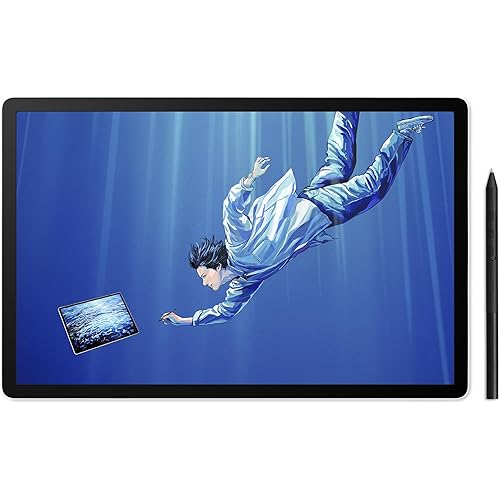
Wacom Intuos4 Wireless Pen Tablet

  • Based on 79 reviews
Condition: Used - Very Good
Checking for the best price...
$242.33 Why this price?
Save $85.66 was $327.99

Buy Now, Pay Later


As low as $40.39 / mo
  • – 6-month term
  • – No impact on credit to apply
  • – Instant approval decision
  • – Secure and straightforward checkout

Ready to go? Add this product to your cart and select a plan during checkout.

Payment plans are offered through our trusted finance partners Klarna, Affirm, Afterpay, Zip, Apple Pay, and Google Pay. No-credit-needed leasing options through Acima may also be available at checkout.

Learn more about financing & leasing here.

Selected Option

Free shipping on this product

This item is eligible for return within 30 days of receipt

To qualify for a full refund, items must be returned in their original, unused condition. If an item is returned in a used, damaged, or materially different state, you may be granted a partial refund.

To initiate a return, please visit our Returns Center.

View our full returns policy here.


Availability: Only 1 left in stock, order soon!
Fulfilled by UxpressOne

Arrives Monday, Sep 14
Order within 20 hours and 6 minutes
Available payment plans shown during checkout

Protection Plan Protect Your Purchase
Checking for protection plans...

Size: Medium


Style: Wireless


Features

  • Active Area : 8.05 x 5.0
  • Pressure Levels : 2048
  • Advanced Pen Tip Sensor
  • ExpressKeys
  • Finger Sensitive Input : user defined Touch Ring controls up to four functions
  • Quickly and professionally edit photos and create digital artwork with natural pen control
  • 2048 levels of pen pressure sensitivity for precise pressure control
  • New pen tip sensor technology lowers activation force and captures every nuance of pen pressure
  • User defined Express Keys and multi function Touch Ring put time saving shortcuts, modifiers, scrolling, zooming, and more at your fingertips
  • Bluetooth Wireless Technology allows you to relax comfortably or move freely up to 33 feet (10 meters) away from your computer
  • Illuminated ExpressKey displays provide a constant reference each Keys setting

Description

The new Intuos4 Wireless pen tablet with Bluetooth wireless technology lets you relax in you favorite working position or move about freely up to 33 feet (10 meters) from your computer. Enjoy the freedom of working "unattached" from your Mac or PC and reducing cord clutter. Intuos4 Wireless is also an excellent choice for collaborative work session and client presentations as well as art education and training.

Brand: Wacom


Connectivity Technology: Wireless,Usb,Bluetooth


Pressure Sensitivity: 2048 levels


Operating System: macOS, Windows


Special Feature: Pen


Brand: Wacom


Model Name: Intuos4


Built-In Media: Digital Pen


Target Audience: Teacher


Model Number: PTK540WL


Global Trade Identification Number: 58


Number of Items: 1


Manufacturer: Wacoal(????)


UPC: 753218993458


Unit Count: 1 Count


Number of Packs: 1


Mfr Part Number: PTK540WL


Warranty Description: 2 years USA and Canada


Connectivity Technology: Wireless,Usb,Bluetooth


Pressure Sensitivity: 2048 levels


Operating System: macOS, Windows


Additional Features: Pen


Specific Uses For Product: personal


Compatible Devices: Personal Computer


Native Resolution: 2048x2048


Item Weight: 2.2 pounds


Active Surface Area: 40.25 square inches


Color: Black


Frequently asked questions

If you place your order now, the estimated arrival date for this product is: Monday, Sep 14

Yes, absolutely! You may return this product for a full refund within 30 days of receiving it.

To initiate a return, please visit our Returns Center.

View our full returns policy here.

  • Klarna Financing
  • Affirm Pay in 4
  • Affirm Financing
  • Afterpay Financing
  • Zip Pay in 4
  • Financing through Apple Pay
  • Financing through Google Pay
Leasing options through Acima may also be available during checkout.

Learn more about financing & leasing here.

Top Amazon Reviews


  • Open up the potential of your creative programs!
Size: Medium Style: Wireless
I had used a Wacom Tablet over 8 years ago. It was even beige...Back then, the worst part was the ergonomics of the "pen". It looked and felt like a crappy Papermate pen. But oh the neat-o things you could do, if the school computers wouldn't crash on you. :) Fast forward...the years of design refinement are apparent. The pen, the piece that is critical to the user experience, has evolved by leaps and bounds! Good feel, size and weighted accurately. I think Wacom studied how a Mont Blanc pen felt in the hand. The aesthetics of the tablet of today are sleek to say the least. The integrated digital screens showing the shortcut assignments are great. The wheel and toggle help me work with a fluidity that rivals traditional media. The sensitivity is great and refined. I have to say that this is an incredible way to control what you want to do, I encourage everyone to learn how to use the adjustments to your advantage! To add to this the wireless option and you have a product that will grow with you! Compatibility and obsolescence issues look to be a long way off. The only thing that may bother some is the stray crumb and dust showing up on the tablet as you work. I also think for what you can do and the reliability, the price is more than fair. If only the Cintique wasn't so pricey. The screen integration is the next logical step. Gotta wait till I win the lottery... I am left handed. No problems there. This was an important part of my decision to purchase this brand. I use a 5+year old Toshiba laptop running XP Pro. No issues with the set up and use of the Tablet. If you are comparing models, the Intuos 4 has the best bang for the buck. Hands down. Bottom line: Superb product. Sat Nam, CS Asheville NC ... show more
Reviewed in the United States on April 29, 2010 by Chad Schoenauer

  • Good Wired - Bad Bluetooth
Size: Medium Style: Wireless
The Intuos4 is a good product, but not great. When wired to the computer, it works perfect. The precision is provides drawing with Adobe CS is excellent; the pressure sensitivity when using the various brushes and pencils is excellent, the smoothness of the pen is great, and the buttons on the tablet itself are much improved over the previous versions. It is a good product when wired. However, when it's running on Bluetooth, it stinks. I've had this for several weeks, and am convinced there are severe limitations with the Bluetooth technology version of this tablet. It loses a signal quite often when working with it, both while resting and while using the pen to do artwork or just surf the Internet. I've tried downloading the drivers several times to make sure they're not conflicting with Windows. All other Bluetooth devices that I try with my computer [separately connected] work flawlessly; external keyboard, mouse, remote, etc., they stay connected. This tablet loses it's connection while resting next to the laptop, and a short distance from the laptop; it makes no difference. If you're interested in the Wacom Intuos4, my suggestion would be to buy the wired version because you're going to have to keep your Bluetooth enabled version wired anyway. ***UPDATED INFO*** NEW LAPTOP: APPLE MACBOOK PRO 13" - now rating it 5 Stars I've been using the same Wacom Intuos4 on a new Macbook Pro, and it works flawlessly. I did read somewhere that the IBM computers had problems with the bluetooth connections. The Mac works every single time I want to use it, and so far with 5 months of using it with a Mac, I haven't had any problems. I've also added a cover to it to protect the writing surface. I know that the textured surface is supposed to be there, and that you could buy textured protectors for it, but they're wearing out the tips. I bought a ZAGG InvisibleShield meant for a tablet computer and carefully used an exacto knife to trim it to the proper size. It fit perfectly, and so far I haven't had any problems using it. It protects the Intuos4, and if I want to remove it, I only have to peel it off because it isn't glued down. The screen protectors that are being sold for the Intuos4 only have adhesive around the edges; I would worry about slippage. With the Zagg, the entire surface is adhered to the tablet, and I haven't had any problems using it. ... show more
Reviewed in the United States on November 20, 2011 by S. Dilcher

  • Wireless Bluetooth mode has a noticeable lag when switching applications
Size: Medium Style: Wireless
In short, if you are using the Intuos4 wireless medium in bluetooth mode with customized express keys there is a .5-3 sec delay/lag when you are switching between applications. This is because there is not enough bandwidth to transfer the OLED data/shortcuts fast enough to the tablet. When the unit is plugged in it works perfectly fine with no delays when you switch between applications/programs. Also there is no delay when drawing/using the pen... only when you are switching between applications. If you don't program any of the expresskeys/touch ring there is no delay in wireless mode, but what's the point in upgrading to intuos4 if you don't use them? To give you an example of what it's like this is how my workflow was interrupted just trying to setup the tablet- Switch to PS to reference shortcut key ..1...2...3, Switch back to Sys Pref's ....1....2, Enter shortcut, switch to safari to google shortcuts ....1..., switch to illustrator ...1....2... Over the course of the day this adds up to minutes. It basically makes my mac pro at work and i7 macbook pro at home feel like they are 10 years old. During these delays it feels as if your machine is beach balling- you can watch the tablet load each expresskey one by one before it lets you do anything. Unfortunately Wacom had this to say on their European forums: "I am sorry, this is a limitation of the Bluetooth connection. There will always be some lag in Bluetooth/wireless mode due to significant bandwidth/throughput difference compare to the wired connection. There is no (sic) much we can do about it." I was very surprised to find out this was considered normal, and was more surprised because I spent a lot of time reading reviews and watching youtube videos and not a single person mentioned this. It seems like a) very few people take the time to program shortcuts b) a lot of people who buy these things are just looking for nice/shiny/expensive things to buy. So I thought I'd write a review warning you if you are a power user and you are looking at the wireless version. I'd just get the wired version because the active area is slightly bigger and the cord will be in a better spot. What Wacom should've done was put built in memory into the tablet. It's so dirt cheap now a days (think of the onboard memory of every single cell phone, or thumb drives that companies give away as promotion now) it would've costed pennies to add 1mb (or even less) memory into the tablet to store your expresskey data. Instead Wacom thought it would be a great idea to just force this data through the bluetooth bottle neck every single time you switch programs. Ok, I'll stop complaining now. I'm a graphic designer. During my day job I work in primarily illustrator/photoshop and at night I moonlight as a web designer. I've been a daily intuos3 6x11 user for the past 4 years. I also have a 4x6 intuos3 I rarely use because I'm a lefty. What can I say that hasn't been said about intuos4? They took everything that was wrong with intros3 and fixed it. Ambidextrous design, oled display so you actually know what the keys do, and my favorite- radial menus so you can stuff a ton of those finger bending, mind escaping shortcuts to programs like inDesign which I use once a month and waste time kicking myself trying to remember the tabs, rules, etc shortcuts. I was waiting for my intros3 to bite the dust before upgrading but I don't think that'll ever happen. My needs changed so I upgraded. The 6x11 was too big for travel, the 4x6 was too annoying to use when I was traveling, and the express keys were never used on either because I just couldn't remember what did what. Some other notes- *People complained that the express keys are all the same size and they are but the middle ones sit at different angles. It's actually quite easy to feel and differentiate. *OSX lion and reverse scrolling: The tablet still scrolls normally so this is kind of confusing when you are using a mbp or trackpad. *I don't understand the mini usb into the side of the tablet. It's NOT solid feeling at all. It feels like if I rested my arm on the cable over time this connection can become weak and break. some people have broken the usb connection. A full size usb would've been more stable. Again, this is why I purchased bluetooth- because the tablet goes from home to work daily and the idea of plugging in/out of the cheap feeling port 2-4 times a day scares me. *Price- a lot of people complaining about the price. It is a pro level device. Deal with it. I paid $350 for my 6x11 4 years ago and it looks like I could still sell it on ebay for a couple hundred if I wanted to. Right now bluetooth is only a few bucks more but I would still go with a wired version. In fact I'm thinking about sending the bluetooth version back for a wired... ****UPDATE**** In response to a question I've also added more quirks I've noticed with my wireless intuos4. Other quirks I am having: Sometimes the OLED display will just turn off when I'm working and I'll have to power the tablet off/on to get it back. The other annoying one is some times when I'm using the toggle switch to go through the 4 different touch ring settings the indicator light will say I'm on the first setting when it's actually on a different one. For example if I'm in PS the tablet will say I'm on Autoscroll/zoom when it's actually on Brush Size. The onscreen display will show you toggling through all the different settings but the light will just stay in one spot. This happens about once or twice a day, and it doesn't matter if it's plugged in or wireless. All I have to do to correct it is power off/on- easy fix but it really messes with my work flow because it seems to happen when I'm "in the zone". I contacted tech support and they basically just kept telling me to reinstall the driver. "Still happens? Well we've never heard of the problem before... try deleting all the profiles, and reinstalling the driver"- I kept getting answers like this and eventually just gave up. ... show more
Reviewed in the United States on September 27, 2011 by alan joseph

  • This thing rocks.
Size: Medium Style: Wireless
First off, I have to say that I'm not an artist, so I can't really review this thing as someone who uses it on a semi-pro or pro level. I bought it to use for photo-editing, since I find it very hard to correctly mask/paint with a mouse. And for what I bought it for, it works perfectly. Very well designed, easy to setup, easy to use, works great, looks great. You get everything you need. You even get a bunch of extra nibs for the pen, to customize your "feel". Not being an artist, I couldn't tell too much of a difference between the nibs, so I am leaving the "stock" nib in. Is it perfect? Of course not. Is it worth the price? I would say a solid YES. The tablet really is designed well, the whole thing just fits/feels/works like you think it should. It's obvious they've been working with these things for years and have been able to fine tune it to get it to the point where it is now. Easy to switch from left/right (big deal for me since I'm a lefty). Easy to customize the buttons/interface for different apps, and it works right out of the box. BT/Wireless works perfectly, and for the short sessions I've used it, I haven't had any issues with battery life. It really is nice to be able to use it without wires, mostly because of the awkward USB location on a laptop. But Wacom does include a really, really long USB cable for it, so you can easily pre-wire it up in your setup and leave the cable there, no issues with it reaching to rear-plug USB ports. Overall, I can highly recommend this tablet. Works perfectly for what I bought it for. From the little bit of use I have with the free painting/drawing software you get for buying the Wacom tablet, I can imagine it would work well for beginning artists also. The combination of pen angle/pressure is very precise. ... show more
Reviewed in the United States on April 23, 2010 by S. Kosloske

  • This is a fantastic device
Size: Medium Style: Wireless
This was the first tablet I actually purchased (by no means the first one I have used) and I have no reason to upgrade. These things will last forever! I am not terribly impressed with the wireless "capabilities" because they are spotty and at times become noticeably laggy. I have used this tablet on both a Mac and Windows computer and noticed the problem with both. It's no biggie though because I just use it plugged in all the time, and the cord is plenty long if you were to kick back with the tablet on your lap. I love the scroll wheel and the hotkeys are a huge improvement over old models. You can set up different functions for each key that change from program to program and the lcd labels are just awesome. I know some people like drawing on smaller surface areas but I would never buy below the medium size Intuos 4 just for the lcd labels. They work great. Recalibrating and changing setup for multiple monitors is fast and easy, the Wacom application is simple and straightforward. I had one problem last month (after 1.5 years of heavily using the tablet) where the driver freaked out and stopped recognizing the tablet. It was annoying but a reinstall fixed it, and that is the first software problem I have ever had with it. Strangely enough I often prefer using this tablet to the Cintiq 5s my school recently purchased. I think my workflow is better with this tablet due to the way the hotkeys are set up, and I prefer the scroll wheel on this to the weird inset touch slider on the back side of the Cintiqs. I would definitely recommend buying a clear cover for this because it will keep the surface looking like new. ... show more
Reviewed in the United States on July 16, 2013 by Katherine D

  • Nice except for Bluetooth Issues
Size: Medium Style: Wireless
I've been using this for about two weeks now. I've been drawing more on the computer, and I've reached the limitations of what I am able to do with a mouse (mainly my issues were drawing a curve, and the cramp I was getting in my hand holding down the left click while trying to draw with precision) so I decided to get a drawing tablet. Reading some of the other reviews, I decided to spend a little extra and get something above the entry level tablet, so I went with the Intuos 4 Medium with Bluetooth. Set-up - was pretty effortless. It did take me a while to figure out that there a specific Bluetooth signature (I think it's 0000) that you have to use to link up your tablet. Drawing - Is really nice. Initially it took me a while to get used to the pen since I was so used to the mouse, but after a little while, it seems like second nature. Bluetooth - This is the biggest drawback for me. I specifically bought the Bluetooth so I can sit on my couch and draw (I have my computer hooked up to the TV) I'm only about eight feet away from the computer, but every now and then, the Bluetooth will decide to lag a lot.( I've even scooted up close to the TV to see if it was a distance problem but it wasn't) Obviously this is impossible to deal with while drawing because my line goes way past where I wanted to stop. And it's not like I'm doing vigorous drawing either, just a nice steady line. I've checked my processor and memory using Process Explorer, and both aren't even being slightly used, so that's not the issue. I have a Bluetooth mouse hooked up, and it never lags, so I don't think it's my Bluetooth. So the Bluetooth definitely makes the experience frustrating. It means I have to constantly be interrupted in my work, wait for it to stop lagging, turn the tablet on and off, and if that doesn't work, I have to go back to using my mouse for 5-10 minutes. (and not using the mouse was the whole reason I bought the tablet in the first place.) I also experience a bit of an issue when I'm trying to just get rid of a few pixels in a tight space, where the tablet doesn't sense tiny movement and the menu screen pops up. The Hot Keys - I guess they're useful, but I still haven't used them. Pen Tips - I know this seemed like an issue for some people. I don't use the pen vigorously, so I don't see this as being an issue. Every now and then I don't feel like resizing my brush and as a consequence have to brush back and forth a little more, so I think that wears the tips down a little faster. In Conclusion - I'm really confused how to rate this tablet. When it works, I'm really satisfied with it, but the Bluetooth is a glaring issue that almost made me give it 3 stars. Since I'm aware that all technology is almost never perfect, I guess I'll be a little forgiving in my rating. ... show more
Reviewed in the United States on June 21, 2011 by seamonkey10

  • am sick of it!
Size: Medium Style: Wireless
I have had it for about 6 months. Once every few days, it cannot pair with my laptop. I called tech support several times. Every time I was told to download and install the driver. This does take care of the problem but can you imagine you have to install the driver once every 2 to 3 days? I never abuse my computer (window 7 PC) -- never watch video online, never download anything that are unknown to me online. I don't understand why I have to go through what I have been going through in order to use this product that cost me $399. The only reason I bought it was wireless. I regret. If I were to do it over again, I will buy a wired unit instead. ... show more
Reviewed in the United States on November 5, 2010 by Ann

  • Everything It Claims To Be
Size: Medium Style: Wireless
I researched pen tablets online and in stores and everyone seemed to indicate that Wacom was the best, with their Intuos line being the best for non-screen tablets. To this point, I have to think that is absolutely true. The tablet has functioned virtually flawlessly, and I have been very pleased with it. Ergonomically it is very comfortable, and the pressure sensitivity has granted me a dimension of creativity and flexibility with my photo editing that I did not previously realize was available. I am still getting used to tapping the pen instead of using a mouse, but to this point I like how the pen feels and functions. I am using the standard tip that comes installed in the pen, and find it very comfortable. I am running Windows 7 and it installed without issue, and connected with my bluetooth adapter with ease. It operates both wirelessly and wired without any noticeable delay whatsoever, so when I draw a line on the tablet I see a line appear on the screen at the same time. The only issue that I have had (and I have experienced this with the tablet both wired and wireless) is that the Wacom tablet driver occasionally needs to be reinstalled after booting or restarting the computer. I researched this issue, and it appears to be related to the fact that I created some program-specific settings. If I deleted those settings the problem would apparently go away. I haven't bothered to test that theory yet, though. I do not give the tablet's function keys much of a workout, except for the scroll/zoom wheel. That comes in handy when I am reading webpages or working with Photoshop CS5 and need to quickly zoom in or change the brush size. The complaints that I read about the keys that come assigned to the Shift/Ctrl/Alt functions being virtually identical in feel and not being very ergonomic are accurate, and as a result I do not use them much. I do sometimes use the Hand key, but the spacebar on my keyboard does essentially the same thing. I would absolutely recommend this pen tablet to anyone who works with any graphics programs (Photoshop, etc.). The freedom that the pen has given me has been fantastic, and it is much more comfortable to use for long periods of time than the mouse is. The pen is not as convenient for surfing the web, but I am getting used to it more and more every day. On a closing note, I would definitely recommend that you change the Wacom settings to "Force Proportions" if you have more than one monitor. When I first set it up I did not have that selected. It used more of the tablet's active area for my dual monitor set-up, but drawing good circles or making my signature were virtually impossible. ... show more
Reviewed in the United States on August 26, 2010 by J. Brown

Can't find a product?

Find it on Amazon first, then paste the link below.
Checking for best price...