
Search  for anything...

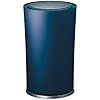
OnHub Wireless Router from Google and TP-LINK, Color Blue

  • Based on 1,927 reviews
Condition: Used - Like New
Checking for the best price...
$74.01 Why this price?
Holiday Deal · 63% off was $199.99

Buy Now, Pay Later


As low as $12.34 / mo
  • – 6-month term
  • – No impact on credit
  • – Instant approval decision
  • – Secure and straightforward checkout

Ready to go? Add this product to your cart and select a plan during checkout.

Payment plans are offered through our trusted finance partners Klarna, Affirm, Afterpay, Apple Pay, and PayTomorrow. No-credit-needed leasing options through Acima may also be available at checkout.

Learn more about financing & leasing here.

Free shipping on this product

This item is eligible for return within 30 days of receipt

To qualify for a full refund, items must be returned in their original, unused condition. If an item is returned in a used, damaged, or materially different state, you may be granted a partial refund.

To initiate a return, please visit our Returns Center.

View our full returns policy here.


Availability: Only 1 left in stock, order soon!
Fulfilled by Amazon

Arrives Monday, Dec 29
Order within 18 hours and 12 minutes
Available payment plans shown during checkout

Protection Plan Protect Your Purchase
Checking for protection plans...

Features

  • The companion Google Wifi app makes setup simple and lets you to control your network from your smartphone
  • Super fast Wi-Fi speeds up to 1900 mbps to help with smooth streaming, gaming and downloading
  • Helps eliminate dead zones with 2.4GHz and 5GHz Band1/2/3/4 Wi-Fi antenna-13, 2.4GHz Bluetooth antenna- 1 & 2.4GHz Zigbee antenna-1. Reliable coverage for most homes up to 2,500 square feet
  • Supports 100+ connected devices, so everyone can get on at once and signal rate- Wi-Fi 5GHz is Up to 1300Mbps,2.4GHz is Up to 600Mbps, Bluetooth is 4.0&HS
  • Supports 100+ connected devices, so everyone can get on at once and signal rate- Wi-Fi 5GHz is Up to 1300Mbps,2.4GHz is Up to 600Mbps, Bluetooth is 4.0&HS
  • A separate guest network helps get friends online easily, and allows you to share devices, like your Chromecast, with them.
  • Industry-leading 2-year warranty and 24/7 premium technical support.

Description

Meet OnHub, the router from Google and TP-Link that’s built for fast Wi-Fi on all your devices. OnHub provides Wi-Fi speeds up to 1900 mbps to help with smooth streaming, gaming, and downloading. Its unique design and 13 antennas provide reliable speed in every direction, covering up to 2,500 square feet. And OnHub can connect 100+ devices at the same time, so everyone can enjoy what they love to do online.

Brand: TP-Link


Model Name: TGR1900


Special Feature: WPS


Frequency Band Class: Dual-Band


Wireless Communication Standard: 802.11ac


Compatible Devices: Smartphone


Frequency: 5 GHz


Recommended Uses For Product: Gaming


Connectivity Technology: wireless


Color: Internal Antenna


Is Discontinued By Manufacturer ‏ : ‎ No


Product Dimensions ‏ : ‎ 4.1 x 4.6 x 7.5 inches; 1.9 Pounds


Item model number ‏ : ‎ TGR1900


Batteries ‏ : ‎ 1 Lithium Ion batteries required.


Date First Available ‏ : ‎ August 18, 2015


Manufacturer ‏ : ‎ TP-LINK USA


Best Sellers Rank: #45,711 in Computers & Accessories (See Top 100 in Computers & Accessories) #1,489 in Computer Routers


#1,489 in Computer Routers:


Customer Reviews: 4.0 4.0 out of 5 stars 1,927 ratings


Frequently asked questions

If you place your order now, the estimated arrival date for this product is: Monday, Dec 29

Yes, absolutely! You may return this product for a full refund within 30 days of receiving it.

To initiate a return, please visit our Returns Center.

View our full returns policy here.

  • Klarna Financing
  • Affirm Pay in 4
  • Affirm Financing
  • Afterpay Financing
  • PayTomorrow Financing
  • Financing through Apple Pay
Leasing options through Acima may also be available during checkout.

Learn more about financing & leasing here.

Top Amazon Reviews


  • This is an amazing Router! No more issues with my Wi-Fi!
This router is amazing! It took me about 30 mins to set up 2 of them in a mesh config. I now have full strength Wi-Fi throughout the whole house. I have Verizon FiOS and my previous Wi-Fi Setup was a Verizon Quantum Gateway (AC1750 modem/router) and a LynkSys AC1750 Range Extender. I had endless problems with this setup, starting with the the fact that it was really 4 networks (2 x 2.4GHz and 2 x 5GHz). I have a lot of devices in the house and no one ever knew which network to choose the get the best connection. After installing the 2 OnHubs in the Mesh config, I have only one network and it works very well. For those wondering if this works with FiOS, the answer is yes. Here's what I did for my new setup: I have Internet and TV (no DVR's) from Verizon. As such, I did not need to keep the Verizon Gateway in the network. If you do have DVR's, and/or want the channel guide on your TV service, you will have to include the Verizon Gateway in your network (go to dslreports.com or youtube to see how). I also have the signal from the OTN (outside Verizon box) to the Gateway coming in over Ethernet. If yours comes in over Coaxial cable, you will need to have Verizon switch it (if you are taking the Gateway out of the network). This can be done over the phone if you run your own Ethernet cable. Just call the Verizon FiOS support line and ask them to switch your internet from Coax to Ethernet. If you want them to run it, that will require a service call. Before you start, install the Google WiFi App from Google Play or the App Store onto your mobile phone. Steps I took to set these up: 1) Release the IP on the Verizon Gateway before turning it off. Click on My Network icon, then select Network Connections item. Click on Broadband Connection (Ethernet) in the table to see the properties for your WAN port. Write down the MAC address for the ethernet WAN port, you may need it later. Scroll down and click Settings. Click the Release button, then Apply. Your internet light will go Red. 2) Immediately unplug the Verizon Gateway. If you leave it plugged in, it will Reacquire the IP Address from Verizon and you'll have to do step 1 again. 3)Unplug the Ethernet from the Verizon Gateway WAN port and plug it in to the WAN port on your OnHub. Plug in the power for the OnHub. It will boot up and the light on the top will flash blue. Now to the Google WiFi App and follow the instructions. The OnHub will update its firmware (this enable the Mesh Networking) and set up the OnHub. At this point you will have Wi-Fi set up and running on the OnHub. If you have a second unit that you want to use in a Mesh setup, unplug the first OnHub from the power and WAN, then plug in the second OnHub and connect it to your internet Ethernet WAN cable. Set it up as a separate network. This will cause it to update it's firmware. After it's updated, unplug the WAN cable and perform a factory reset. After that, unplug it and set it aside. Plug the first unit back in to power and the WAN cable. This will enable the first network you created. Test it using the app. After that, plug the power into the second OnHub, but not the WAN. Now use the app to add a WiFi Point. The App will find the second OnHub and set it up as a WiFi Point. You can then move it to where you want it in the house. Your coverage will be excellent. If you have Ethernet running between your router site (OnHub 1) and the WiFi Point (OnHub 2), you can connect them via Ethernet cable. This enables wired backhaul, which gives faster speeds between them. The OnHub does only have one GigE port on the unit. I needed more, so I bought aTP-Link 8 port GigE Switch. I plugged it into the LAN port on the back of the OnHub, then plugged in my wired devices. They all work fine. If you've been frustrated with your Wi-Fi, I strongly recommend this router. It's easy to set up and just works! One last note: Google is now selling "Google Wi-Fi" in single or 3 packs. Those are AC1200. The OnHub, although older, is AC1900 and has better hardware. They both use the same firmware and the same app. The OnHub is a much better buy at this point. ... show more
Reviewed in the United States on December 28, 2017 by RPB

  • How all products should be!
First, the Google, On Hub does everything it says and possibly more. I was skeptical and hesitant to purchase this router because I consider myself a bit more advanced than your average residential user. I am a CCNA and like to manipulate my router settings to make it more difficult for intruders to gain access, as well as run several programs that require port forwarding and NAT/PAT settings to be set in other than normal fashions. The description didn't get into as many details so I was weary that I was paying a lot for a router with less functionality than the cheaper, (or other brands to be fair, as the Linksys router I replaced was about the same price.) Upon downloading the On App and looking through the settings, I was a bit disappointed to find I don't have as much control over things as I would have liked... A few calls to customer service, (which is just amazing!,) and I found that despite not being noted in the description, and not being very clear in the application settings, the Google On Hub does in fact support and have the capability to do many of the things I want to do. The only complaint I have, (to date,) is the inability to create your own LAN IP Addressing scheme. Second, I was shocked to see how fast and professional the On Hub support team is. Messing around in the advanced settings, trying to configure some things and having a bit of difficulty because of the new platform, (On app as opposed to the Router settings screen on most residential routers,) led to a bit of frustration at first. I prefer to figure things out on my own and hate having to contact customer support, so i messed around for a bit searching for the areas that provided the settings I was looking for with not too much luck. The rest of the platform and the router itself seemed as capable and more reliable than any other I have had so I was reluctant to send it back and insistant on finding the settings I was looking for. After a day of fiddling with the app and feeling like what I was looking for may not be available, i decided to try the help screen. Well, am I glad I did!! Putting in a help ticket and requesting a call back gets you a call within 1 minute! That's the first shocker. The rep on the call had read the ticket, understood my issue and guided me through the app, (while on the phone,) to the exact place I needed to be. I put in a few tickets to customer support over the next couple days regarding setting up static IP's, port forwarding, changing IP addresses and other things. I am simply amazed at how well the support team handles requests and how painlessly easy it is to get support. I would recommend this product to anyone looking for a new wireless router based on their support alone! Finally, the reason I made the switch is because of wireless reliability issues I was having in my home. I don't think I have a large home by any means. It's a 2000 square foot, two story town home. I have lived in a home that was 4500 sq/ft and hadn't experienced any issues. That was leading me to believe that the new router I purchased for my home just wasn't living up to the job. I have many devices including an echo, 5 Sonos components, some GE Link bulbs and many Smartthings outlets, switches sensors and motion detectors. I thought perhaps that the complexity of my network was causing the issues. I would lose connectivity with my Smarthings hub from time to time and Sonos had been acting up for a little while as well. It seemed like anytime another person showed up, and added their phone to my wifi, i would get more connectivity issues. After connecting and configuring the on hub, I have had no issues, what-so-ever with any device on my network. The scheme has remained the same despite not needing some of the additional components I had set up for my previous router. (I had attached an additional router on the second floor of the home to boost my wireless range and take some stress off the main router.) In Conclusion, the On Hub has replaced two routers and provides a strong, uninterrupted signal throughout my home, with all components. It's fairly simple to install, it looks good and is supported by some very professional and knowledgeable staff. I would recommend this product to anyone looking for a wireless solution for small business or home. Pros: Looks great, reliable, fairly user friendly interface and SUPERIOR customer service. Cons: Not yet able to manage LAN IP Settings as with other residential routers. Which, BTW, after contacting support regarding this and a few other matters, they did advise they've been asked about by many people calling in for help and have put in a request letting the powers that be know, people are interested in this capability. They made no promises, but did mention a firmware update in the future may add that functionality. ... show more
Reviewed in the United States on February 1, 2016 by JonnyRusso

Can't find a product?

Find it on Amazon first, then paste the link below.
Checking for best price...