
Search  for anything...
HP

HP DeskJet 3755 Compact All-in-One Wireless Printer (J9V92A) & 65XL Black High-Yield Ink Cartridge | N9K04AN & 65 Black/Tri-Color Ink Cartridges (2-Pack) | T0A36AN

  • Based on 24,745 reviews
Condition: New
Checking for the best price...
$146.67 Why this price?
Save $25.30 was $171.97

Buy Now, Pay Later


As low as $24.45 / mo
  • – 6-month term
  • – No impact on credit to apply
  • – Instant approval decision
  • – Secure and straightforward checkout

Ready to go? Add this product to your cart and select a plan during checkout.

Payment plans are offered through our trusted finance partners Klarna, Affirm, Afterpay, Apple Pay, and PayTomorrow. No-credit-needed leasing options through Acima may also be available at checkout.

Learn more about financing & leasing here.

Selected Option

Free shipping on this product

This item is eligible for return within 30 days of receipt

To qualify for a full refund, items must be returned in their original, unused condition. If an item is returned in a used, damaged, or materially different state, you may be granted a partial refund.

To initiate a return, please visit our Returns Center.

View our full returns policy here.


Availability: In Stock.
Fulfilled by Amazon

Arrives Friday, Apr 3
Order within 6 hours and 28 minutes
Available payment plans shown during checkout

Protection Plan Protect Your Purchase
Checking for protection plans...

Color: Seagrass


Style: Printer + Black Ink + Black/Tri-color Ink


Features

  • Product 1: Main functions of this HP DeskJet 3755 (3700 series) compact printer: copy, scan, wireless printing, AirPrint, Instant Ink ready so you'll never run out of ink
  • Product 1: The power of your printer in the palm of your hand: The HP Smart app allows you to easily set up your printer, scan from your smartphone, order toner, and print from the cloudsuch as iCloud, Dropbox and Google Drive
  • Product 1: Ink delivered to your home: get your first 4 months free when you enroll in HP Instant Ink (optional) during printer set up; plans starting at $0.99 per month after the trial period, shipping and recycling included
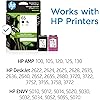
  • Product 2: Original HP Ink is engineered to work with HP printers to provide consistent quality, reliability and value
  • Product 2: This cartridge works with: HP AMP 100, 105, 120, 125, 130; HP DeskJet 2622, 2624, 2625, 2628, 2635, 2636, 2640, 2652, 2655, 2680, 3720, 3722, 3752, 3755, 3758, 3772; HP ENVY 5010, 5012, 5014, 5020, 5030, 5032, 5034, 5052, 5055, 5070
  • Product 2: Cartridge yield (approx.): 300 pages
  • Product 3: Original HP Ink is engineered to work with HP printers to provide consistent quality, reliability and value
  • Product 3: This cartridge works with: HP AMP 100, 105, 120, 125, 130; HP DeskJet 2622, 2624, 2625, 2628, 2635, 2636, 2640, 2652, 2655, 2680, 3720, 3722, 3752, 3755, 3758, 3772; HP ENVY 5010, 5012, 5014, 5020, 5030, 5032, 5034, 5052, 5055, 5070
  • Product 3: Cartridge yield (approx.): 120 pages black, 100 pages tri-color

Description

HP DeskJet 3755 Compact All-in-One Wireless Printer, HP Instant Ink, Works with Alexa - Seagrass Accent (J9V92A)Save space and get the power you need with a small all-in-one printer for your home. The HP DeskJet 3755 (3700 series) inkjet printer comes with the scroll scan feature helps you easily handle most scan jobs, from plain paper to stiff media. This ultra compact printer is designed to fit where you need it. Save up to 50% on ink and never run out with HP Instant Ink. With Instant Ink, you print color or black-and- white for the same low price. Wirelessly print, scan, and copy what you need quickly and easily. Easily print anything you need from a variety of smartphones and tablets. Get connected quickly and start printing fast with easy setup from your smartphone or tablet.Original HP 65XL Black High-yield Ink Cartridge | Works with HP AMP 100 Series, HP DeskJet 2600, 3700 Series, HP ENVY 5000 Series | Eligible for Instant Ink | N9K04ANEnsure your printing is right the first time and every time with Original HP Ink, which provides precision output so you can take pride in fade-resistant documents and brilliant images.Original HP 65 Black/Tri-color Ink Cartridges (2-pack) | Works with HP AMP 100 Series, HP DeskJet 2600, 3700 Series, HP ENVY 5000 Series | Eligible for Instant Ink | T0A36ANEnsure your printing is right the first time and every time with Original HP Ink, which provides precision output so you can take pride in fade-resistant documents and brilliant images.


Date First Available: November 20, 2022


Frequently asked questions

If you place your order now, the estimated arrival date for this product is: Friday, Apr 3

Yes, absolutely! You may return this product for a full refund within 30 days of receiving it.

To initiate a return, please visit our Returns Center.

View our full returns policy here.

  • Klarna Financing
  • Affirm Pay in 4
  • Affirm Financing
  • Afterpay Financing
  • PayTomorrow Financing
  • Financing through Apple Pay
Leasing options through Acima may also be available during checkout.

Learn more about financing & leasing here.

Top Amazon Reviews


  • A good printer at a great price that is a pain to set up on your WIFI
Color: Stone Style: HP DeskJet 3755
TL;DR: How to set up the printer 1) Plug in 2) Add ink cartridges - make sure that they are installed correctly and there are no error codes on the screen 3) Download the HP Smart App on your phone or on your computer 4) If you are on a VPN, disconnect 5) Follow the instructions on the App - the printer will either be found or not. If it is not found, try the "Manual" process where you use the App to connect to the printer wifi/bluetooth (this is easier on your phone vs on your computer and I recommend doing it on your phone). 6) Once the printer is on your wifi, you can connect it to your computer(s) around your home. 7) At any point, hit the wifi button and the cancel button to reset the wifi pairing mode on the printer and wait for the power button to start flashing. Once it starts flashing, the wifi pairing mode has been reset and you can start the process again (if you mess up like I did). Let's start with the obvious - I bought this printer for under $100 because I needed something simple for working from home. I don't do photos or large jobs or anything - just things like forms that I need to sign and scan back (and I use my phone and the adobe app for all my scanning), Amazon return labels, and small jobs. The printer is perfect for all of that. An amazing price for a good quality printer that prints well for small and non-intensive use. Let's talk about the set up - I consider myself tech savvy. I am not someone who needs help in setting up wifi tech in my house (we are pretty wired). Yet this took me over an hour to figure out. And thank goodness that I could troubleshoot on the internet when things went south. So I first followed the instructions for plugging it in/adding in the ink cartridges. After putting in the ink catridges (its one of the first parts of the set up), everything started blinking except the power button. And the screen (which is not lit very well) was flashing an E and then a 3 over and over. Had no idea what that meant (thought it had to do with it not being connected to the WIFI yet and decided to continue to set up my printer. Didn't work. I tried using my computer and tried using my phone. Didn't work. One hour went by as I tried everything - that included resetting my router, holding down the Wifi Button and the Cancel button to reset the wifi initiation mode (as suggested on the internet) but that wasn't working. And finally...FINALLY - the E3 flashing made me thinking something else was wrong. And it was - I had installed the ink cartridges wrong (they really need to be pushed in until you hear a click...I didn't do that). Once that error cleared, I pushed the wifi button and the X/cancel button and waited for the Power Button to start blinking (as the internet told me to do). This process refreshed the wifi pairing mode. Once that happened, I was able to connect the printer to the wifi using the app on my phone and once the printer was connected to the wifi, I could add it to my computer. I just needed someone (for instance, the instructions) to let me know about the error codes and making sure I was doing what I needed to do instead of wasting an hour trying to do everything. So in summary - great little printer for the price, TERRIBLE instructions and not enough information to get it set up unless you do it perfectly from the get go (which how can you when you aren't given enough information to do it!). I gave it 4 stars because its a great printer at a great price. It lost a star due to the lack of information/troubleshooting on how to set it. Error codes and what they mean should be standard in the manual OR at least the manual should have a QR code that leads you to a place that outlines what they are. ... show more
Reviewed in the United States on December 7, 2022 by Guilex

  • Initial wifi setup using my phone was a bit annoying
Color: Seagrass Style: HP DeskJet 3755
I was trying to setup the printer using my phone (Samsung S9, so Android 12 software) and it just was not working. There are no instructions explaining how to connect the printer to the WiFi network in the first place. So I installed the HP Smart app and had it scan for the printer as follows: (Make sure printer is on) Add first printer Get started Wifi Get ready to connect to printer: follow the first 2 steps. For the 3rd step, the only thing you need to pay attention to is that your phone's Bluetooth is ON. When you press CONTINUE then OK, it will prompt you to allow location permission (Precise), so accept (I chose: while using the app). Now it'll try searching for the printer, since the printer isn't connected to your wifi of course it won't find it. Click My Printers Not Listed - it'll search again Click Find Printer -now it'll attempt to make a direct connection to the printer (not using your router). If the printer is on, and the wifi icon is flashing, the app should locate it and connect to the printer. If the WiFi button light is not on and flashing try pushing and holding the button for a few seconds. Follow the prompts to connect the printer to wifi. Select the correct wifi to connect to your wifi router, enter the password. And now you should finally be connected to the printer through wifi. Just following the prompts to finish the printer setup. ... show more
Reviewed in the United States on November 10, 2022 by Babs

  • Follow me if you want to connect it with USB...
Color: Stone Style: HP DeskJet 3755
5 stars for Amazon fast delivery and this good cheap printer but 2 stars or less for HP wireless greed... To connect with USB, you will need USB-A to USB-B cable (not provided). No big deal for me; I found an old extra one that I don't use. My instructions below for Windows computer only: You can FORGET about the HP Smart software. Go to support.hp.com, search for HP 3755, and download either the file "HP DeskJet and Ink Advantage 3700 All-in-One EasyStart Printer Setup Software – Offline Use Only" dated Mar 24, 2022 (if you just want to print, no scan) OR "HP DeskJet and Ink Advantage 3700 All-in-One Print and Scan Driver and Accessories" dated Mar 14, 2022 (if you want to print AND scan). Once you downloaded the software from the HP site, SHUT OFF your computer's WIFI (do not turn WIFI on until the end of this printer installation). Run the software. Follow the on screen instructions. I think you only need to agree the EULA, everything else you can skip or say no. Use manual set up instead of automatic if asked, it should force the USB connection or to choose between wireless and wire. Turn on the printer. Connect it with the USB-A to USB-B cable... If the screen is stuck at spinning while looking for the printer, ignore the "do not disconnect usb" warning, just unplug the usb cable and reconnect or try another USB port from your computer. After the installation process, now you should be able to print. To use the scan function, turn the WIFI back on. Go the Microsoft Store, get the "HP Scan and Capture" app. Open the app, location the HP 3755 in the setting. Since there is no physical button on the HP 3755 printer, you will need this software to scan. Within the app, you can choose where to save the scanned photo/document. I was able to wire connect this printer with 3 Windows laptops as a backup printer. ... show more
Reviewed in the United States on October 17, 2022 by njmalevoice

  • Great compact size
Color: Stone Style: HP DeskJet 3755
Nice printing quality and easy to set up but scanning is a challenge
Reviewed in the United States on December 15, 2022 by TAMIn

  • Good quality for price.
Color: Seagrass Style: HP DeskJet 3755
Prints good. Wifi capabilities, and easy set up. It was jamming for a bit but after troubleshooting, it works great now.
Reviewed in the United States on December 27, 2022 by Amazon Customer

Can't find a product?

Find it on Amazon first, then paste the link below.
Checking for best price...