
Search  for anything...

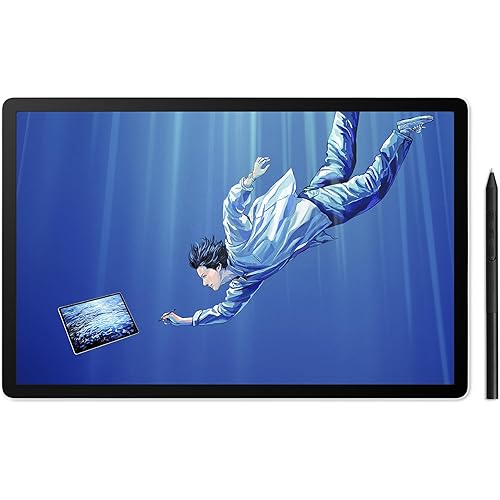
Drawing Tablet-XPPen Deco mini7W 7 x 4 inch Bluetooth 5.0 Graphic Tablet Pen Tablet with 16394 Levels Pressure,for Online Teaching/E-Learning Compatible with Window/Mac/Android/Chrome/Linux

Based on 883 reviews
Condition: New
Checking for the best price...
$53.99
Holiday Deal · 11% off was $61.00

Buy Now, Pay Later


As low as $9.00 / mo
  • – 6-month term
  • – No impact on credit to apply
  • – Instant approval decision
  • – Secure and straightforward checkout

Ready to go? Add this product to your cart and select a plan during checkout.

Payment plans are offered through our trusted finance partners Klarna, Affirm, Afterpay, Zip, Apple Pay, and Google Pay. No-credit-needed leasing options through Acima may also be available at checkout.

Learn more about financing & leasing here.

Selected Option

Free shipping on this product
This item's return window has been extended for the holiday season: FREE refund/replacement until Jan 31, 2027

To qualify for a full refund, items must be returned in their original, unused condition. If an item is returned in a used, damaged, or materially different state, you may be granted a partial refund.

To initiate a return, please visit our Returns Center.

View our full returns policy here.


Availability: In Stock.
Fulfilled by Amazon

Arrives Wednesday, Nov 18
Order within 11 hours and 36 minutes

Available payment plans shown during checkout

Protect Your Purchase

Easy claims online, fast replacements, no fees

Checking for protection plans...

At a glance

Condition
New
Size
7 in
Model
Deco mini7 W
Weight
11.68 oz
Color
Black
Pressure Sensitivity
16384 levels
Target Audience
Teacher
Warranty
1-YEAR
Works with
Desktop, Laptop, Smartphone, Tablet

Features 5

  • Wired and Wireless Connection: Our wireless technology allow the XPPen wireless drawing tablet to connect your PC or laptop by simply plugging the included USB dongle into your computer, the Bluetooth 5.0 technology allows you to create with both speed and freedom
  • Battery-Free Pen: The stylus pen in our product is battery-free and offers 16384 levels of pressure sensitivity. It also has tilt-response capabilities and provides smooth tracking without delays, ensuring uninterrupted work for increased efficiency
  • 8 Customized Press Keys: The Deco mini7W Wireless Graphics Drawing Tablet features 8 customizable press keys, making it user-friendly and enabling a seamless creative process. Personalize these shortcut keys to enhance your workflow and tailor the experience to your preferences
  • Easy Connection: The Deco mini7W supports a USB-C to USB-C connection (with the included adapter), allowing you to connect the tablet to various computing devices depending on your own need

Description

Our first smart chip X3, create artistic digitizers that give you a feeling as real and natural as working with a traditional tool. 1 Year Protection Plan & Lifetime XPPen Service 1 Year Protection Plan is offered for all XPPen products, please get in touch with us to see the terms and conditions for Support, Return and Refunds. You can get in touch with us via Amazon Message if you have any question about the product. Is the XPPen Deco mini7W V2 compatible with Mac operating systems? The Deco mini7W V2 is fully compatible with macOS 10.12 and above, as well as Windows 7 and above, Android 10.0 and above, ChromeOS 88 and above, HarmonyOS, and Linux How can I ensure stable Bluetooth connectivity with the Deco mini7W V2 in home or office environments? The Deco mini7W V2 features Bluetooth 5.0 for stable connections in homes, schools, and offices 1.Home & Office: Keep devices 3–5m apart and away from routers or microwaves. 2.Classroom: Update drivers via our website before class for smooth demos Does the Deco mini7W V2 come with replacement pen nibs? How does it meet the needs of high-frequency users? The Deco mini7W V2 includes 10 replacement nibs for artists, students, and educators. Made from durable composite material, they withstand intensive studio use and multi-user handling in classrooms. How compatible is the Deco mini7W V2 with mainstream design software for teaching and creative scenarios The Deco mini7W V2 supports Adobe Photoshop, Illustrator, CorelDRAW, Krita, and Blender. Ideal for student projects, teacher lessons, and professional design work Who is the target user group for this product This bluetooth drawing tablet is primarily designed for professional artists, design students and educators, and business professionals. It is suitable for various scenarios including personal studios, teaching classrooms, and corporate offices

Specs 22

Brand XP-Pen
Connectivity Technology Bluetooth, USB
Pressure Sensitivity 16384 levels
Operating System Windows 7 (or later), Mac OS X 10.10 (or later), Android 6.0 (or later), Chrome OS 88 (or later), Linux
Special Feature 60° Tilt Support, Extra-Slim, Shortcut Key
Model Name Deco mini7 W
Built-In Media 1x Pen Tablet, 1x Stylus, 1x Pen-Clipper, 10x Pen Nibs,1x USB to USB-C Cable, 1x USB to USB-C Adapter, 1x USB to Micro USB Adapter
Target Audience Teacher

Frequently asked questions

If you place your order now, the estimated arrival date for this product is: Wednesday, Nov 18

Yes, absolutely! This item's return window has been extended for the holiday season: FREE refund/replacement until Jan 31, 2027.

To initiate a return, please visit our Returns Center.

View our full returns policy here.

  • Klarna Financing
  • Affirm Pay in 4
  • Affirm Financing
  • Afterpay Financing
  • Zip Pay in 4
  • Financing through Apple Pay
  • Financing through Google Pay
Leasing options through Acima may also be available during checkout.

Learn more about financing & leasing here.

Top Amazon Reviews


Great Tablet for Alternative Mouse Use, But Requires Some Adaptation
Size: Medium Style: wireless
I recently purchased the XPPen Deco mini7W Graphic Tablet to use as an alternative mouse for my work computer due to hand pain caused by the conventional-style mouse. While it hasn't completely replaced my traditional mouse, it has proven to be a helpful tool in managing my discomfort. Here are my thoughts on this wireless drawing tablet: Pros: Ergonomic Design: The XPPen Deco mini7W has a sleek and compact design that fits comfortably in my hand. Its lightweight construction allows for easy maneuverability, reducing strain on my wrist and fingers. Pressure Sensitivity: The tablet's pressure sensitivity is excellent, making it great for artistic endeavors or precision tasks that require different levels of control. Customizable Buttons: The tablet features programmable buttons that can be assigned to various shortcuts, providing quick access to frequently used functions. This feature enhances efficiency and reduces the need to reach for the keyboard. Wireless Connectivity: The wireless functionality of this tablet is a convenient feature, eliminating the hassle of cords and allowing for greater freedom of movement. Cons: Learning Curve: Transitioning from a conventional mouse to a drawing tablet requires some adjustment. It took me a while to get accustomed to the tablet's touch-sensitive surface and hand-eye coordination. However, with patience and practice, I was able to improve my control over time. Limited Mouse Functionality: While the XPPen Deco mini7W serves as a decent alternative mouse, it lacks the full range of features that a traditional mouse offers. This limitation may require the use of a conventional mouse alongside the tablet for certain tasks. Battery Life: The battery life could be better. Although it lasts for a reasonable amount of time, I find myself needing to recharge it more frequently than expected. Overall, the XPPen Deco mini7W Graphic Tablet is a solid option for those seeking an alternative mouse due to hand pain. While there is a learning curve and some limitations in terms of mouse functionality, the tablet's ergonomic design, pressure sensitivity, and wireless connectivity make it a valuable addition to my workstation. I recommend using it in conjunction with a traditional mouse to handle tasks that are better suited for a conventional input device. With some adaptation, this tablet has become an essential tool for alleviating my hand pain during prolonged computer use. ... show more
Reviewed in the United States on July 5, 2023 by Kay.P.

Comparison Review between XP-Pen Deco01 v2 and Huion H1060P
Size: Large Style: Wire
I'm writing this review because I wish there was one like it when I was agonizing over what my first drawing tablet would be. I've mostly used an XP-Pen deco 01 v1 for many years and it was fine, but when it broke (more on that below), I really wanted to try a Huion since they have such good reviews. Huion vs Xp-Pen This is a comparison between the Xp-Pen Deco 01 (v2) and the Huion Inspiroy H1060P. They both have nearly identical price points and specs. I got both on discounts for around $50 on average. I am not a professional artist, but I do draw a lot (several hundred hours on my tablet) and have been paid for my work, but I'm not as skilled as professionals. I mostly do character sketches and inking comic-style. For my style and what I need, both tablets are great. They are very precise and allow me to execute and get the end result that I want. Pen pressure ability is the same between the two, I can make clean, tapered strokes with each just fine. The Huion is set to a "harder" pressure than the Xp-Pen, and while both tablet drivers allow changing pressure curves, the Huion minimal is "harder" than the XP-Pen. All-in-all I'd say aside from the pressure, they perform identical and I've heard they they both use the same underlying hardware (unconfirmed by me), this makes sense if true. Personally I like to use a lighter touch when drawing so I prefer the XP-Pen, which also has a much lower 'activation pressure' that the tablet recognizes before drawing pixels. With the XP-Pen, if you are touching the tablet, it's making a stroke. The Huion on the other hand requires a little pressure before it starts making a stroke. So you can lightly stroke the tablet and nothing will happen until you put enough pressure down for it to activate. Drivers: Unfortunately the Huion driver does not offer the option of changing the activation pressure of the tablet, just adjustment of the pressure curve (how the tablet interprets pressure after activation pressure has been reached). I don't believe it can be fixed or adjusted via drawing software either, though I think some drawing software (Photoshop, Krita, Corel, etc) might allow you to adjust your tablet to have a higher activation pressure if you want it (just not lower). Aside from that, the Huion drivers work better with my drawing software (Krita) - by this I mean they are bug free and even work properly if I disconnect and reconnect the tablet while Krita is open. The XP-Pen drivers are a little more buggy - they often don't reconnect properly when I disconnect/reconnect the tablet - the cursor position is fine, but the pressure will not be recognized by my computer until I exit Krita or sometimes I have to reboot the machine. There are other odd bugs like the cursor being trapped in a section of my monitor screen. This happens infrequently, but it does happen and its quite annoying. Pens: Both pens are nice and the new pen that comes with the v2 Deco is much better than the v1 one. The Huion pen is slightly better than both, a little heavier and it just feels a bit nicer/grippier in the hand Physical tablet: The XP-Pen is smaller and lighter than the Huion, but with the same drawing surface size. This is nice for travel and also allows you to place your computer about an inch closer when drawing. The Huion has 12 buttons to XP-Pen's 8. The buttons feel fine on both, I never had a button fail on my v1 Deco01. I did have a problem with the USB port however. My Deco01 v1 broke because when plugged into the included L-Shaped cable connector, it's easy to put up/down pressure on it which can cause damage. Looking at it now, it's possible that pressure is being placed on the USB port unless maybe your table is perfectly flat, but even then it might have slight pressure. I'm going to just use a regular USB-C connector for my new one. I should note that the tablet did not break during normal use, I had the cable plugged in while I had it stuffed in my backpack and it must have been knocked or subjected to sideways pressure which caused damage to the port. Make sure to disconnect it before putting it anywhere! Summary points: Huion + Better drivers (though it doesn't allow you to set a minimum pressure). More stable, interacts with Krita better + Better pen + More buttons - Larger, slightly more heavy XPPen + Smaller, but same active drawing space, better if table space is a premium, better for travel + Like that it has much lower activation threshold + Includes drawing glove, nice touch - USB port prone to breaking with included cable (unplug it when not in use!) Hope this helps! ... show more
Reviewed in the United States on August 11, 2022 by Brian Ramage
Checking for best price...