





Search  for anything...

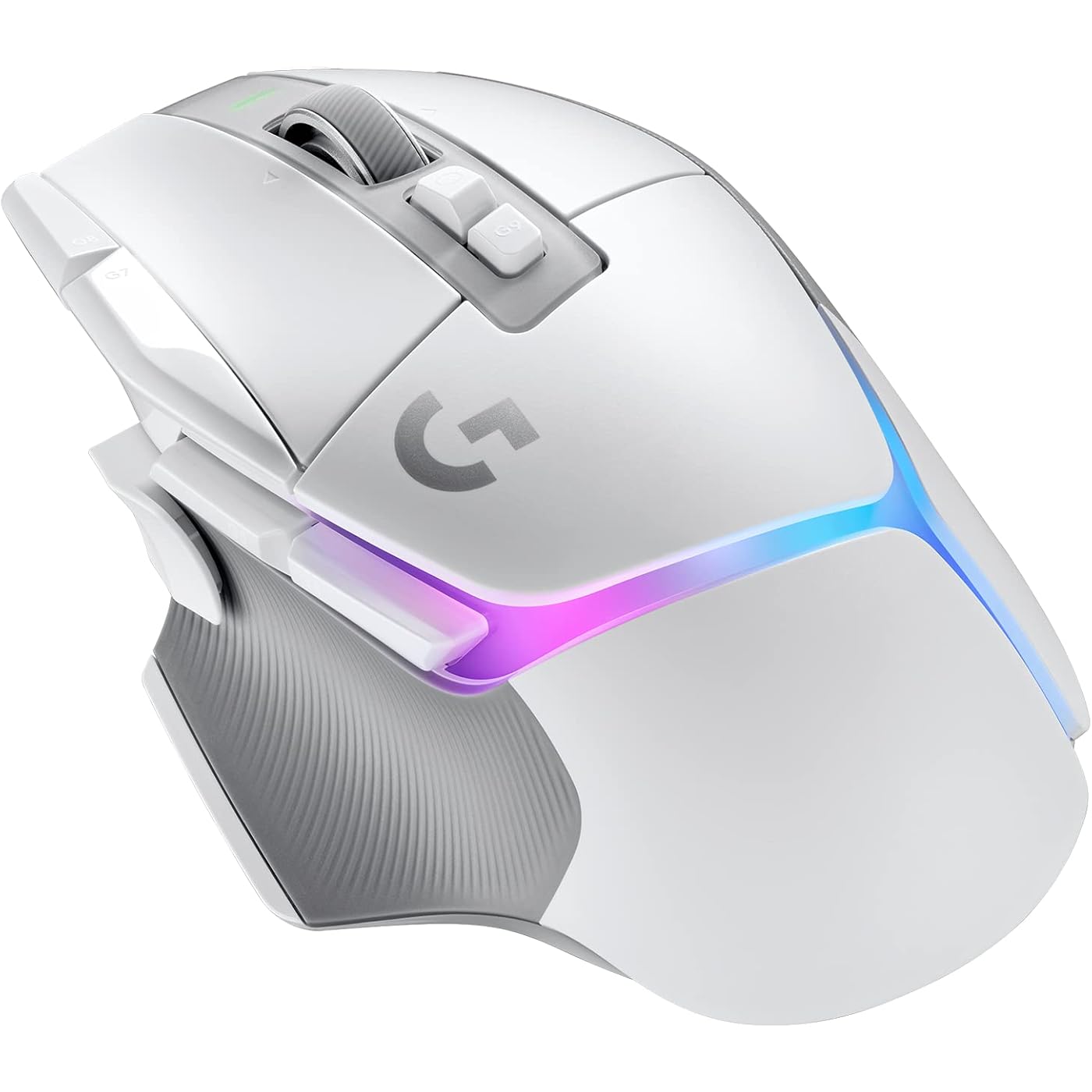
Logitech G502 X Plus Wireless Gaming Mouse - LIGHTSPEED Optical, LIGHTFORCE Switches, LIGHTSYNC RGB, HERO 25K Sensor for PC/Mac - White

  • Based on 5,451 reviews
Condition: New
Checking for the best price...
$129.99 Why this price?
Holiday Deal · 28% off was $179.99

Buy Now, Pay Later


As low as $21.67 / mo
  • – 6-month term
  • – No impact on credit
  • – Instant approval decision
  • – Secure and straightforward checkout

Ready to go? Add this product to your cart and select a plan during checkout.

Payment plans are offered through our trusted finance partners Klarna, Affirm, Afterpay, Apple Pay, and PayTomorrow. No-credit-needed leasing options through Acima may also be available at checkout.

Learn more about financing & leasing here.

Selected Option

Free shipping on this product
This item's return window has been extended for the holiday season: FREE refund/replacement until Jan 31, 2026

To qualify for a full refund, items must be returned in their original, unused condition. If an item is returned in a used, damaged, or materially different state, you may be granted a partial refund.

To initiate a return, please visit our Returns Center.

View our full returns policy here.


Availability: Only 10 left in stock, order soon!
Fulfilled by Amazon

Arrives Tuesday, Dec 16
Order within 4 hours and 44 minutes
Available payment plans shown during checkout

Protection Plan Protect Your Purchase
Checking for protection plans...

Color: White


Style: Wireless


Pattern Name: RGB


Configuration: Mouse


Features

  • POWERPLAY compatible: The Logitech G502 X Plus wireless mouse is compatible with POWERPLAY, stays charged with unique wireless charging (sold separately), perfect for PC gaming enthusiasts seeking a reliable gaming mouse wireless solution
  • Icon reinvented: Reimagined with the latest innovations in gaming technology. Black gaming mouse and white gaming mouse options available
  • RGB gaming mouse: This RGB mouse features glowing 8-LED lighting thats customizable and adapts as you game with startup/power-down effects and battery optimization through active play detection
  • Redesigned dual-mode scroll wheel: Switch between hyper-fast free spin and precise ratcheting mode, and tilt left and right for two additional personalisable controls
  • HERO 25K gaming sensor: Incredibly precise down to the sub-micron for high-precision accuracy with zero smoothing/filtering/acceleration for high gaming performance every time on the computer

Description

Logitech G502 X PLUS Wireless RGB Gaming Mouse combines a legacy of performance with advanced gaming technologies. Perfect as a wireless mouse for laptop use or competitive gaming & esports performance, the G502 X PLUS introduces hybrid optical-mechanical LIGHTFORCE switches on primary buttons. Equipped with LIGHTSYNC RGB with 8 LED lighting that's customizable and adapts as you play with startup effects and battery optimization. With a HERO 25K sub-micron sensor, this is a groundbreaking pc gaming mouse. PTFE feet for smooth movement - 13 programmable controls on this wireless mouse with side buttons for easy access This Logitech LIGHTSPEED mouse delivers top-tier competitive advantage.

Brand: Logitech G


Color: White


Connectivity Technology: USB, Wireless


Special Feature: Wireless


Movement Detection Technology: Optical


Brand Name: ‎Logitech G


Item Weight: ‎3.73 ounces


Product Dimensions: ‎5.17 x 3.12 x 0.1 inches


Item model number: ‎910-006169


Batteries: ‎1 Lithium Polymer batteries required. (included)


Color Name: ‎White


Special Features: ‎Wireless


Date First Available: April 1, 2023


Frequently asked questions

If you place your order now, the estimated arrival date for this product is: Tuesday, Dec 16

Yes, absolutely! You may return this product for a full refund within 30 days of receiving it.

To initiate a return, please visit our Returns Center.

View our full returns policy here.

  • Klarna Financing
  • Affirm Pay in 4
  • Affirm Financing
  • Afterpay Financing
  • PayTomorrow Financing
  • Financing through Apple Pay
Leasing options through Acima may also be available during checkout.

Learn more about financing & leasing here.

Top Amazon Reviews


  • Great Mouse! Highly Recommend, 10/10!
Color: White Style: Wireless Pattern Name: RGB Configuration: Mouse
Super easy to set up this mouse, it is legit just plug and play. It comes with a small, wireless USB dongle that you plug into your computer, and BOOM, it works! This mouse is, of course, wireless! So make sure to recharge it and everything. The battery life is super long! I can easily go over 60 hours, just like it says, without having to charge the mouse once. It works well while plugged in, and the recharge of the mouse itself is super quick, going from 0 to 100% in roughly 10-20 minutes. This is a great mouse. This mouse has tons of customization if you are into the whole Logitech application! There are tons of different RGB, different DPI settings; it just works great. It has tons of value, and the size fits nicely. If you enjoy the Logitech 502 Hero like I do, the G502 X Plus here will fit perfectly in your hand, and you will fall in love with it. The buttons work really nicely, the clicking sounds are effective, and this mouse has an infinite scrolling wheel if you wish to activate that as well, which is a super cool feature. Solid 10/10 for this mouse, great portability as it's a wireless mouse, works great in all forms of games, switches profiles based on your game with the program if you wish. Overall, no complaints at all, even has a circular, magnetic Logitech symbol on the bottom of the mouse, with a space in it so that you can put your USB dongle in the mouse itself, to make the portability even better! ... show more
Reviewed in the United States on September 30, 2025 by Sam

  • Amazing mouse! Great customization, battery life, profile options, latency, and weight!
Color: Black Style: Wireless Pattern Name: RGB Configuration: Mouse
This is amazing. I didn’t think I would like it as much as I do. The latency is extremely low, on par or even lower than a wired mouse according to rtings testing. The battery life is actually amazing. I have the RGB on the mouse turned down to 25% brightness (still plenty bright) and with that I get at least 1 week per charge with heavy daily usage. (I use the mouse for probably 4-8 hours every day, and have it set to turn off the RGB w after the mouse is idle for a few mins.) It’s cool that the app will show you the remaining hours of battery life, and as you adjust features (like RGB strength, polling rate) it will show you the power usage and how much time you’d have left. It’s fully and completely customizable. All the buttons, DPI settings, RGB colors/patterns/strength, etc can be completely changed and stored in 5 different profiles (on board the mouse, you can have even more profiles with the app). You can set it up so that it will switch to a specific profile when you launch a specific game. So you could even have a completely customized profile for every game you play. For instance I have a profile for desktop use (browsing the internet, watching TV, etc) with a low 125hz polling rate to save battery during that type of usage. And then when I boot up a game it switches to a different profile with 1000hz polling rate. (Which honestly, the 125hz polling feels fine and I don’t even think I can tell the difference besides placebo lol) ... show more
Reviewed in the United States on July 8, 2025 by Amazon Customer

  • Great gaming or overall mouse
Color: Black Style: Wired Pattern Name: Non-RGB Configuration: Mouse
A 10 out of 10 Great mouse. The buttons feel premium and clicky, the scroll wheel glides like butter and the customizable buttons are super nice. I've definitely noticed that this mouse has great connectivity and super smooth functionality. If you're looking for a great overall mouse and one that's pretty solid at gaming I would definitely recommend this one. ... show more
Reviewed in the United States on November 3, 2025 by TheBudeg

  • Software too complex and under documented
Color: Black Style: Wireless Pattern Name: Non-RGB Configuration: Mouse
Former mouse was a MX Master 3 and the primary application is for CAD/CAM (Fusion 360). The MX mouse worked for years on an iMac, but, on a just purchased Mac Studio, was jerky and besides, the comfy padding was coming off, like the mouse had mange. The G502X seemed a great replacement. More buttons with greater accuracy! CAD/CAM's just like playing a video game, right? tldr; Mouse very good, software too confusing. There is hardly any in app help nor links to on-line references. Documentation hard to find on-line. The feature set, what you can assign to a mouse button, is flexible but the interface make accessing that power too difficult. For simple things like key stroke assignments one should not have to spend half a day poking around (including searching for help documentation). I gave 5 stars to the mouse itself, and three to the G Hub app. The G502X mouse as hardware is very good. Clicks are crisp, moves well, has programmable buttons and fits my had nicely. Works well on MacOS 14 on a Mac Studio. The Logitech G Hub software... not so good. The main problem is the apparent lack of documentation! No "?" or "Help" buttons on the G Hub software. There is a pre-release version and https://www.logitech.com/assets/51813/3/lgs-guide.pdf But not a link to this on the G Hub interface. And it is not documentation on this version of G Hub. So, dongle inserted, mouse charged and armed, G Hub recognizes the mouse. Great. My first problem was, for no apparent reason, the cursor would either be as slow as an irate mule in August or so flighty it just couldn't wait to flee the confines of the screen. Inadvertent button clicks to the two side top left buttons were the cause. So let's change that! Open up G Hub. Click on the mouse and you get the Assignments screen. And there are the culprits, in yellow, labeled DPI Up and DPI Down. Let's change the DPI UP button to "cmd-option-O" (optional open) for a profile. Takes a while to discover the way to do this is Macros (not Keys, duh!). Here are the steps. Screen 0: Click on Macros, click on Create... and yikes: Screen 1: name the macro, ok Screen 2: select type of macro (e.g. "no repeat"") Screen 3: "+ start now" (though I had! click on this) Screen 4: A list of things you can do ("record keystrokes" plus five other things you can do; click on "record keystrokes") Screen 5: Hold down "cmd-shift-O" and you get "COMMAND ALT O O ALT COMMAND" as the keystrokes. Panic! Too many strokes, delete the last three! Button doesn't work! Ups, notice the "show key down/key up" check box on upper right... Ok, so click this to get a more typical key assignment looking string (or just ignore the up strokes). Click on "save". Screen 0: And you still have not reassigned the DPI Up key! Click n drag the new macro to the label and Done. Switch to the app and all seems to work, just keep the G Hub up! Enter problem two, three and four: Default vs G-Shift. The lock next to "Assignments". Turning on-board memory on. Default vs G-Shift toggles between different profiles (?) assigned to that app. Is this associated with the indicated profile at the top right, eg, "Desktop: Default". Should I change profiles? Does the G-shift and default profiles get written to on board mem? The lock will "...make assignments persistent...". Is this the nuclear option, destroying assignments to make all conform to Default? How and why use this? If you quit the G Hub app, the mouse defaults to out of the box, (yes?). Enter on-board memory. Click on the chip icon on the mouse rectangle and it turns blue. Ok, what just happened, other than blueness? Shouldn't the chip button switch to a screen allowing you to pick profiles? Nope, click on the mouse rectangle brings you to a new screen with a blue box at the bottom asking if you want to enable configuring the mouse buttons. Whaaaat? Hit "X" and remain on the current screen. Click on a label next to a "SLOT x" and select a profile to download to memory. This doesn't seem to be related to the prior screen with it's profile selected in the upper right. As a bonus, the label next to the slot uses the name you gave it, not including the app name. So do I go back and rename all the Default profiles to "Desktop: Desktop default" just to make it clear which which is which? Hit "Enable" and On-Board memory mode is OFF. Click back arrow (not the handy mouse rectangle) to go back, click on mouse and make changes. But if you make changes to the profile, go back and click on the chip to make it blue to turn on on-board mem, did this write the altered profile to the mouse? While I'm reasonably sure there are ways to accomplish all the above it should not be such a struggle. mark ... show more
Reviewed in the United States on May 19, 2024 by Mark Stephens

Can't find a product?

Find it on Amazon first, then paste the link below.
Checking for best price...