


AQHH 2025 Retro Gaming Console, Retro Game Stick with 4K HDMI, Classic Video Games, Upgraded Dual 2.4G Wireless Controllers 64GB



Notify me when this product is back in stock
Buy Now, Pay Later
- – 4-month term
- – No impact on credit to apply
- – Instant approval decision
- – Secure and straightforward checkout
Payment plans are offered through our trusted finance partners Klarna, Affirm, Afterpay, Zip, Apple Pay, and Google Pay. No-credit-needed leasing options through Acima may also be available at checkout.
Learn more about financing & leasing here.
FREE 30-day refund/replacement
To qualify for a full refund, items must be returned in their original, unused condition. If an item is returned in a used, damaged, or materially different state, you may be granted a partial refund.
To initiate a return, please visit our Returns Center.
View our full returns policy here.
Recently Viewed


Features
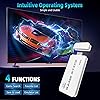
- Retro game stick Pro - The wireless retro game stick is equipped with rich games and emulators, as well as a 64GB TF card. Relive retro gaming nostalgia instantly with a simple plug-and-play experience
- 4K HDMI Output - Immerse yourself in crystal-clear visuals with 1080P and 4K output support. This game stick comes with an extended HDMI cable, making it compatible with a variety of devices such as TVs, monitors, computers and projectors. Please note that your screen must have an HDMI input port for connection
- Dual 2.4GHz Wireless Controllers - Experience lag-free gaming with our two enhanced 2.4GHz wireless controllers. Designed for comfort and precision, these controllers make it easy to play with friends or family, whether you're teaming up or competing. (Note: 2 controllers require 4 AAA batteries, not included.)
- Easy to Operate - The retro gaming console offers easy operation with features such as saving game progress and a built-in favorites/search/history function. Simply connect the game stick to the power supply, plug it into your TV or monitor, and switch to the HD channel. No complicated setup or installation required, making it convenient and suitable for gamers of all ages
- Ideal Gift for All Ages - This nostalgic game console is not only a suitable gift for kids, but also a great entertainment for adults, especially for adults who grew up in the 80s and 90s, offering them a nostalgic experience and relive their childhood memories. It is ideal for birthdays, Christmas, Thanksgiving, or any occasions
Description
Easy to Connect to Your TVStep 1Connect to TV: Please use the HDMI extension cable provided to plug the retro video game console into your TV/Computer/projectors HDMI interface to ensure there is no blockage between the retro stick and the gamepads. And switch TV mode to HDMI mode.Note: If plug the retro stick directly into your TV/Computer/projectors HDMI interface without an HDMI extension cable, the controller signal will be poor and the retro stick will get clogged, resulting in gamepad non-working.Step 2Insert the Controller wireless receiver to the retro gaming stick, and make sure there is no blockage between the controller signal receiver and the gamepad.Note: If the wireless receiver is not plugged in properly, the retro stick will not be able to receive a signal, which will cause the gamepad doesn't work.Step 3Power Supply: Connect with a charging adapter (Not included) and the power will turn on automatically.Note: Please use a 5V/1A or higher power adapter to provide power to the retro stick. When retro gaming consoles don't work properly or games lag, a big reason is that the power is not available from the USB port. It is recommended to connect with the adapter of the phone charger, the power supply will be relatively stable. Please do not use the fast charger for power supply.Step 4Install 2 AAA batteries (Not included) on each gamepad and turn on the switch, you're ready to play. Trouble shootingIf the retro stick does not work, please follow these steps to check that the device is properly connected:1. Check whether the switch of the gamepad is in the ON state.2. Check whether the gamepad is lit red or green (red for player 1, green for player 2);3. Check whether the Bluetooth wireless receiver is well inserted into the retro stick;4. Check whether the stick lights up blue;5. If the connection is correct, the primary gamepad(player 1) is red and the secondary gamepad (player 2)is green.6. If the traffic lights are flashing at the same time, it means that the battery is low or the wireless receiver has not been successfully connected.(1) If the battery is low, replace the batteries of the gamepad.(2) If the Bluetooth wireless receiver connection is not successful, (may not be able to read the retro stick), please pull out the wireless receiver in the shutdown state and reinsert.Button Description Press the SELECT key to enter the system settings: you can set language, sound effects.Press SELECT key +START key: When you hold down the two keys in the game at the same time to return to the main menu, choose to quit the game enter the qame menu interfacePress R1 and L1 to select the game modePress R2 to save your favorite game (a five-pointed star appears behind the game name indicating succesful collection, press R2 again to cancel the collection and the five-pointed star will disappear).If some games show "insert coin", press the "Select" button to continue playing.Make sure the switch of the gamepad is turned on and the power light is always on.
Platform: Linux
Input Device: Gamepad
Connectivity Technology: HDMI
Memory Storage Capacity: 64 GB
Wireless Communication Technology: 2.4GHz wireless
Resolution: 4K
Compatible Flash Memory Type: microSDXC
Color: White
Brand Name: AQHH
Model Name: M15-P
Model Number: M15-P
Manufacturer: AQHH
Warranty Description: 1 year manufacturer
Manufacturer Part Number: M15-P
Unit Count: 1.0 Count
Frequently asked questions
To initiate a return, please visit our Returns Center.
View our full returns policy here.
- Klarna Financing
- Affirm Pay in 4
- Affirm Financing
- Afterpay Financing
- Zip Pay in 4
- Financing through Apple Pay
- Financing through Google Pay
Learn more about financing & leasing here.