
Search  for anything...
KTC

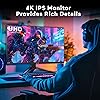
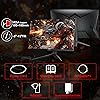
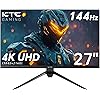
KTC 27 inch 4K 144Hz Gaming Monitor, UHD 3840 x 2160 IPS Computer PC Monitor, FreeSync & G-Sync, HDR Support, 134% sRGB, HDMI/DisPlayPort/USB, Tilt Adjustable, VESA Mountable, H27P22

  • Based on 0 reviews
Condition: New
Checking for the best price...
$299.99 Why this price?

Buy Now, Pay Later


As low as $50.00 / mo
  • – 6-month term
  • – No impact on credit to apply
  • – Instant approval decision
  • – Secure and straightforward checkout

Ready to go? Add this product to your cart and select a plan during checkout.

Payment plans are offered through our trusted finance partners Klarna, Affirm, Afterpay, Zip, Apple Pay, and Google Pay. No-credit-needed leasing options through Acima may also be available at checkout.

Learn more about financing & leasing here.

Selected Option

Free shipping on this product

30-day refund/replacement

To qualify for a full refund, items must be returned in their original, unused condition. If an item is returned in a used, damaged, or materially different state, you may be granted a partial refund.

To initiate a return, please visit our Returns Center.

View our full returns policy here.


Availability: In Stock.
Fulfilled by KTC-Official

Arrives Aug 8 – Aug 12
Order within 8 hours and 35 minutes
Available payment plans shown during checkout

Protection Plan Protect Your Purchase
Checking for protection plans...

Size: 27inch


Style: 4K IPS 144Hz


Features

  • 24.5-inch Smart Portable TV1080P FHD touch screen TV(19201080 resolution), 400 nits brightness,60Hz refresh rate,the picture quality is delicate and smooth.IPS panel accurately reproduces colors, making viewing clear and comfortable whether indoors or outdoors.

Brand: KTC


Screen Size: 27 Inches


Resolution: FHD 1080p


Aspect Ratio: 169


Screen Surface Description: Matte


Aspect Ratio: 169


Screen Finish: Matte


Refresh Rate: 144 Hz


Viewing Angle: 178 Degrees


Brightness: 400 candela_per_square_meter


Has Color Screen: Yes


Picture Quality Enhancement Technology: HDR, FreeSync, G-Sync


Screen Size: 27 Inches


Item Dimensions D x W x H: 19"D x 3"W x 25"H


Item Weight: 7.03 Kilograms


Resolution: FHD 1080p


Display Resolution Maximum: 1920 x 1080


Native Resolution: 3840x2160


Total Number of HDMI Ports: 1


Total Usb Ports: 1


Number of Component Outputs: 4


Color: Black


Brand: KTC


Model Number: A25Q5


Model Name: H27P22S


Warranty Description: 1


Manufacturer: KTC


Unit Count: 1.0 Count


Response Time: 14 Milliseconds


Hardware Connectivity: DisplayPort, HDMI, USB


Adaptive Sync: FreeSync, G-Sync


Frequently asked questions

If you place your order now, the estimated arrival date for this product is: Aug 8 – Aug 12

Yes, absolutely! You may return this product for a full refund within 30 days of receiving it.

To initiate a return, please visit our Returns Center.

View our full returns policy here.

  • Klarna Financing
  • Affirm Pay in 4
  • Affirm Financing
  • Afterpay Financing
  • Zip Pay in 4
  • Financing through Apple Pay
  • Financing through Google Pay
Leasing options through Acima may also be available during checkout.

Learn more about financing & leasing here.

Top Amazon Reviews

  • Excellent HDR Monitor at a Mid-Range Cost
Size: 27-inch Style: 2K 165Hz Mini LED
As of this review I've had no problems, will revise later if anything crops up. If you're in the market for an HDR monitor, and you're worried about OLED burn-in issues or price, this is an excellent middle-ground. I managed to purchase this monitor at $459 with a $120 coupon, which put it into the $360 range after tax. At that price it is an absolute steal, especially compared to the Cooler Master GP27Q, of which this monitor is a variant (KTC are the panel makers for the Cooler Master Mini-LED monitors). When purchasing this monitor, you should consider immediately upgrading the firmware, as it allows the use of HDR, local dimming, and VRR to work together. Reading over other reviews, it's clear that some of the users who have purchased this monitor don't understand the caveats of Mini-LED. You should never run local dimming and HDR when doing normal tasks in SDR, it will wash out the color and the blooming will be terrible. The monitor has a setting of "AUTO" for both local dimming and HDR, and you should assign them to that. You should then activate HDR whenever you're planning to watch HDR content or play games (win + alt + B in Windows), as it will automatically turn on both settings. For HDR this monitor is exceptional, the blooming is only noticeable under strict circumstances, and the brightness and saturation are great. While it is not as precise as my TCL QM8's backlight system, the implementation is quite good. The motion clarity is also really good in gaming, especially for a VA panel (specifically HVA for this monitor). I've played plenty of FPS games, and when you set the overdrive to advanced, which is the recommended setting in almost every scenario, there is little-to-no ghosting or black smear. Keep in mind this is still a 165hz panel, and if you're interested solely in FPS games I'd recommend something with a higher refresh rate. Setting overdrive beyond advanced will cause inverse ghosting, though this is common in most LCD monitors with aggressive overdrive settings. For SDR you'll need to do some calibration to your liking, as the colors are overly saturated out of the box, and you cannot adjust colors in HDR. My personal settings were to leave the Professional Mode in Native, and all of the initial "display" settings untouched. Under "Color Temperature" I set it to User, and then configured it for Red 48, Green 48, and Blue 47. Your colors may need to be adjusted differently, no panel is the same. The SRGB and DCI-P3 settings are also reasonably accurate, but keep in mind that with the gamma shifts of a VA panel this isn't a good monitor for color critical work. Interestingly, while this monitor will default to 144hz when HDR and local dimming are set to Auto, you can set custom resolutions that will force the monitor to still run at 165hz. While the difference is practically unnoticeable, I would understand why someone would want to do this for maximum performance. Setting a custom resolution will also allow you to force the monitor to run at 10-bit instead of 8-bit. This monitor is, like most "HDR" monitors, an 8-bit panel that will employ FRC to reach 10-bit color depth. The difference is negligible, but the manufacturer lists the panel as 8-bit for this reason. You can also run MPRT on this monitor, but the option is only available if you turn off HDR and local dimming. This includes switching them off of Auto, as MPRT will remain locked out otherwise. Other notable additions to this monitor are the 90w USB-C charging and video input, and 2 USB 3.1 pass through ports. When configuring this, note that the monitor sets the USB ports to off under KVM on initial setup. I'd recommend "Auto" setting if you are running something like a keyboard through the monitor, as the "USB UP" setting will not make the keyboard sleep when you turn off your computer. I don't need the KVM switch, so I cannot comment on use of that feature. You can configure hot settings for the joystick, but some of the most important features can't be bound to this function, which is an oversight in my opinion. Being able to turn off HDR to enable MPRT quickly would be nice (you can bind local dimming at least), but it's not a big deal for my use cases. I'd also like to point out that the build quality is pretty decent, though not as nice as the Gigabyte Aorus monitor it's replacing. The stand is heavy, and serviceable, but not particularly noteworthy, it does all the tilting and turning you'd need though. As for downsides, I'd argue that not including HDMI 2.1 is a little unfortunate. This monitor can simulate 4K and then downscale to 2K, which would be nice if you were interested in using this with a console. The viewing angles, due to it being a VA panel, aren't amazing, but still appreciably better than a TN panel, and you don't get the IPS glow. I have once noticed the flicker from local dimming, but it was localized to the Vignetting setting in the Witcher 3. Turning the setting off fixed the problem, but I don't understand why it would've caused an issue to begin with as it was causing the corners of the screen to be light rather than dark. There is a bit of black crushing, so you'll probably need to adjust your games to help alleviate overly dark or bright areas. I also don't understand why the blue light filter only adjusts in increments of 25, so be aware you may want to use your OS settings or videocard drivers instead. I also, for whatever reason, did not have the 3.1 adapter cable in my box, though I already had one from my previous monitor. There seems to be a common complaint of missing cables, so consider having alternatives on-hand. Frankly, all of these issues are minor to me, as the overall presentation is impeccable for the cost. It's worth noting that if you're not like me, and don't need the extra inputs/outputs, the AOC Q27G3XMN at $250-$280 is an excellent alternative to this monitor. It has a slightly worse build quality, less dimming zones, which doesn't matter as the implementation is good, and the OSD software is worse, but the presentation is just as good, if not better, than the M27T20, and its refresh rate is faster at 180hz. In fact, the VA panel it uses is possibly the fastest one currently available in terms of GTG performance, and the black smear is even lower than the M27T20's. Further, the AOC has a 3 year warranty to the KTC's 1 year. I also have to admit that I will miss having desktop software to control the monitor, which is something my Gigabyte monitor uses. That aspect of the user experience makes the implementation here feel not nearly as premium, but again setting things to Auto helps alleviate most of the headaches. The bottom line is, at the price I purchased this monitor, I think any shortcomings are easy to overlook. I'd strongly recommend doing the research on understanding how this monitor should be used before purchase, so that your expectations align with the experience. ... show more
Reviewed in the United States on March 7, 2024 by PWS

  • After 1 year of daily use, I can say this is the best monitor I've ever had! After 1 year of daily use, I can say this is the best monitor I've ever had!
Size: 27-inch Style: 2K 165Hz Mini LED
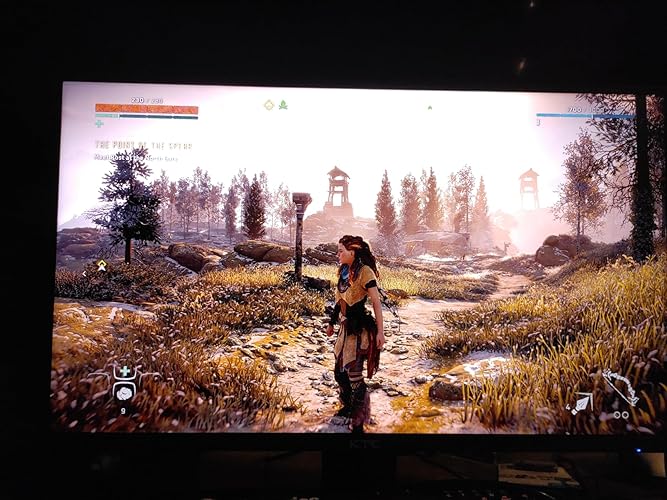
***UPDATE (01/13/2026)*** - The M27T20 is still going strong with no issues whatsoever! I've been using the KTC M27T20 as my main monitor for a little over a year now and it has been amazing! I updated the firmware to the latest version (V1.2.1A) and used an ICC Profile from a YouTube channel called "techless" and loaded it through a program called DisplayCAL and after a few small tweaks to the settings in the monitor's OSD (which I'll upload a screenshot of my settings), this monitor has gone above and beyond my expectations! The two main features that make this monitor worth it for me are the Local Dimming and HDR capabilities. First, HDR is amazing but I have found that your experiences and how it is implemented with PC games will vary from game to game. Though with NVidia's new RTX HDR and programs like SpecialK/reShade, you can customize HDR content to best fit your display and the KTC M27T20 will need some tweaking to get things perfect but once you've got the settings dialed in, it's beautiful and vibrant. Second, Local Dimming is a must have feature to have enabled when using HDR as you'll be able to get those inky blacks. While you're not getting the black levels of an OLED display, the KTC M27T20 is a VA display with excellent contrast and with local dimming enabled, you can get pretty close to an OLED with minimal blooming...most of the time. Local dimming should really only be enabled with HDR content and I leave it on Auto but when I used my Switch to play The Legend of Zelda: Tears of the Kingdom, I turned it on and despite being SDR, it worked really well with the artstyle and areas like the Depths looked great with Local Dimming enabled so your mileage will vary. A feature that I was unaware of when I purchased the monitor but came in handy was the 90w USB-C port on the back of the monitor. It can be used as an alternate display connection for a variety of devices and act as a fast charging port. Because of it's power output, I can power my Pinecil soldering iron off of my monitor which is crazy to think about. There's also 2 USB-A 3.0 ports, a USB-B UpStream port, 2 HDMI 2.0 ports, a DisplayPort 1.4 port, and a 3.5mm audio connection. This monitor also doubles as a KVM but I haven't tested it since it's a feature I don't have any use for personally but I know many look for it. If I had one complaint about the monitor, it's that the power cable is a bit short. There's a cable that runs from the monitor to a power brick and then another cable running to the wall or surge protector. Both cables are awkwardly short and I have to prop the brick on a shelf under my desk otherwise it would be suspended in the air rather than resting on the floor where I would've liked it to be. Also, despite having built in speakers, they work but the quality leaves a lot to be desired. Make sure you get a pair of desktop speakers instead. Final thoughts, if you don't want to spend the money that current OLED monitors are going for and want a good HDR monitor with excellent contrast, go with the KTC M27T20. It's cheaper than a lot of the competition and as long as you update the firmware from the main website, you'll be golden. (Sorry for poor quality phone pictures, I just wanted to show the difference Local Dimming can have when running a game with HDR enabled) ... show more
Reviewed in the United States on May 10, 2024 Reviewed in the United States on May 10, 2024 by AMT

  • Awesome budget mini led with local dimming. Awesome budget mini led with local dimming.
Size: 27-inch Style: 2K 165Hz Mini LED
Ive wanted an oled for years but still dont trust them with burn in. I have been using a 55" 4k 120Hz hisense u8h mini led qled tv as my pc monitor for about a year. Its an amazing display and makes me not feel like im missing out on an oled but its huge and hard on my eyes its so bright, and 4k 120Hz is hard to push with a rtx 3090. I realized a 27" 1440p display would actually have a better pixel per inch density than my 4k at 55", and have the huge benefit of being easier to push frames for my rtx 3090. After ordering I had a little buyers guilt and thought I wouldnt like the monitor, was worried it would be too small but boy was I surprised. First off, with the stock firmware I noticed local dimming option was grayed out in the menu. I think the stock firmware cant run local dimming with gsync on. The firmware update was painless. Just head to ktc website, downloads, pick your model... For this M27T20 model I had to download the bin file, rename it, put it on a usb stick, put usb stick in slot next to power jack, in menu chose usb update. After it updates just power cycle it, open the menu and choose reset. Now i have local dimming and it looks fantastic. Out of the box settings look good to me. With overdrive set to advanced, hdr and local dimming set to auto.... Windows looks fine, nice and easy on the eyes. When opening a game and local dimming kicks in its amazing. This display gets bright like my hisense u8h but being able to play at 1440p without dlss on, it truely looks better to me than 4k did on my big 55" with dlss on. Awesome, bright little monitor with fantastic contrast and black levels. I got it on sale and it was a steal. Solong as it holds up and lasts ill be very happy with it! Almost want to get a 2nd one! ... show more
Reviewed in the United States on May 14, 2024 Reviewed in the United States on May 14, 2024 by Dan Cunningham

  • Gift for the wife
Size: 25-inch Style: 25" FHD MegPad
I bought this for my wife and she loves it. She’s not thrilled about the remote as it only works up close to the monitor. But other than that she’s content with the overall performance. Made a good valentines day present
Reviewed in the United States on February 27, 2026 by jose

  • This is an excellent Android device if you need something this large
Size: 25-inch Style: 25" FHD MegPad
Pros: 1) The touchscreen works well 2) The image is crisp 3) Bluetooth and Wi-Fi work well 4) Great audio volume and quality 5) Built-in extensible/rotating stand 6) Built-in carry handle 7) Decent battery life (esp. for its size) 8) Great value for the cost (which is in the quality 11" tablet range - or even less in some cases) 9) 19v power connector can accommodate identically-sized 19v laptop power supplies. Cons: 1) It's heavier than expected (but then it *does* have batteries) 2) HDMI input, in addition to the USB-C input, would be very helpful. I had to purchase a powered HDMI-USBC adapter to use this with a number of my existing devices. 3) No VESA mounting ability. I would like to mount this on a desktop clamp-style stand or a wall, but there are no mounting holes in the back. ... show more
Reviewed in the United States on August 30, 2025 by Sympler LLC

  • The Person That Came Up With This MegPad is a GENIUS! The Person That Came Up With This MegPad is a GENIUS!
Size: 25-inch Style: 25" FHD MegPad
THE BEST! No need for a long review just go buy it, it’s definitely worth the money. Do not hesitate on it. Easy installation!! PERFECT!!
Reviewed in the United States on March 9, 2026 Reviewed in the United States on March 9, 2026 by Tenecia Davis

  • Worked fine first day. Second day failure
Monitor was beautiful and amazing on the first day. Had 0 issues. Went to turn it back on the second day and greeted with electrical buzzing, popping, and the smell of burnt electronics. Returning for a refund as they would not allow me to exchange it. Very poor QC.
Reviewed in the United States on January 6, 2024 by Brian

  • Quality affordable monitor
Easy to set up and use, nice bright colors, clear visuals. Happy with my purchase.
Reviewed in the United States on November 27, 2025 by Kari M

Can't find a product?

Find it on Amazon first, then paste the link below.
Checking for best price...